Web Photo Editor (Beta)
The Web Photo Editor is a free image editor that runs in your browser, with no installation and no sign-up. It has full editing features such as photo adjustments, text, layer compositing and PSD import. You can also make social media posts and flyers from templates, and cut out people with AI. Besides computers, it can be installed as a PWA (added to the home screen and used like an app) on Android phones and tablets.
It is currently in beta. If you find a bug or have a request, please let us know through the contact form.
Who it's for
- People who want to fix the brightness and colors of photos easily
- People who want to make Instagram posts, YouTube thumbnails or shop flyers quickly from templates
- People who want to cut out a person from a photo and remove the background
- People who want to stack images or edit only part of an image with layers
- People who want to open and touch up a PSD file quickly
- People who need to edit images on a computer where they can't install software, or on a smartphone
Main features
Start from a template
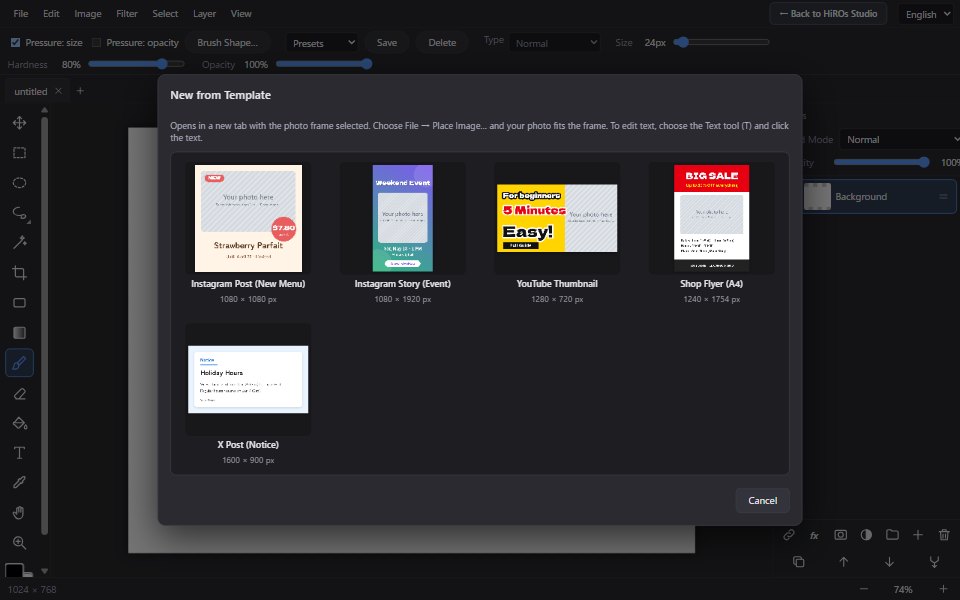
Choose File → New from Template… to open a ready-made layout: Instagram post, Instagram story, YouTube thumbnail, shop flyer (A4) and X post. The photo frame is selected when the template opens, so choosing a photo with "Place Image…" fits it neatly into the frame. To change the text, just click it with the Text tool and retype.
Cut out people with AI
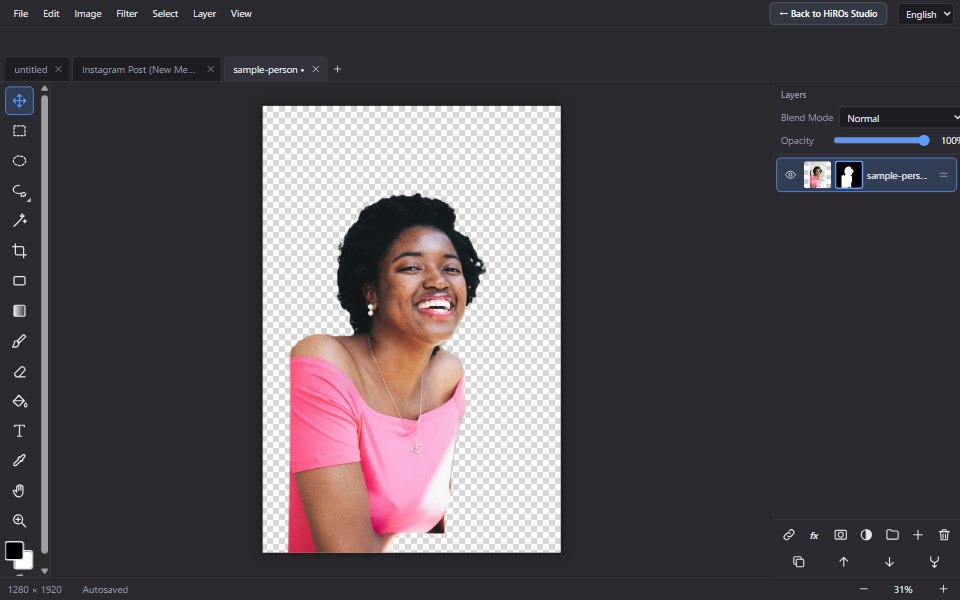
Select → Select Person (AI) lets the AI select the people in a photo automatically. Keep Person Only (Hide Background) hides the background with a mask, so you can save a transparent PNG. The AI runs inside your browser, so your photo is not sent anywhere (the AI program itself is downloaded the first time you use it).
Paint, erase and select
Paint with the Brush, Eraser, Paint Bucket and Eyedropper. Brushes come as presets such as pencil, marker, airbrush, chalk, spray, star stamp, fountain pen and halftone, and you can save your own settings as "My Brushes". Brush types are Normal, Blur, Smudge, Dodge, Burn and Clone Stamp. You can also set the tip shape, spacing, scatter and textures such as paper, canvas and halftone, and with a pen, pressure can control size and opacity. Selection tools include Rectangle, Ellipse, Lasso, Polygon and Magnetic Lasso, and Magic Wand, plus Crop and Free Transform.
Layers
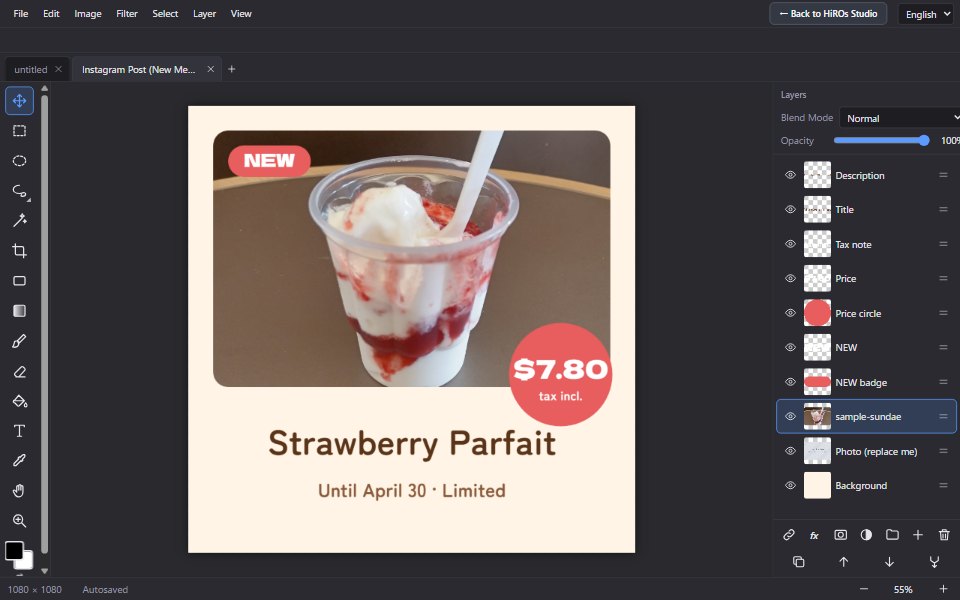
Put images and text on separate layers and edit them on top of each other. Opacity, blend modes, layer masks (paint white to show, black to hide), layer groups and linked layers are supported. Adjustment layers (brightness, hue/saturation, levels, invert, black & white, threshold, posterize) let you fix colors without changing the original image, and you can change their settings later.
Color adjustments and filters
The Image menu has brightness/contrast, hue/saturation/lightness, levels, curves (RGB and R/G/B curves), invert, black & white, threshold and posterize. You can also rotate (90°, 180°) and flip the image. Filters are Gaussian blur, sharpen, noise and pixelate.
Text
Choose from standard fonts, Google Fonts, HiROs Pop (HiROs Studio's original font), and the fonts installed on your PC (the list can be loaded in Chrome and Edge on a computer; in other browsers, type the font name). Size, bold, italic, underline, strikethrough, vertical text, alignment, letter spacing, line height and warp are supported, and text can follow a curve ("on path"). Layer styles include stroke, drop shadow, inner shadow, outer glow, bevel & emboss, satin, color overlay, gradient overlay and pattern overlay.
Shapes, gradients and rulers
Draw rectangles (with rounded corners), ellipses and lines. Gradients can be linear, radial, angle or reflected. Rulers and guides help you align things or set positions by number.
New document sizes, tabs and saving
When creating a new document, you can choose sizes for YouTube, social media, print (postcard, business card, photo sizes) and phones from a list. Open several images at once in tabs. Open tabs are saved automatically and restored the next time. To keep work in progress as a file, use "Save Project".
Import and export
PSD files can be opened (layers, opacity, blend modes and masks are kept). Export formats are PNG, JPG, WEBP, AVIF (supported browsers only), GIF, BMP, ICO, TIFF, TGA, PPM, DDS, RAW, SVG (with the image embedded), PDF and PSD.
The interface can be switched between Japanese and English.
Basic steps
- Open an image: File → Open Image…. You can also start from a blank canvas with "New…", or from a layout with "New from Template…".
- Move around: Ctrl + mouse wheel to zoom, and drag while holding Space to pan. On touch screens, pinch and drag with two fingers.
- Fix colors: use the color adjustments in the Image menu, or Layer → Add Adjustment Layer. Adjustment layers can be changed later.
- Add text: choose the Text tool (T), click the canvas and type. Change the font and size in the settings at the top.
- Edit only part of the image: select an area with a selection tool, then apply a filter or adjustment; it only affects that area. For people, Select → Select Person (AI) is handy.
- Export: File → Export… and choose a format. To keep working later, export as PSD or use "Save Project" so the layers are kept.
Press Ctrl+Z to undo and Ctrl+Shift+Z to redo.
Keyboard shortcuts
| Action | Key |
|---|---|
| Move / Brush / Eraser / Paint Bucket / Eyedropper / Hand | V / B / E / G / I / H |
| Brush size | [ and ] |
| Swap foreground and background colors / Default colors | X / D |
| Rectangle / Ellipse / Lasso / Magic Wand | M / O / L / W |
| Crop / Free Transform | C / Ctrl+T |
| Select All / Deselect / Invert Selection | Ctrl+A / Ctrl+D / Ctrl+Shift+I |
| New Layer / Copy Selection to Layer | Ctrl+Shift+N / Ctrl+J |
| Save Project | Ctrl+S |
| Undo / Redo | Ctrl+Z / Ctrl+Shift+Z |
FAQ
Is it free? Do I need to sign up?
It is free and needs no sign-up. Just open it in your browser. The first time, we ask you to agree to the Terms of Use. Because it is in beta, features may change or stop without notice.
Are my images sent to a server?
Image editing, including cutting out people with AI, is processed inside your browser. Your images are never sent to HiROs Studio's servers. However, if you choose a Google Font, the font data is downloaded from Google.
Is my work saved?
Open tabs are saved automatically in your browser and restored next time, but they are lost if you clear your browser data. Always export important images as files, or save them as a project.
Can I use the fonts installed on my PC?
Yes. Choose "Load fonts from this PC…" in the font list to see the fonts installed on your computer (Chrome or Edge on a computer; the browser asks for permission the first time). The font list is remembered only in your browser and is not sent anywhere.
Does it work on a smartphone?
Yes. Pinch and drag with two fingers to zoom and pan. On Android, use "Add to Home screen" in the browser to launch it like an app. Detailed work is easier on a computer.
Do PSD files look exactly the same?
Layers, opacity, blend modes and masks are kept, but the result may not look exactly the same as in the original software. Smart Objects are imported as image previews and are not exported as Smart Objects. Keep the original file for important data.
Are there formats it can't export?
MP4, EXR, DXF and EMF are not supported. PNG, JPG, WEBP, PDF, PSD and more can be exported. For video, use the Video Editor.
I found a bug
Please tell us "what you did" and "what happened" through the contact form. It helps if you also mention your browser.
Before you use it
- The Web Photo Editor is in beta. There may be bugs or things it cannot do.
- Use requires agreeing to the Terms of Use. Editing illegal content or content that infringes the rights of others is prohibited.
- Always keep your original files and export your work for safekeeping.
- The app uses Google Analytics for access analysis (your images are not sent). No ads are shown in the app. See "Ads and Analytics" for details.
- "Photoshop", "PSD", "Google Fonts" and other names are trademarks or names of their respective companies. This app is not affiliated with those companies.