How to Cut Out a Person from a Photo: Remove the Background with AI (Free, No Sign-up)
With HiROs Studio's web photo editor, an AI selects the person in your photo with one click and hides the background. It is free, and there is nothing to install and no account to create.
The AI runs inside your browser. Your photo is never uploaded, so you can safely use private pictures.
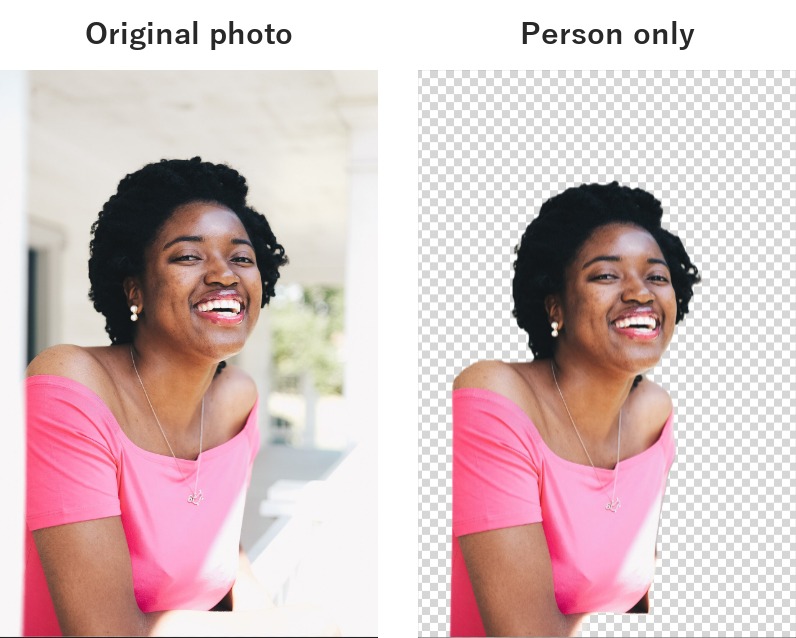
Practice photo
If you don't have a photo at hand, use this practice photo.
Download the practice photo (sample-person.jpg)

(Photo: Wikimedia Commons, free to use under CC0.)
To show the editor in English, choose English in the language menu at the top right.
1. Open your photo
- Open the web photo editor.
- Click File → Open Image… at the top left and choose your photo.
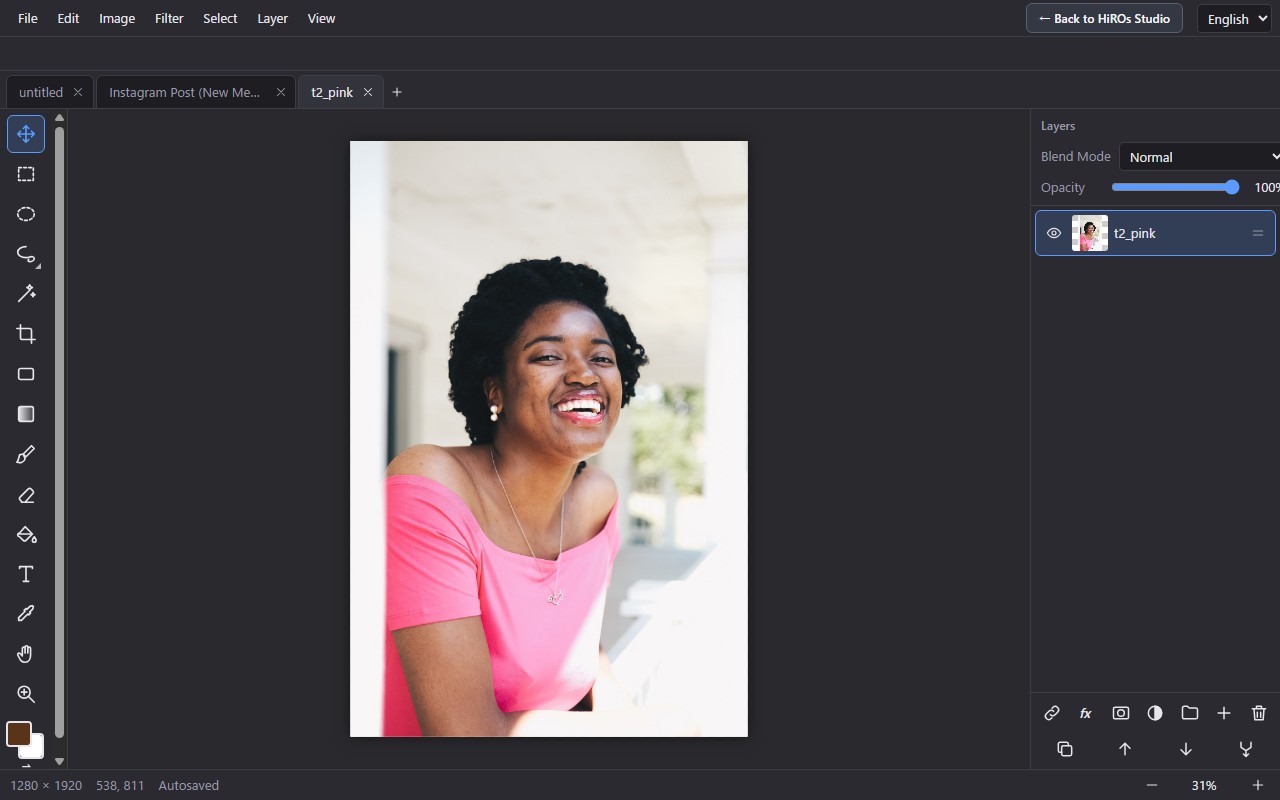
2. Click "Keep Person Only"
- Click the Select menu.
- Click Keep Person Only (Hide Background).
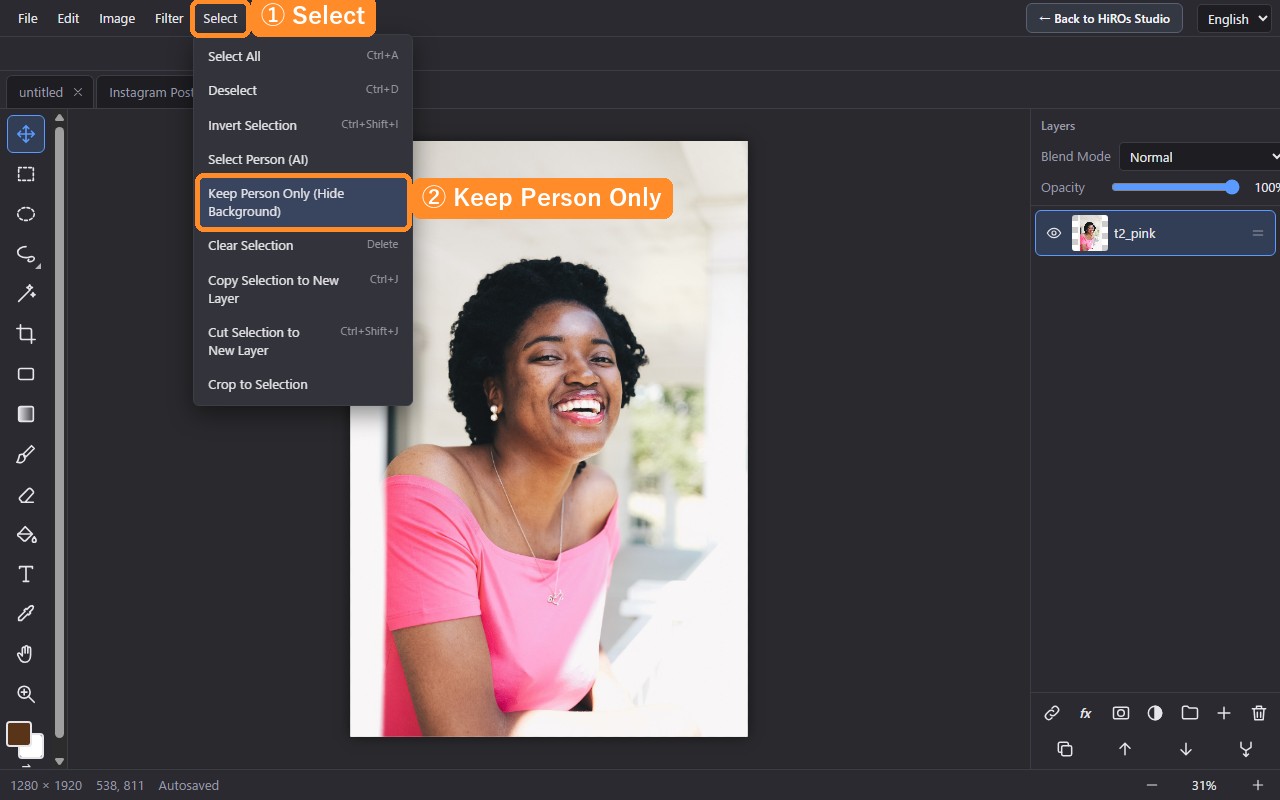
The first time only, the AI needs a moment to get ready (a few seconds to about ten seconds, depending on your connection). After that, it takes about one or two seconds.
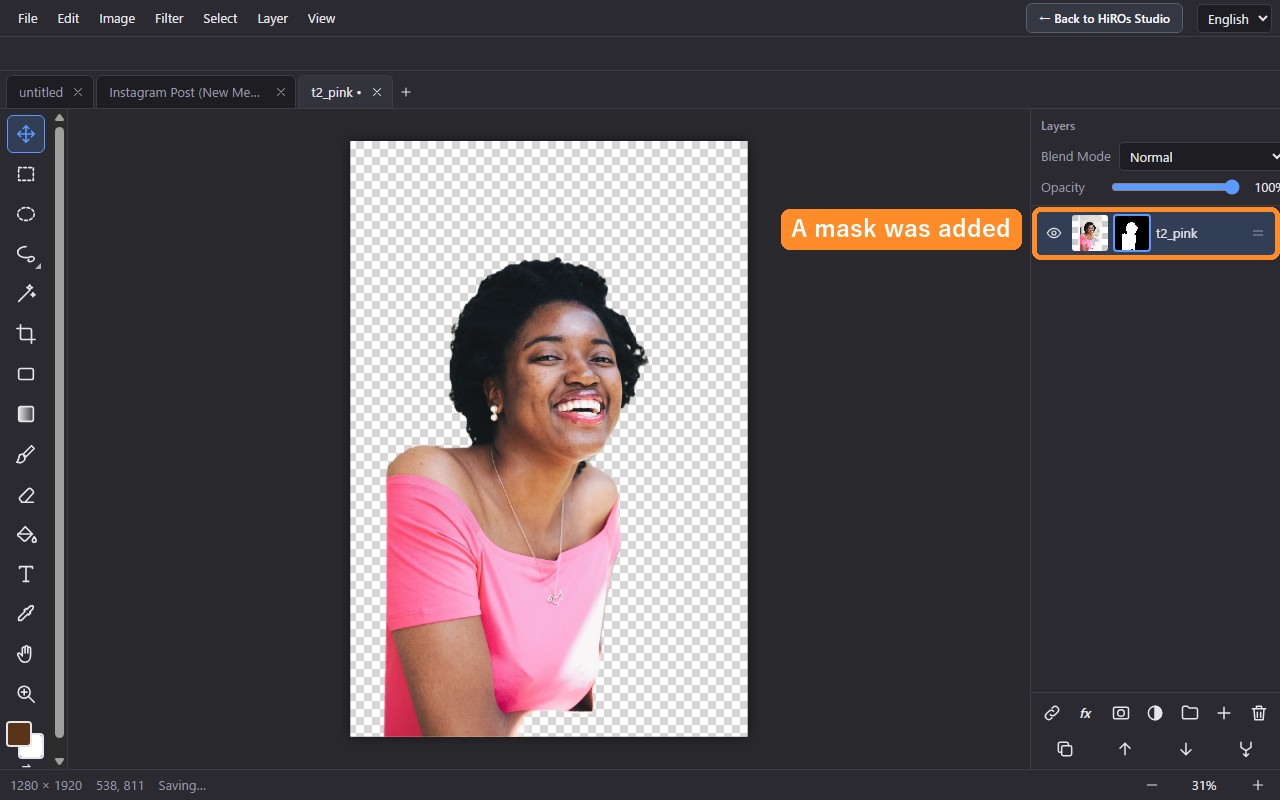
3. Fix any spots by hand
The background is not deleted. It is hidden with a mask, and your original photo stays untouched, so you can fix things as often as you like.
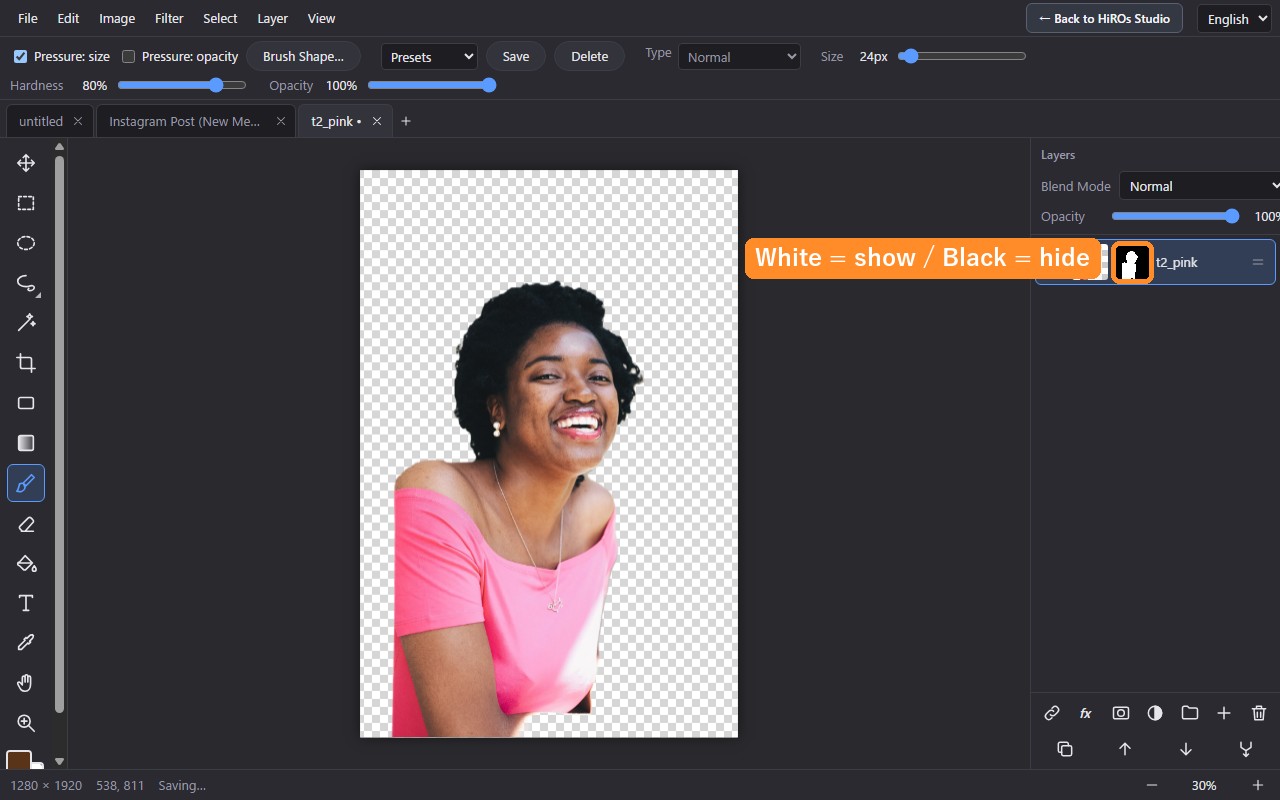
- Click the black-and-white square (the mask) next to the layer to select it.
- Choose the Brush tool on the left.
- Pick a color with the color square at the bottom left. Paint with white to bring back missing parts. Paint with black to hide leftover background.
If you paint too much, press Ctrl+Z to undo. For more about masks, see How to Use Layers and Masks.
4. Save it with a transparent background
- Click File → Export….
- Choose PNG (.png) as the format.
- Click Save.
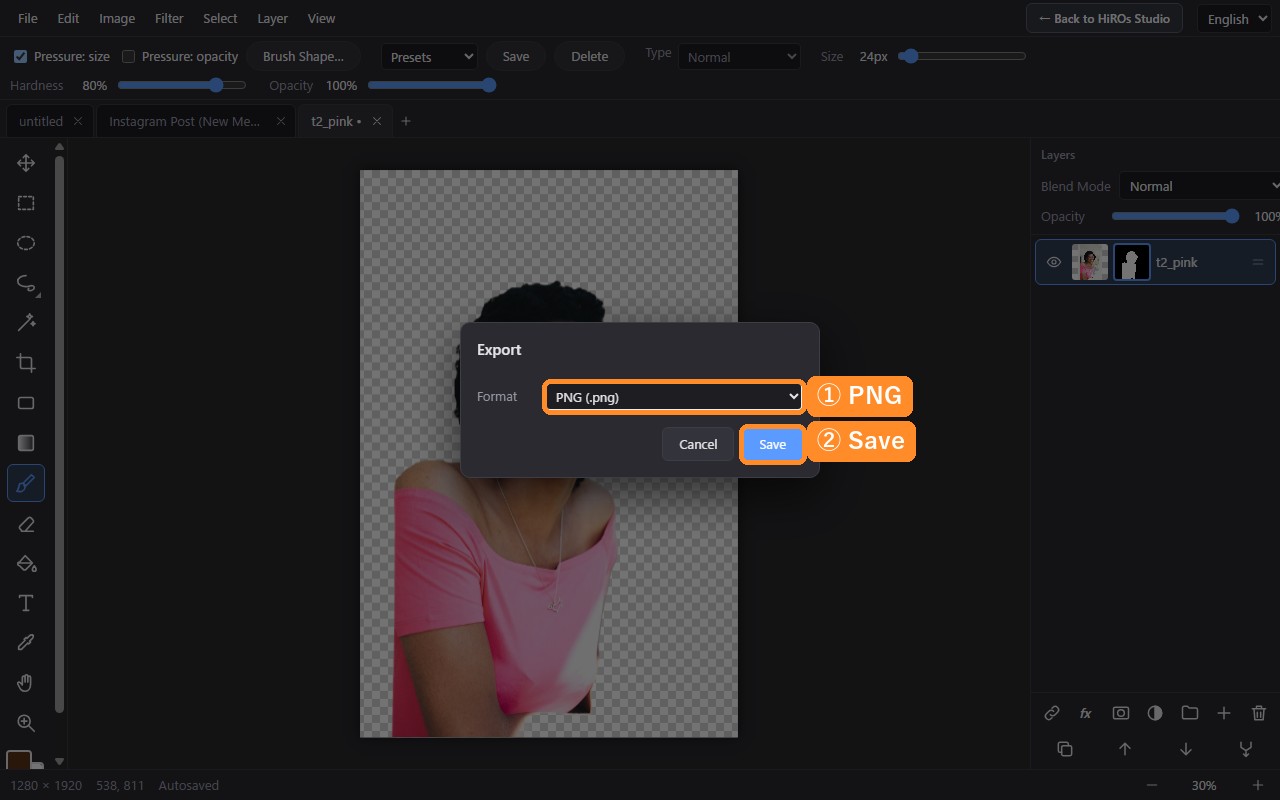
To keep the background transparent, always choose PNG. In JPG, transparent areas turn white.
Other ways to use it
- Put a new background color behind the person: create a new layer, move it below the person's layer, and fill it with any color.
- Only make a selection: use Select → Select Person (AI). The person becomes a selection, and Copy Selection to New Layer (Ctrl+J) puts the person on a separate layer.
- Use it in a social media post: you can place the cut-out person into a template. See How to Make an Instagram Post.
Troubleshooting
- This AI only finds people. For animals or objects, see How to Cut Out Objects with the Selection Tools.
- If there are several people, all of them are kept. Hide the ones you don't want by painting the mask black.
- Strongly blurred parts or clothes in the same color as the background may be cut off. Paint the mask white to fix them.
- If you see a "Could not select the person" message, reload the page and try again.
FAQ
Is my photo sent anywhere?
No. The AI runs in your browser. The only thing downloaded the first time is the AI program itself.
Does it cost anything?
No. It's free for as many photos as you like, with no account needed.
Does it work on a smartphone?
Yes, but the AI may take longer to get ready and fine touch-ups are harder. A computer is easier to work with.
For an overview of all features, see Web Photo Editor.