How to Cut Out Objects from a Photo: Magic Wand, Lasso, Polygonal and Magnetic Lasso
Want to cut an object out of a picture and put it on another background? That's what the selection tools are for. The web photo editor has four ways to select, each suited to different situations. In this tutorial we use a practice picture (an apple) to show the steps and when to use which tool. Nothing to install, no account needed.
Open the photo editor → Download the practice picture (apple)

Open the practice picture directly with File → Open Image…. To show the editor in English, choose English in the language menu at the top right.
1. Which tool should I use?
| Tool | Best for |
|---|---|
| Magic Wand | When the background or object is mostly one flat color (illustrations, product photos on white) |
| Lasso Select | When a rough shape is fine. Trace freehand with the mouse or pen |
| Polygonal Lasso | Shapes with many straight edges (boxes, buildings, signs) |
| Magnetic Lasso | Objects with clear outlines but complex shapes (people, animals, tools) |
2. Select the background with the Magic Wand and cut out the object
- Choose the magic wand icon in the toolbar (W key).
- Click the background of the picture. Connected areas of nearly the same color are selected.
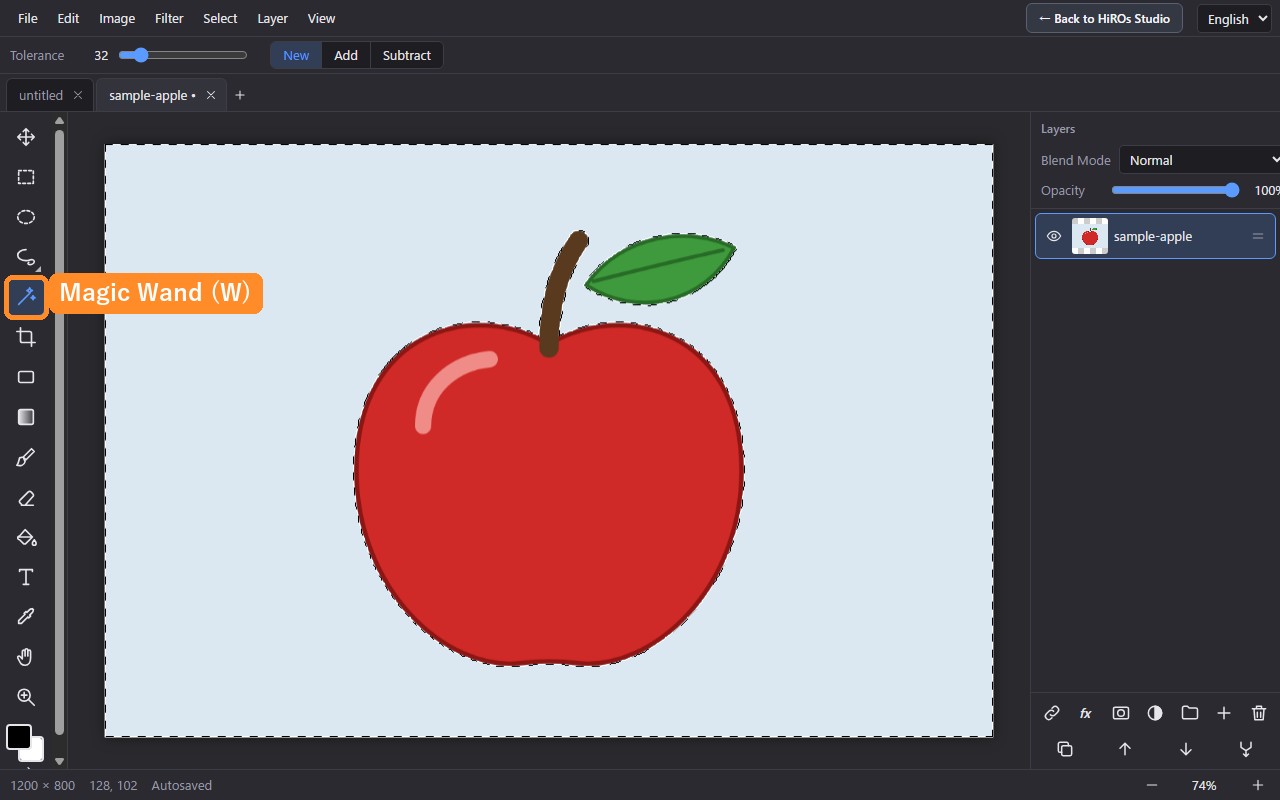
- Tolerance (slider in the top bar, 32 by default): higher values select a wider range of similar colors. Lower it if too much is selected; raise it if not enough is selected.
- Switching modes (New / Add / Subtract in the top bar) and keyboard shortcuts are explained in section 5.
- Click Select → Invert Selection (Ctrl+Shift+I). Now the apple (with its stem and leaf) is selected instead of the background.
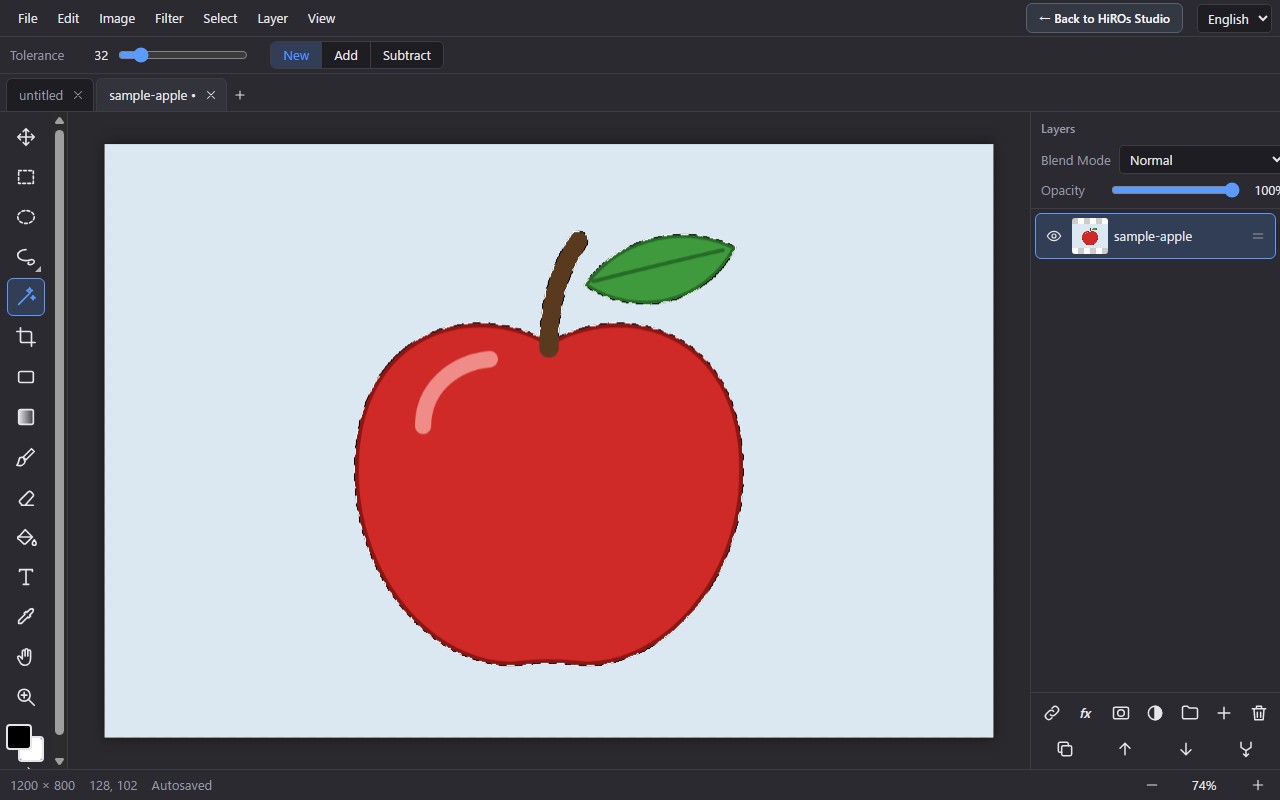
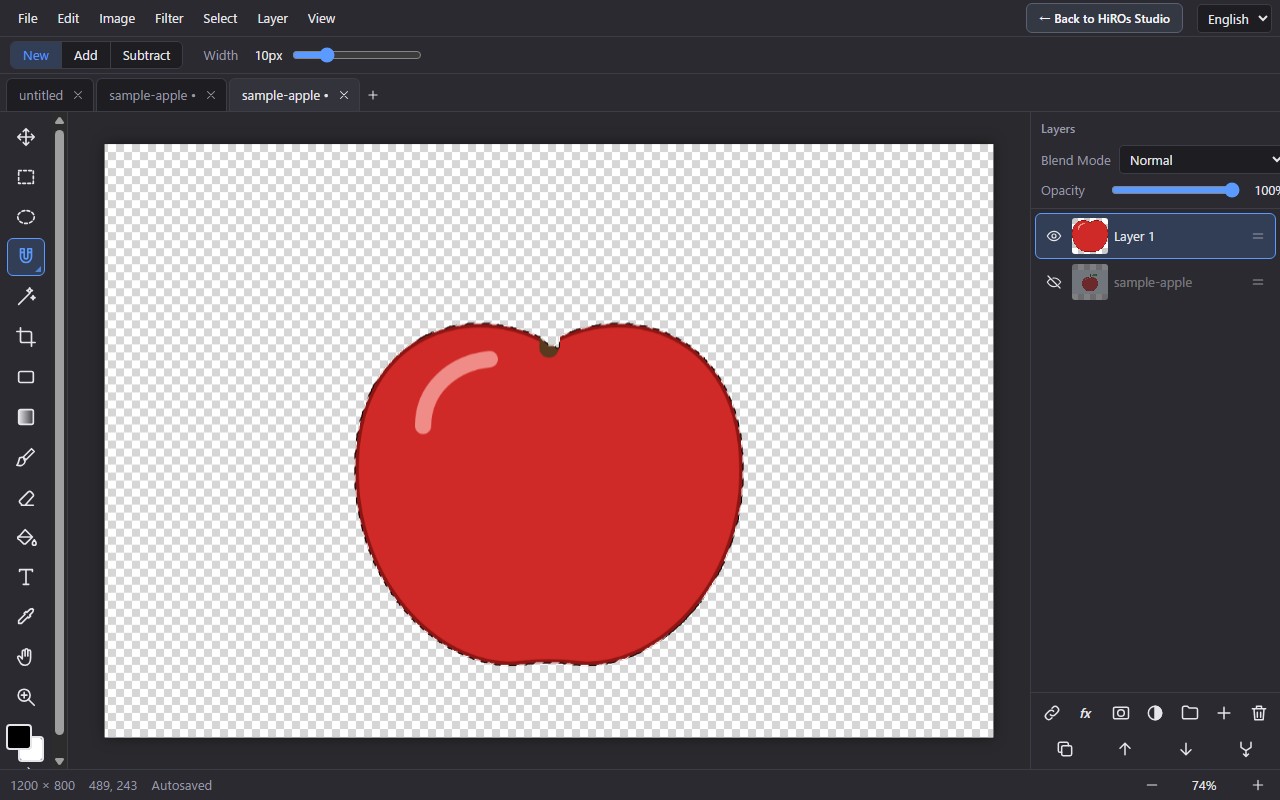
- Click Select → Copy Selection to New Layer (Ctrl+J). A new layer with only the apple is created.
- In the Layers panel on the right, click the eye icon of the original layer to hide it. Only the apple remains on the checkerboard (transparency).
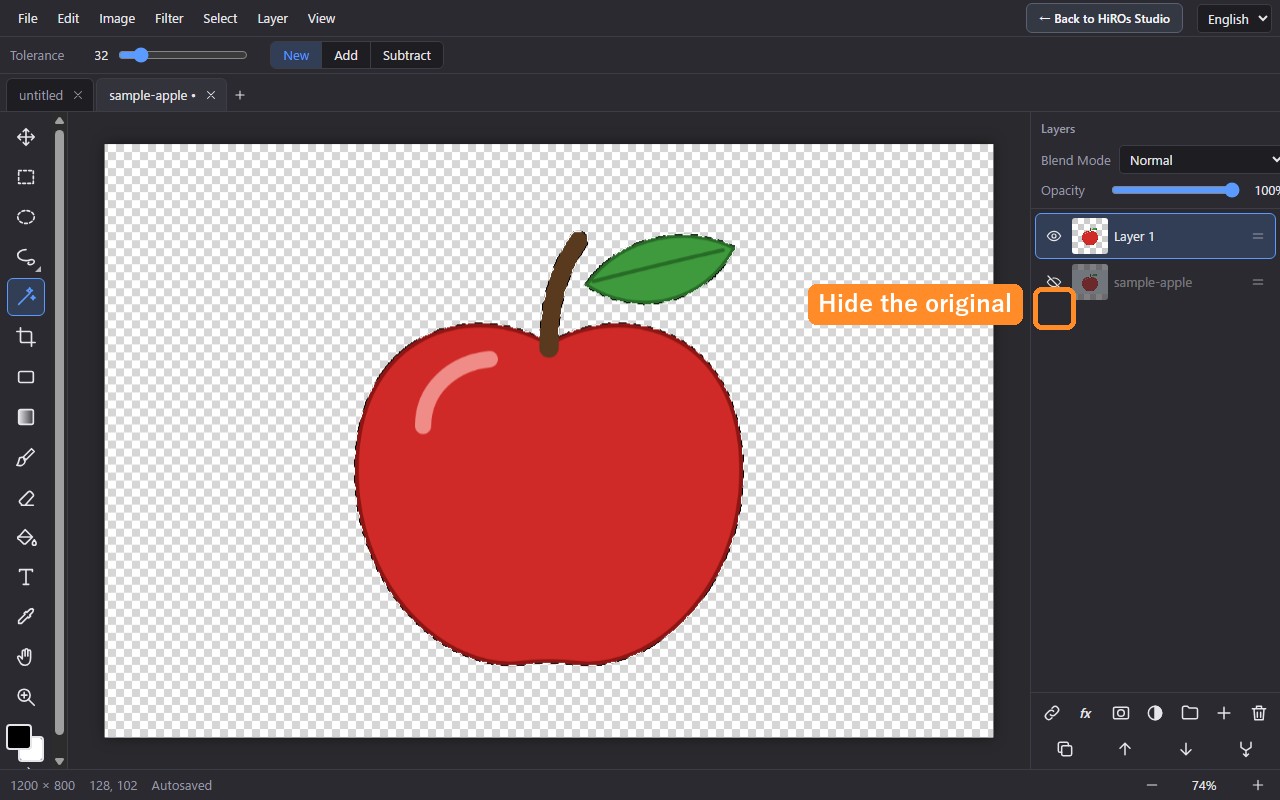
Now choose File → Export… and PNG to save an image with a transparent background. To keep the layers for later edits, export as PSD.
3. Lasso, Polygonal and Magnetic Lasso share one icon
Press and hold or right-click the lasso icon in the toolbar (it has a small triangle in its corner) to open a list of the three tools.
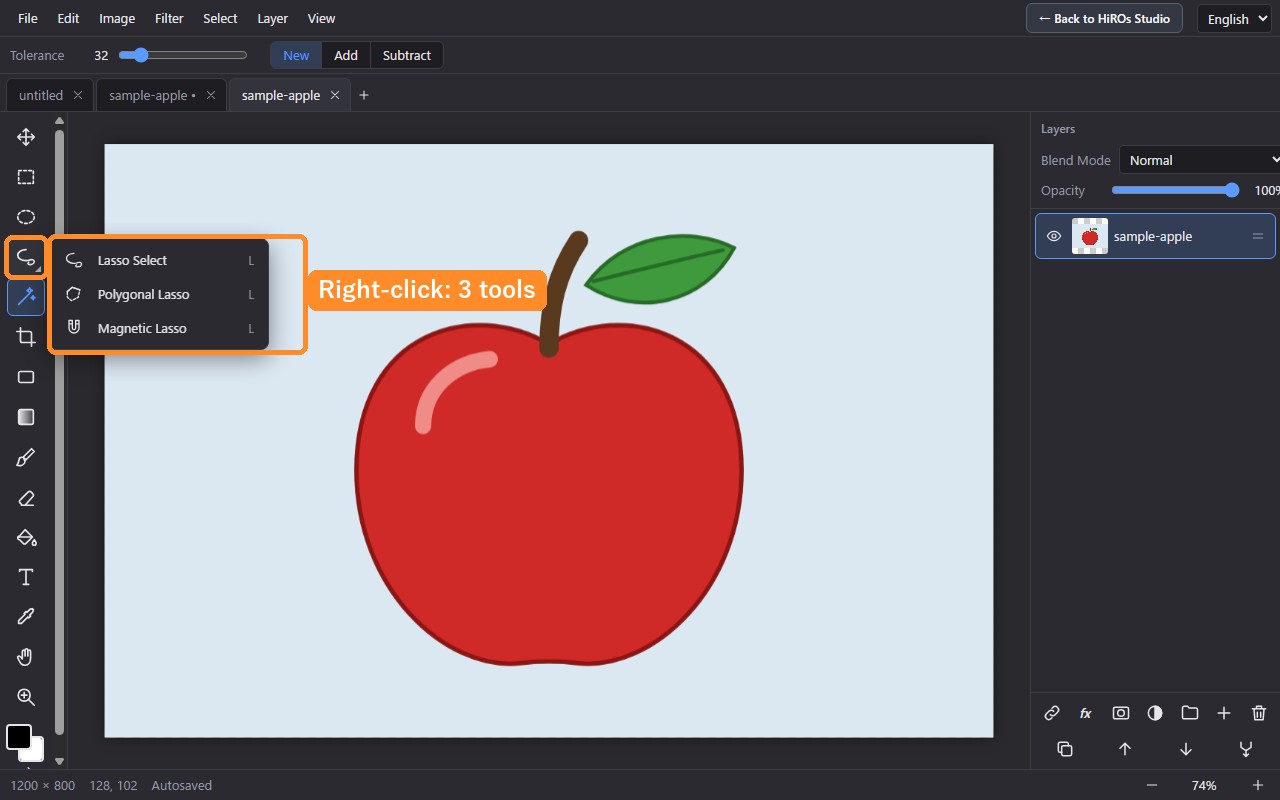
The L key selects the lasso tool you used last. Shift+L cycles through the three.
Lasso Select (freehand)
Hold the button down, trace around the object, and release. The selection closes automatically where you release.
Polygonal Lasso
- Click to place points around the object. The points are joined by straight lines.
- To finish, click the first point (the square marker), double-click, or press Enter.
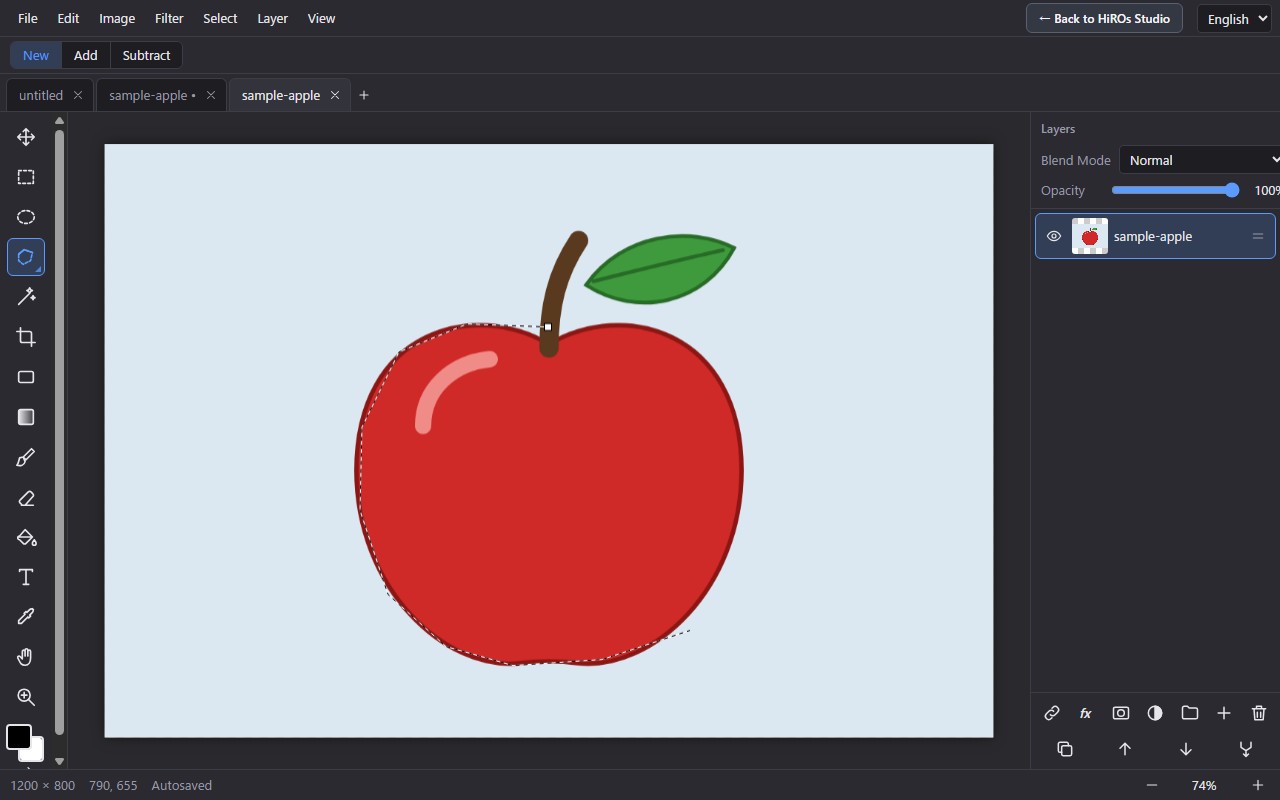
- Hold Shift while clicking to snap the line to 45-degree steps.
- Backspace removes the last point. Esc starts over.
- For curved objects, place points close together for a smoother result.
Magnetic Lasso
As you move the cursor, the line snaps to the object's outline automatically.
- Click on the outline to start.
- Move the cursor slowly along the outline. The line follows it.
- Where the line might slip (corners, for example), click to place a point.
- When you've gone all the way around, click the first point, double-click, or press Enter to finish.
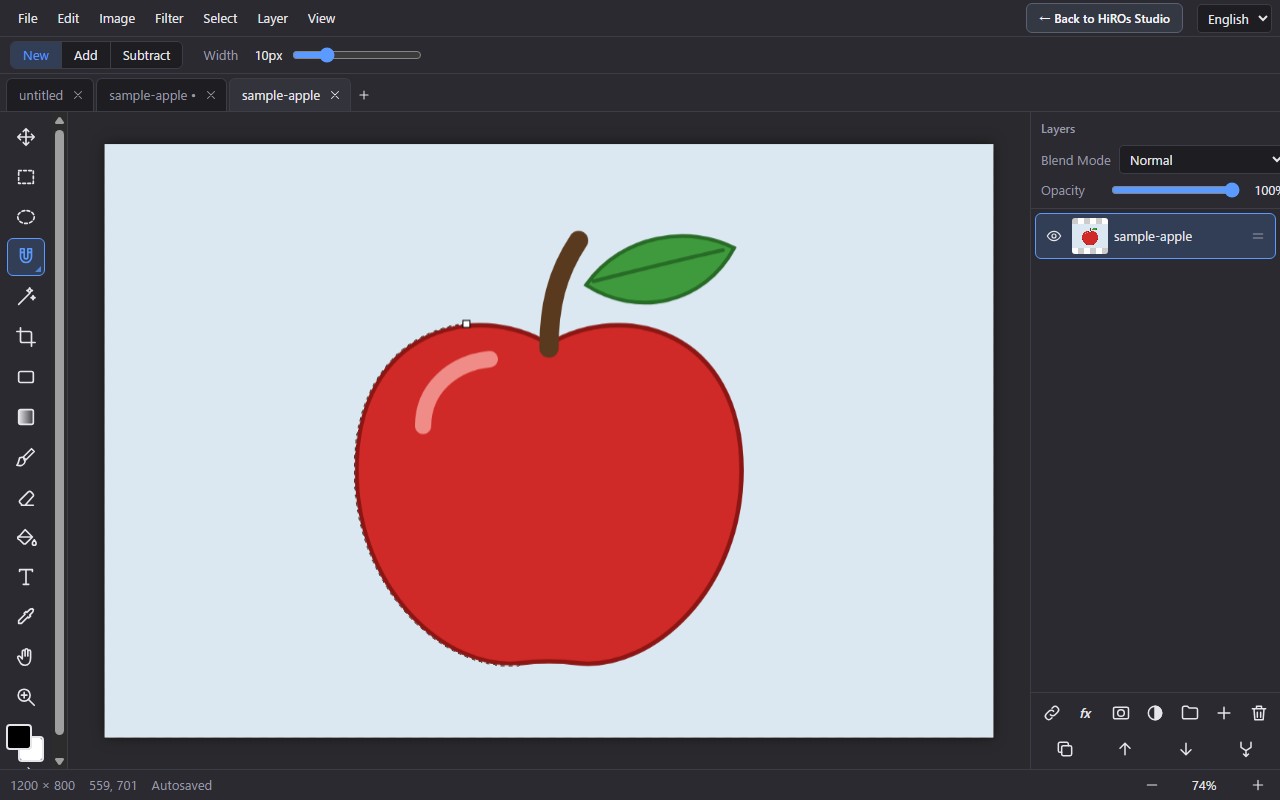
- Width in the top bar is how far it searches for an edge (10 px by default). Increase it if your clicks tend to miss the edge; decrease it if the line jumps to another nearby edge.
- Where the outline's color is close to the background, the snapping is weaker. Place points more often there.
- Backspace (remove last point) and Esc (cancel) work the same as with the Polygonal Lasso.
- Edges are found in the whole visible picture.
4. Zoom in for fine details
For detailed outlines, zoom in before selecting.
- Choose the Zoom tool (Z key). Press the button where you want to zoom and move right to zoom in (the lens shows "+") or left to zoom out (the lens shows "−").
- To move around while zoomed in, hold the Space key and drag.
- While using a selection tool, you can also zoom with Ctrl + mouse wheel.
5. Reselect, add and subtract
The top bar has New / Add / Subtract buttons (shown when a selection tool is active).
| To… | Do this |
|---|---|
| Start over (replace the current selection) | Choose New and select |
| Add to the selection | Choose Add, or hold Shift while selecting |
| Subtract from the selection | Choose Subtract, or hold Alt while selecting |
| Deselect | Esc or Ctrl+D, or Select → Deselect |
A common pitfall: if Add stays switched on, every new selection is added to the old one and you can't start over. Switch back to New. This setting is remembered the next time you open the editor.
6. Troubleshooting
The Magic Wand selects part of the object too
Lower the tolerance. If the object and background colors are still too close, switch to the Magnetic Lasso.
Patches of background remain after using the Magic Wand
Raise the tolerance, or add the remaining parts with Add (Shift+click).
The Magnetic Lasso doesn't follow the edge well
Place points more often where the edge is weak, and try adjusting Width.
Background color remains around the edge of the cut-out
The selection may extend slightly outside the object. Zoom in and place the points again, or trim the outside with Subtract (Alt).
I made a mistake
Ctrl+Z undoes and Ctrl+Shift+Z redoes.
7. Save your work
To use only the cut-out object, choose File → Export… and PNG (transparent background). To continue later, use PSD or Save Project so the layers are kept. Always keep the original file of important images.
For more, see Web Photo Editor, How to Use Layers and Masks and How to Add Text to a Photo.