How to Make an Instagram Post: Add a Photo and Text to a Template and Save at 1080×1080 (Free)
Want to post a new menu item or an announcement on Instagram, but not confident about design? Use the templates in HiROs Studio's web photo editor. Just add your photo and retype the text, and your post image is ready.
It's free, with nothing to install and no account to create. Your photos stay inside your browser.
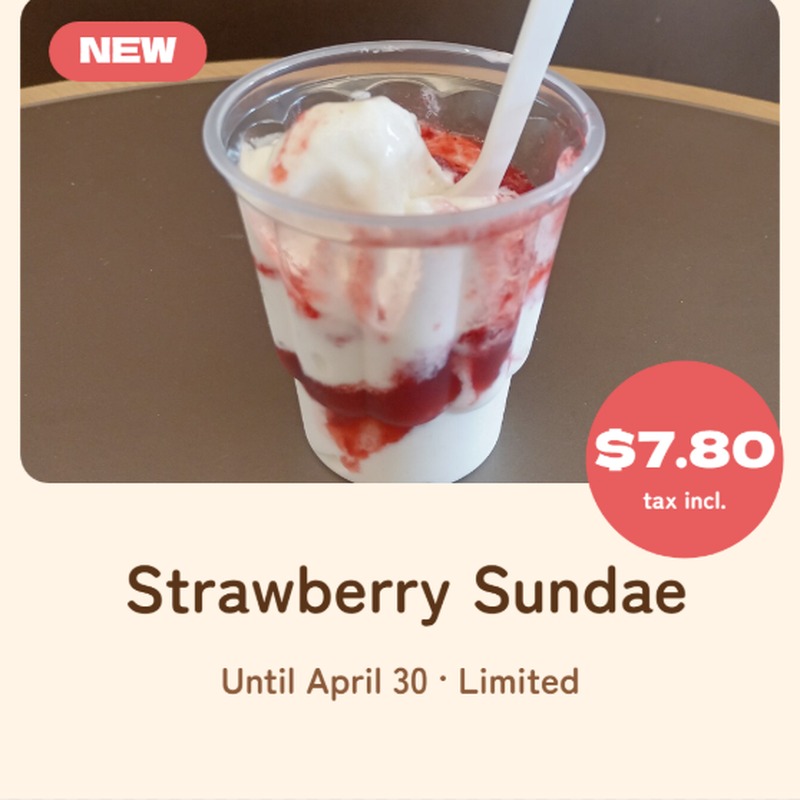
Practice photo
Download the practice photo (sample-sundae.jpg)
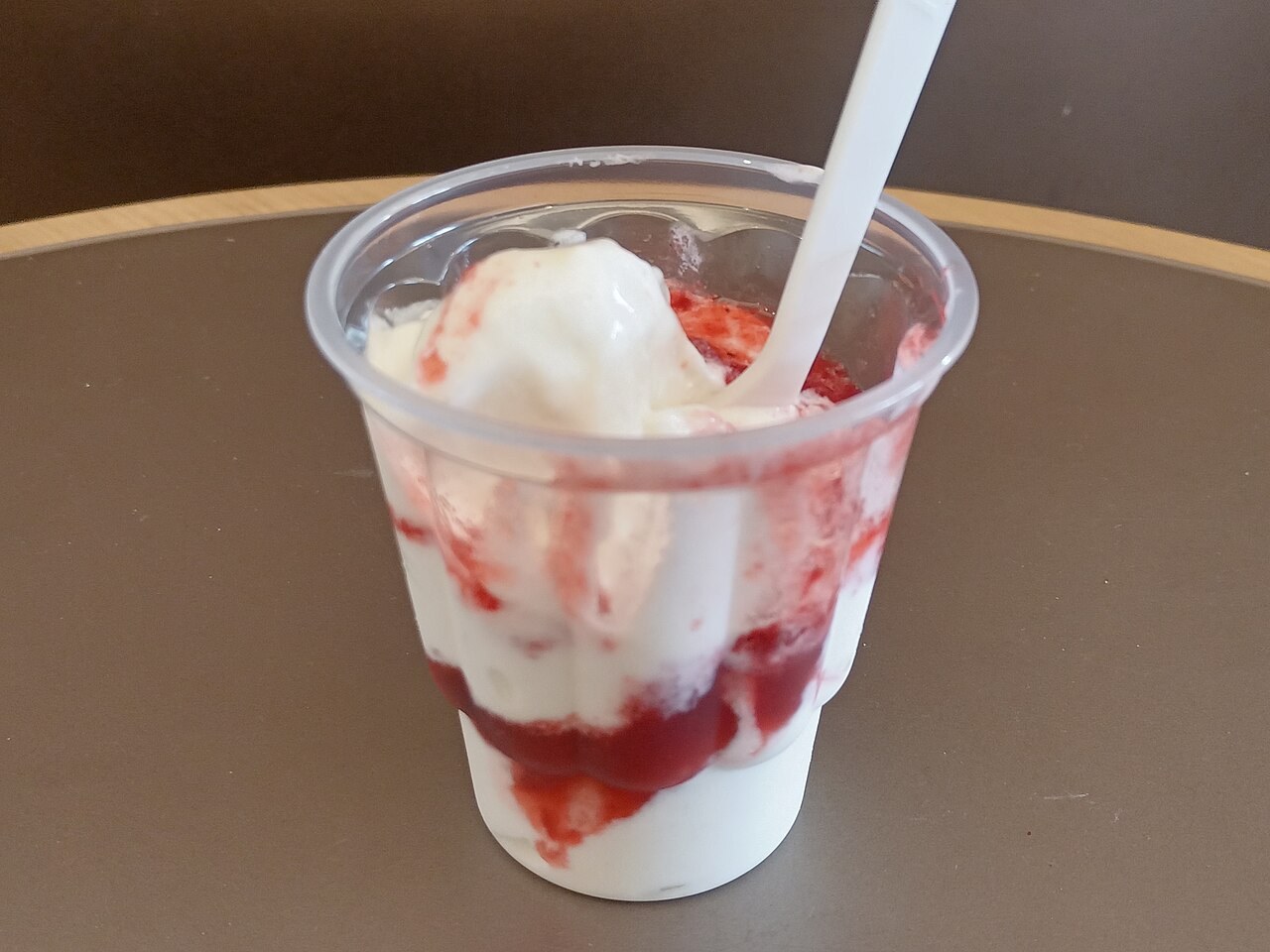
(Photo: Wikimedia Commons, free to use under CC0.)
To show the editor in English, choose English in the language menu at the top right. The template text also appears in English.
1. Open a template
- Open the web photo editor.
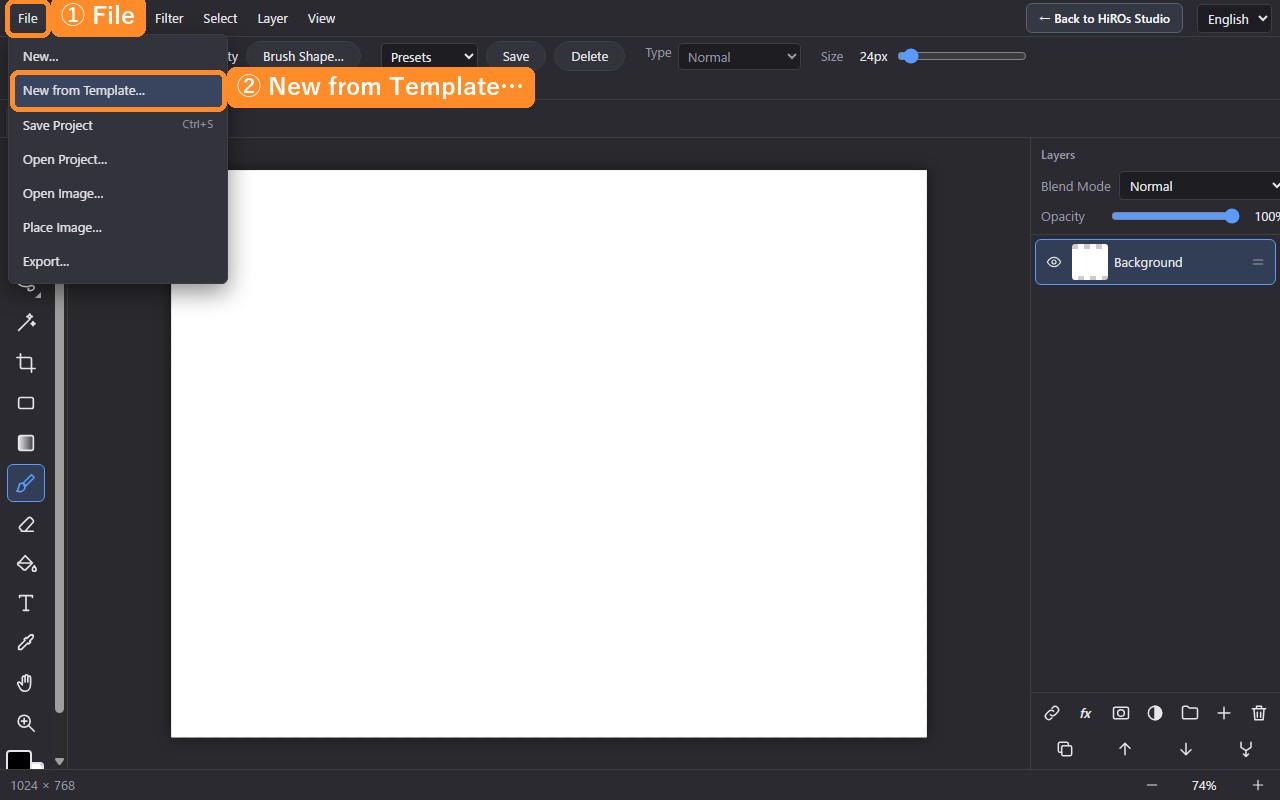
- Click File → New from Template… at the top left.
- Click Instagram Post (New Menu) in the list.
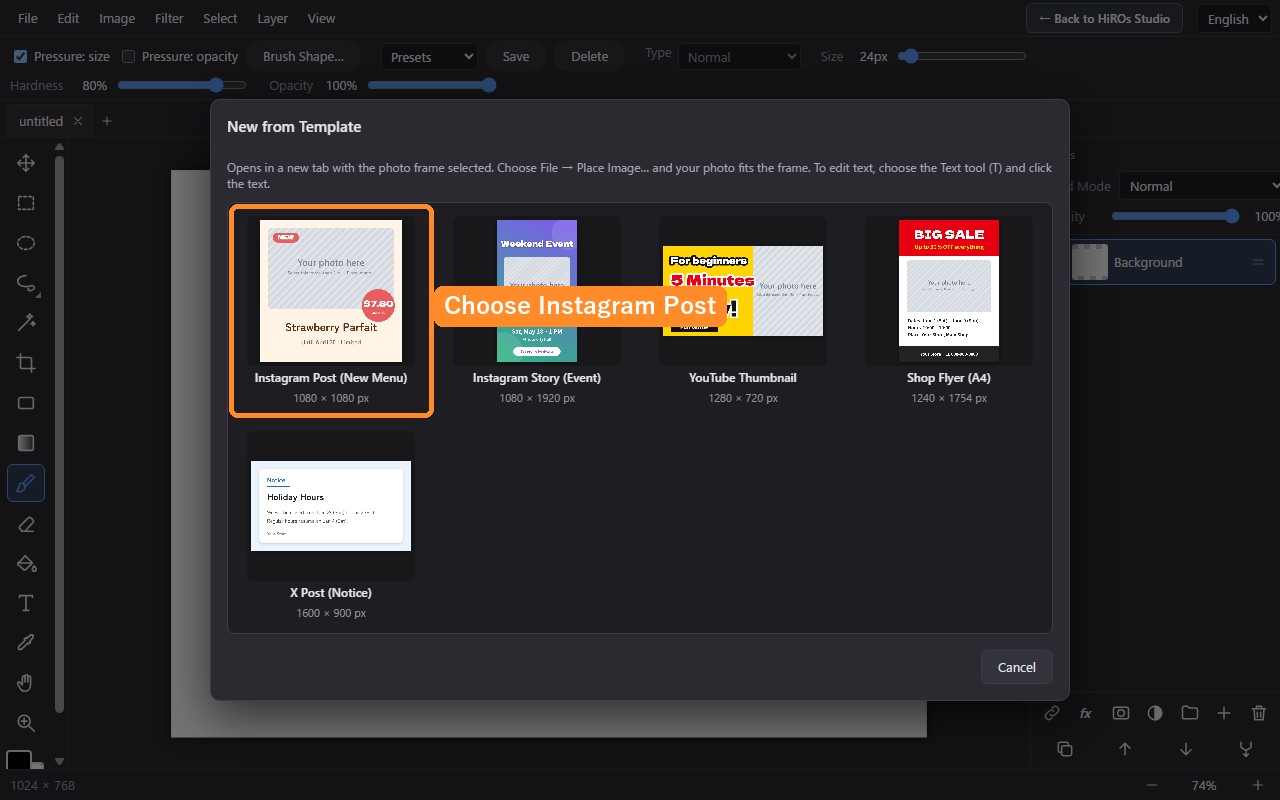
A 1080×1080 image (Instagram's square size) opens in a new tab. In the layer list on the right, Photo (replace me) is already selected.
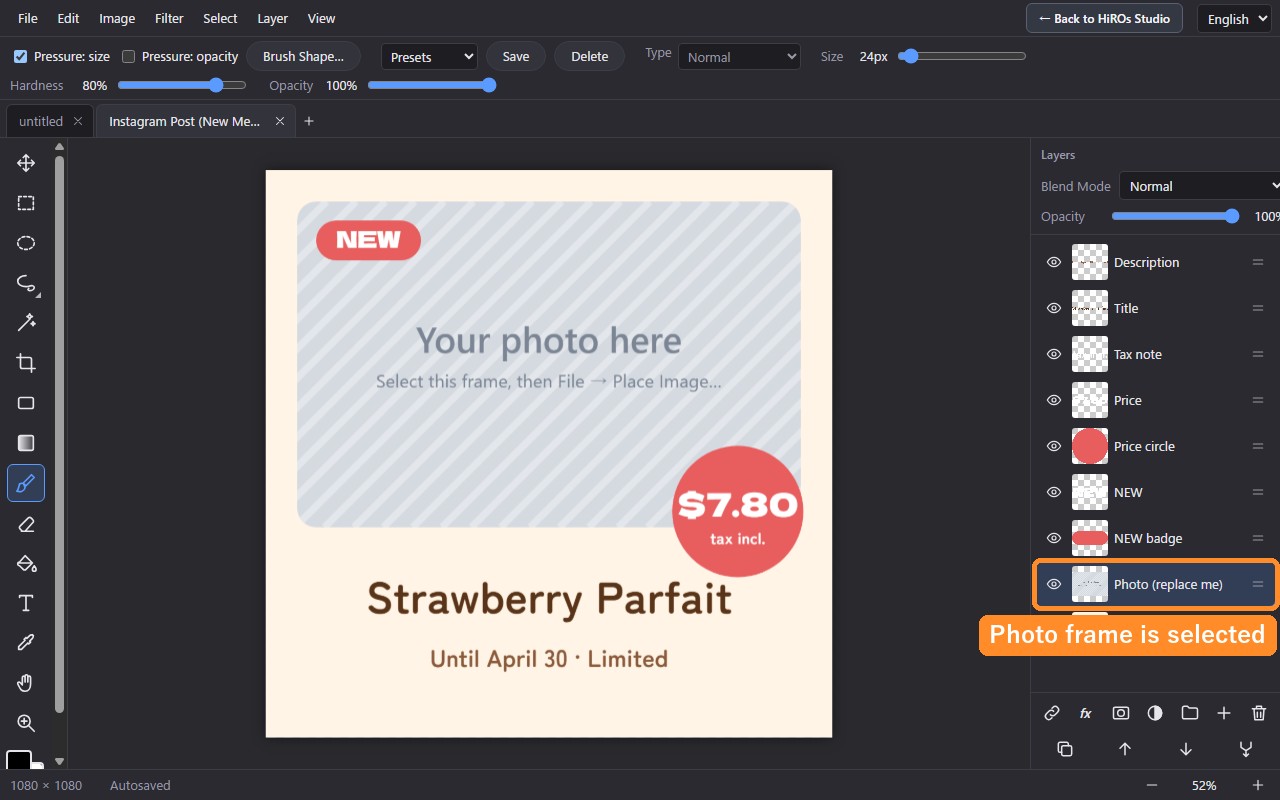
2. Add your photo
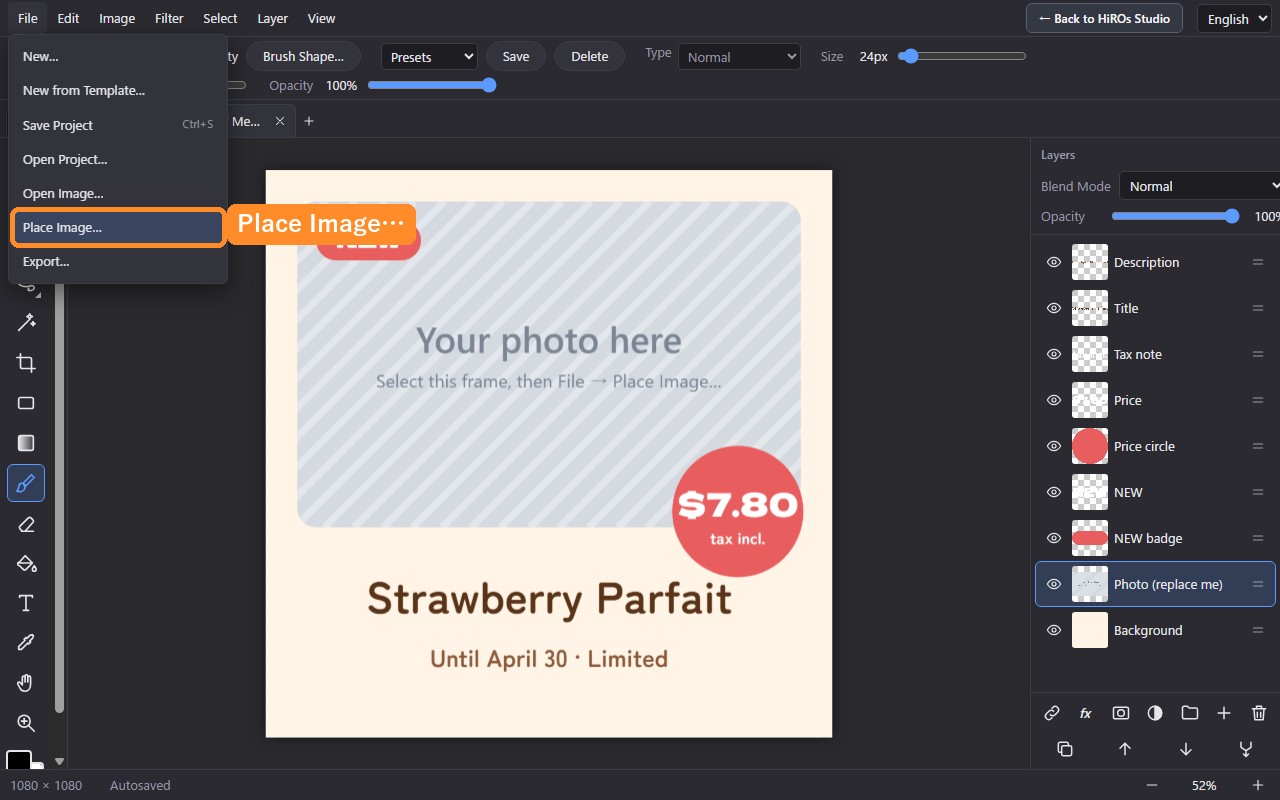
- Click File → Place Image….
- Choose your photo.
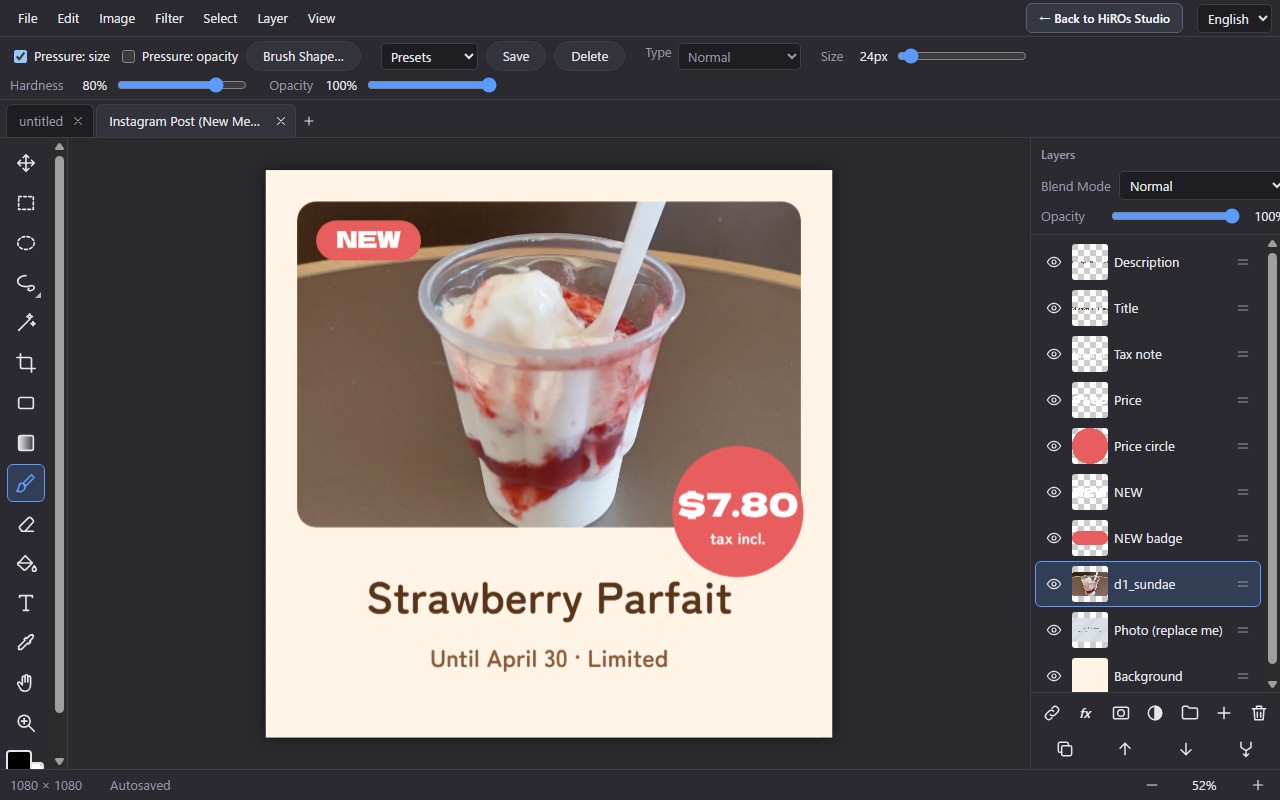
The photo fills the frame automatically, and its corners are rounded to match the frame.
(If the photo frame is not selected, the photo is placed in the middle at its original size. In that case, press Ctrl+Z, click Photo (replace me) in the layer list, and choose Place Image… again.)
3. Change the text
- Choose the Text tool (T) on the left (or press T on the keyboard).
- Click the text you want to change (for example "Strawberry Parfait"). The text is selected.
- Type the new text.
- When you're done, press Esc.
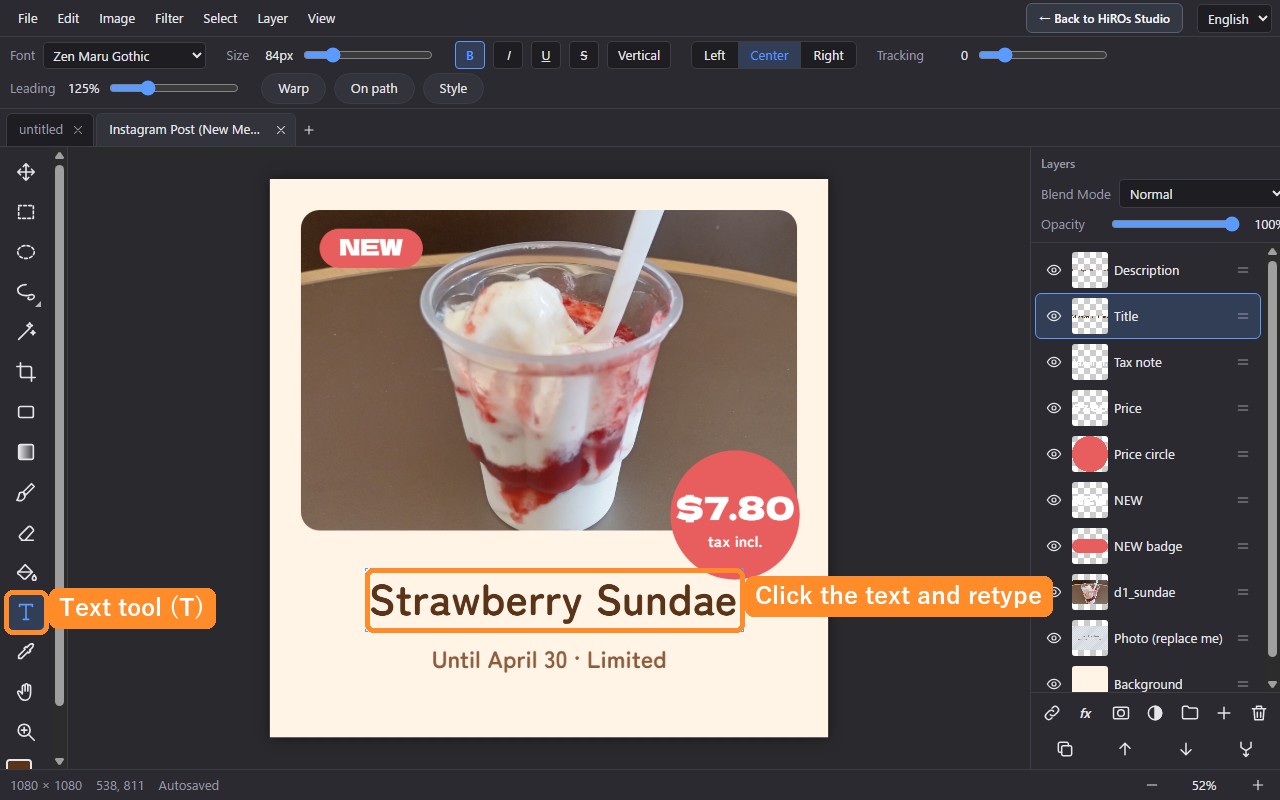
Change the price ($7.80) and the date (Until April 30) the same way. While the text is selected, you can change its size and font in the bar at the top. For more decoration ideas, see How to Add Text to a Photo.
4. Save it for Instagram
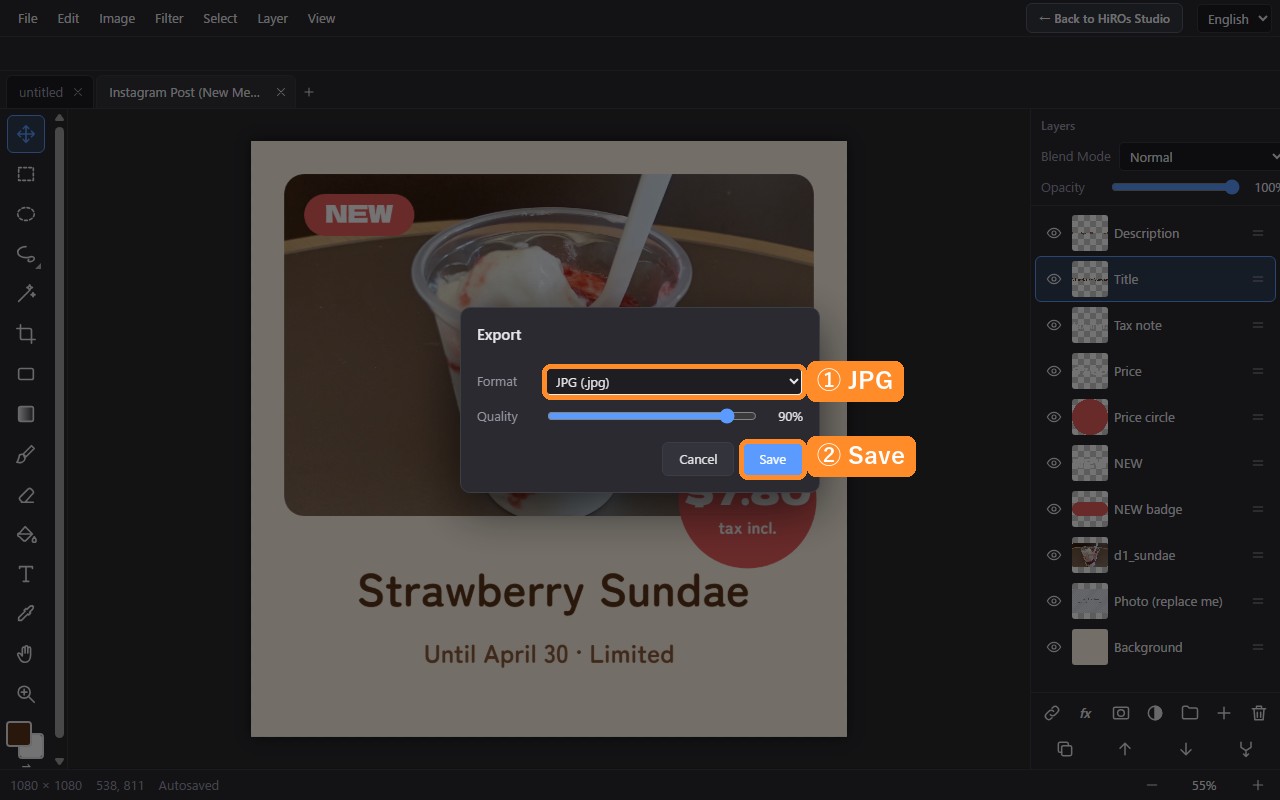
- Click File → Export….
- Choose JPG (.jpg) as the format.
- Click Save.
Send the saved image to your phone and post it on Instagram.
Keep it for next time
File → Save Project saves the work so you can still edit the text and photo later. Next time, open that file with Open Project… and just swap the photo and text.
Tips
- Use a bright photo with a large subject: when the photo fills the frame, a little of the top/bottom or sides is cut off. A subject in the center fits best.
- Keep the text short: people will see it on a small phone screen. A title of three or four words works well.
- Using a photo of a person? You can remove the background first. See How to Cut Out a Person from a Photo.
FAQ
Does it cost anything?
No. The templates are free and you can use them as often as you like.
Can I make other sizes?
There are also templates for an Instagram story (1080×1920), a YouTube thumbnail (1280×720), a shop flyer (A4) and an X post (1600×900). To start from a blank canvas, use File → New… and pick a size.
For an overview of all features, see Web Photo Editor.