How to Open PSD Files for Free: View, Edit and Save in Your Browser
Someone sent you a PSD file, but you don't have Photoshop? You can open it in HiROs Studio's web photo editor. It's free, with nothing to install and no account needed. Your images stay inside your browser and are not sent to HiROs Studio's servers.
In this tutorial we use a practice PSD file and go step by step: open it, look inside, and save it, with screenshots.
What is a PSD file?
PSD is Photoshop's image file format. A normal photo (such as a JPG) is one flat picture. A PSD keeps the background, pictures and text separate, like stacked transparent sheets. Each sheet is called a layer.
Because the layers are separate, you can later "change only the text" or "remove only the picture".
First, download the practice PSD
If you don't have a PSD at hand, use this practice file. It's a café announcement with the background, decorations, coffee cup and text on separate layers.
Download the practice PSD (sample-cafe-en.psd, about 3.8 MB)
(Downloaded files usually go to your "Downloads" folder.)
To show the editor in English, choose English in the language menu at the top right.
1. Open the PSD file
- Open the web photo editor with the button above.
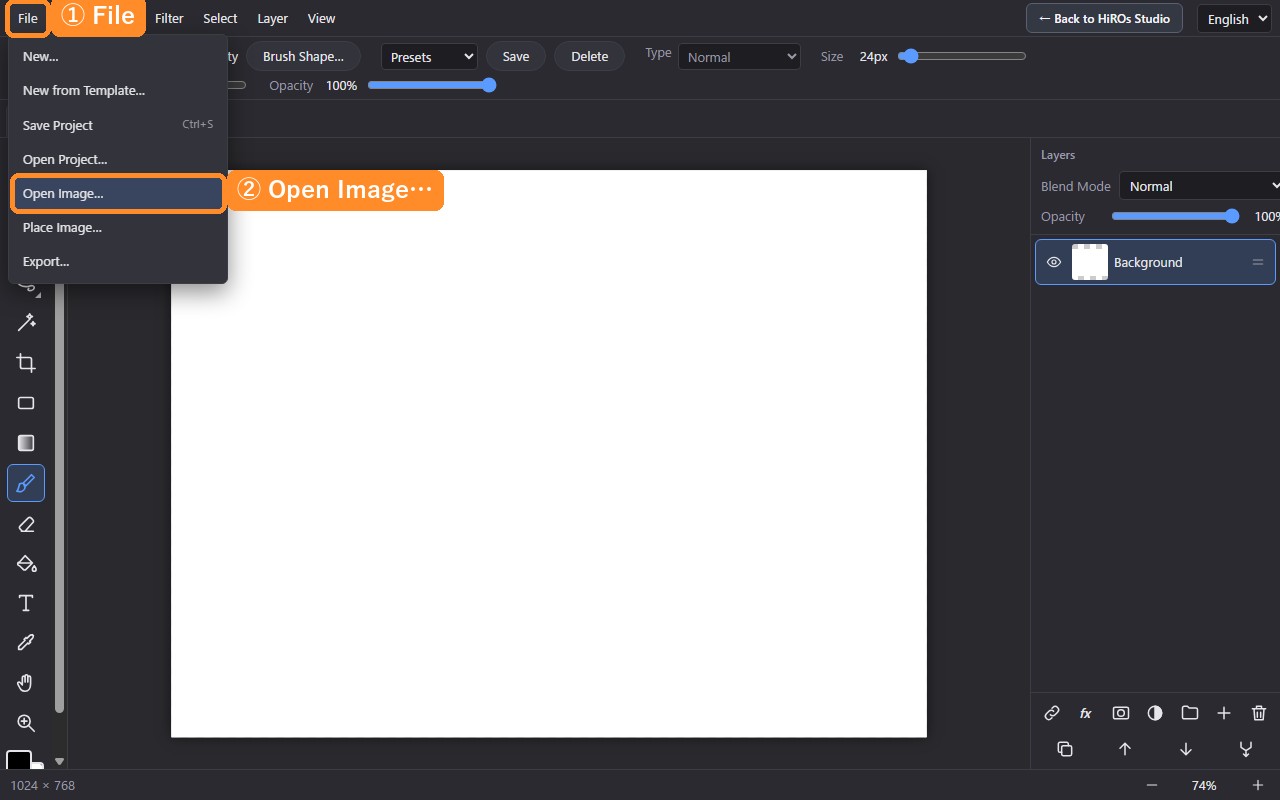
- Click File at the top left.
- Click Open Image… in the list.
- In the file dialog, choose the PSD file (for practice,
sample-cafe-en.psd) and click "Open".
Large files take a moment to appear. Please wait without clicking again.
2. Look at the layers
When the file opens, the picture appears in the middle and the Layers panel on the right lists the parts. Layers higher in the list are in front.
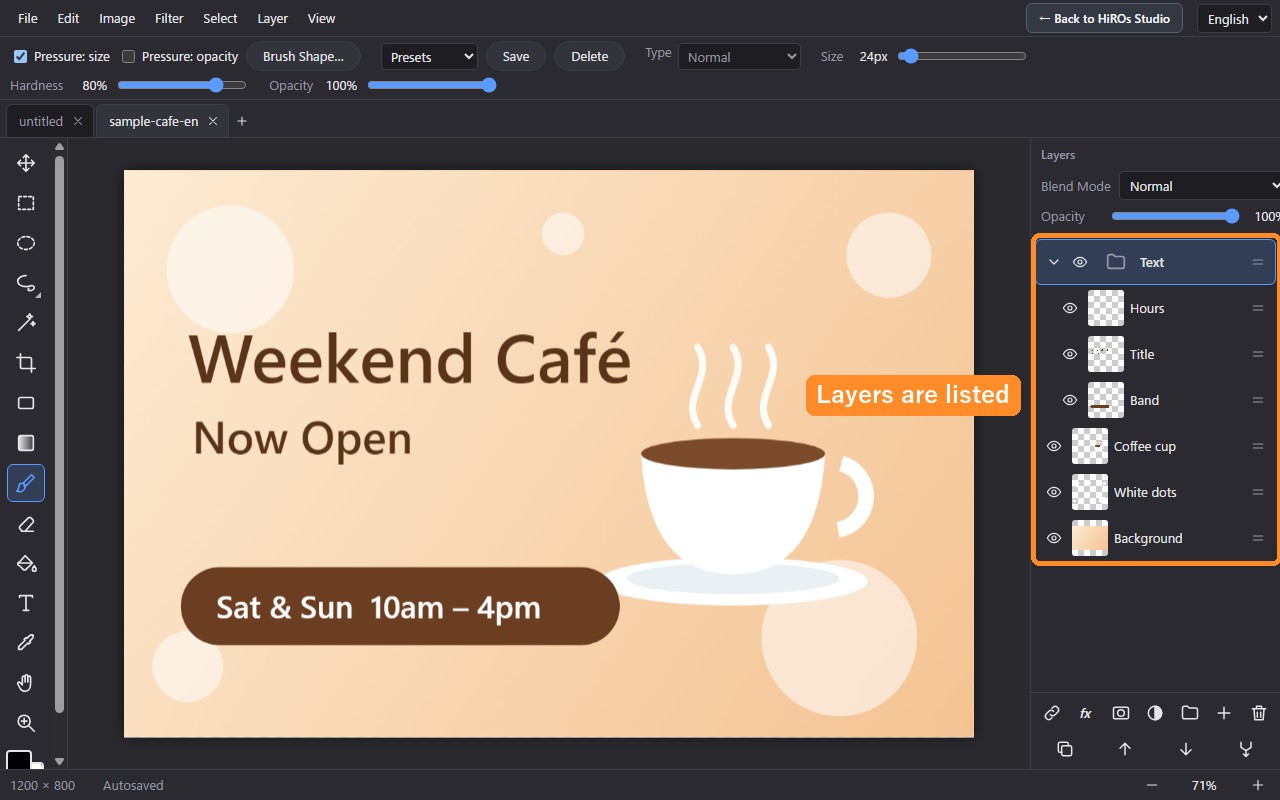
| In the panel | What it means |
|---|---|
| Eye icon | Click to hide or show that layer. |
| Small picture (thumbnail) | A preview of what's on that layer. |
| Folder icon | A group of layers. Use the arrow on the left to open or close it. |
| Opacity (top) | How see-through the selected layer is. |
| Blend Mode (top) | How the layer mixes with the layers below. |
3. Hide a layer with the eye icon
Click the eye icon of the Coffee cup layer. Only the cup disappears. Click it again to bring it back.
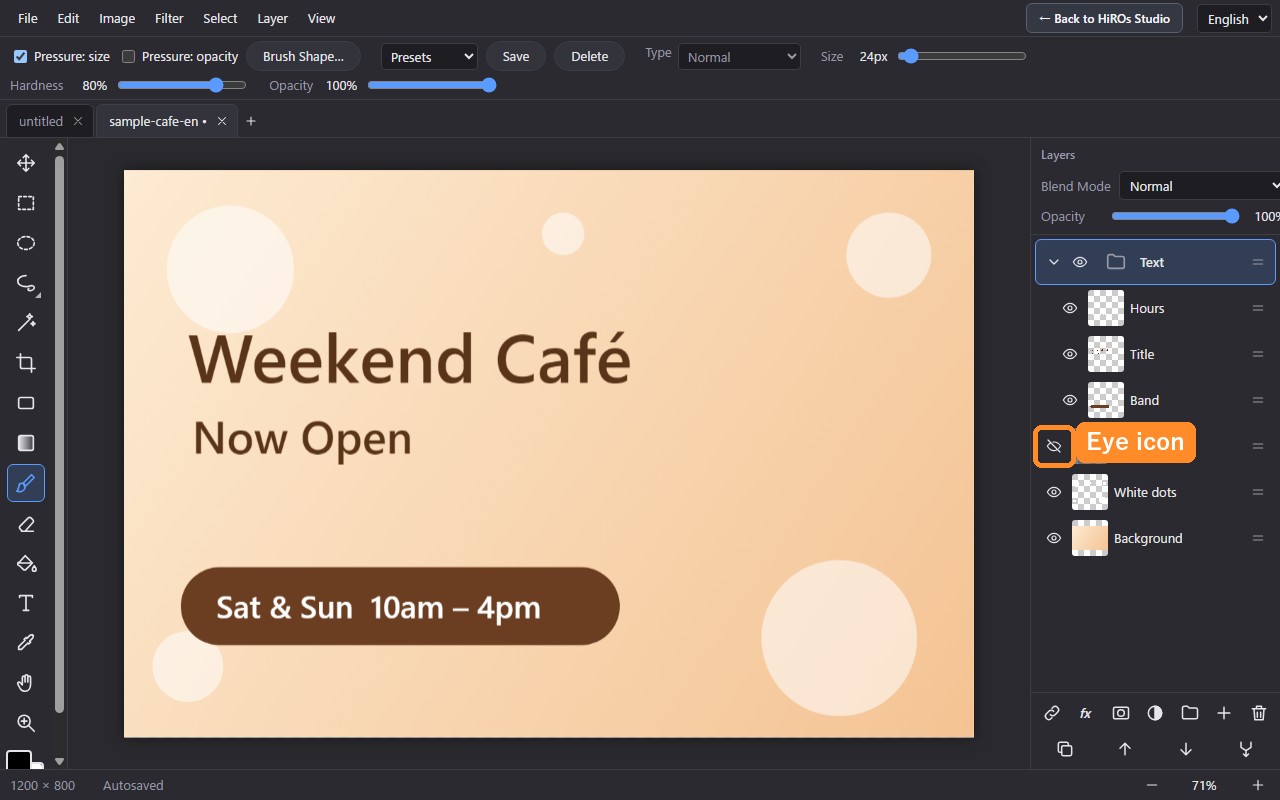
That's how a PSD works: everything is in separate parts, so hiding or changing one part doesn't affect the others. To learn how to add text or adjust colors, see:
- How to Add Text to a Photo: Bold, Warp and Decorations
- How to Use Layers and Masks
- How to Cut Out Objects with the Selection Tools
4. Save it (Export)
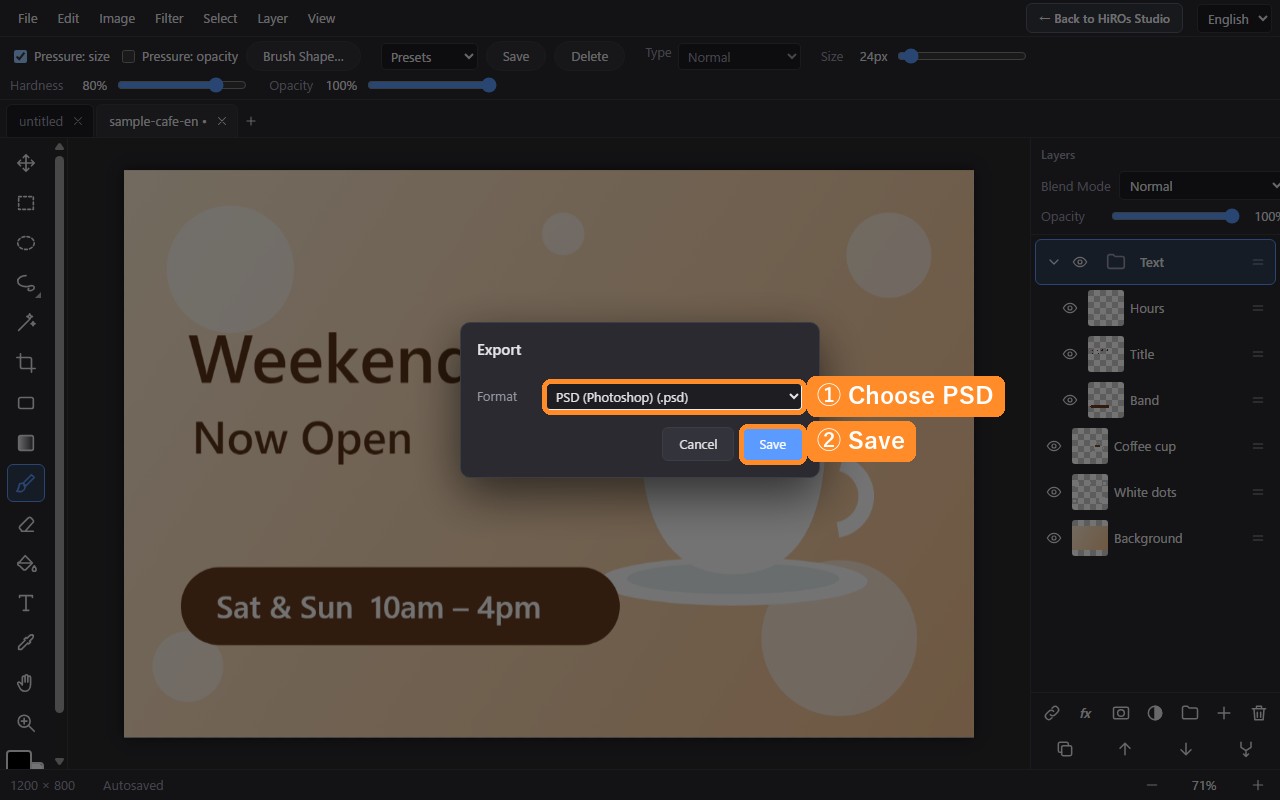
- Click File → Export….
- Choose a format. To keep the layers, choose PSD (Photoshop) (.psd).
- Click Save and the file is downloaded.
| If you want to… | Choose |
|---|---|
| Keep editing later (keep the layers) | PSD |
| Send it by email or social media (one flat picture) | JPG |
| Keep a transparent background | PNG |
| Hand it over as a document for printing |
To stop in the middle and continue later, use File → Save Project.
Notes and troubleshooting
- Always keep your original PSD. Saving under a different name is safest.
- It may look slightly different from Photoshop (special fonts or effects, for example).
- "Smart objects" open as normal images. They don't become smart objects again when you save as PSD.
- Very large PSD files may take a long time to open, or may not open. Closing other tabs and apps can help.
- It works on smartphones, but detailed work is easier on a computer.
FAQ
Does it cost anything?
No. It's free, with nothing to install and no account needed.
Are my images sent anywhere?
No. Images are handled inside your browser and are not sent to HiROs Studio's servers.
Can I open the result in Photoshop again?
Yes, files exported as PSD open in Photoshop. However, not every feature of the original file can be reproduced exactly, so keep your original PSD too.
Open a PSD in the web photo editor →
For an overview of all features, see Web Photo Editor.