How to Add Text to a Photo: Bold, Warp and Decorations
This guide shows how to add text in the web photo editor, make it bold, bend it, and decorate it with shadows and outlines, step by step. It's useful for flyers, blog header images and social media graphics. Nothing to install, no account needed.
To show the editor in English, choose English in the language menu at the top right.
1. Add text
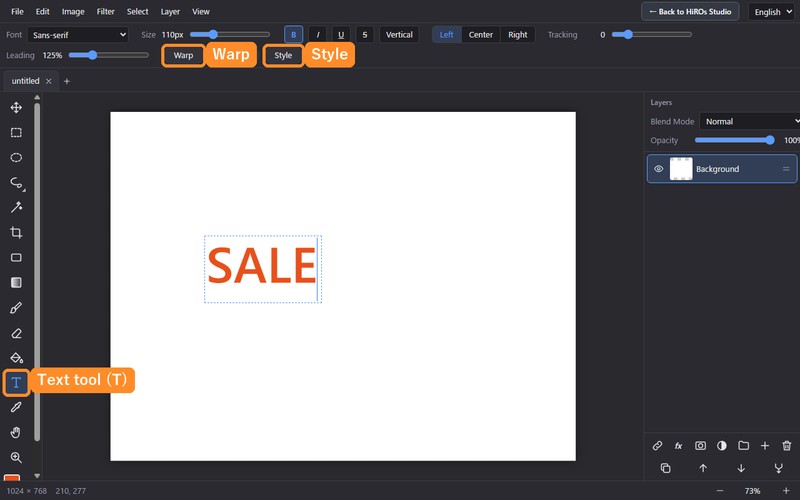
- Choose the Text tool (T) in the toolbar on the left.
- Click where you want the text. A dotted box appears; type your text.
- When you're done, press Esc to confirm the text.
The text becomes a separate text layer, so you can move it or change it later. To edit it, keep the Text tool and click the text again.
2. Bold, italic, size and more
Use the settings bar at the top to adjust the look of the text.
- Font: choose from standard fonts, Google Fonts, or type the name of a font installed on your device.
- Size: change the size with the slider.
- B (bold), I (italic), U (underline), S (strikethrough): click to switch on or off.
- Vertical: switches to vertical text.
- Left / Center / Right: alignment for multiple lines.
- Tracking / Leading: the space between letters and between lines. Slightly wider tracking makes headings easier to read.
The text color is the foreground color at the bottom left. It's handy to choose the color before using the Text tool.
3. Bend text (Warp)
Warp bends the whole text into an arch, a wave and other shapes.
- Click the text with the Text tool so you can edit it.
- Click Warp in the settings bar.
- Pick a shape under Style.
- Set how much it bends with the Bend slider. Adjust Horizontal and Vertical Distortion if needed.
- When it looks right, click OK.
The shapes are Arc, Arc Lower, Arc Upper, Arch, Bulge, Flag, Wave, Fish, Rise, Fisheye and Twist, in a horizontal or vertical direction. For logo-like headings, Arc Upper and Arch are easy to use.
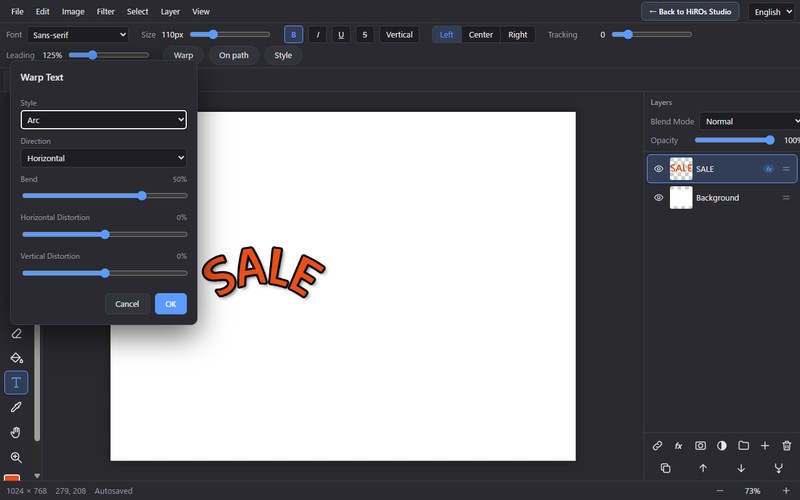
You can redo the warp later: click the text again and click Warp.
To make text follow a curve you draw yourself, use On path. Blue points appear on the curve; drag them to change its shape.
4. Decorate with shadows and outlines (Style)
To make text stand out, use Style. It adds outlines, shadows and more without changing the text itself.
- In the Layers panel on the right, select the text layer.
- Click Style in the settings bar.
- Tick the box to the left of the effect you want.
- The effect's settings appear below it. Adjust the color, size, opacity and so on.
- Click OK.
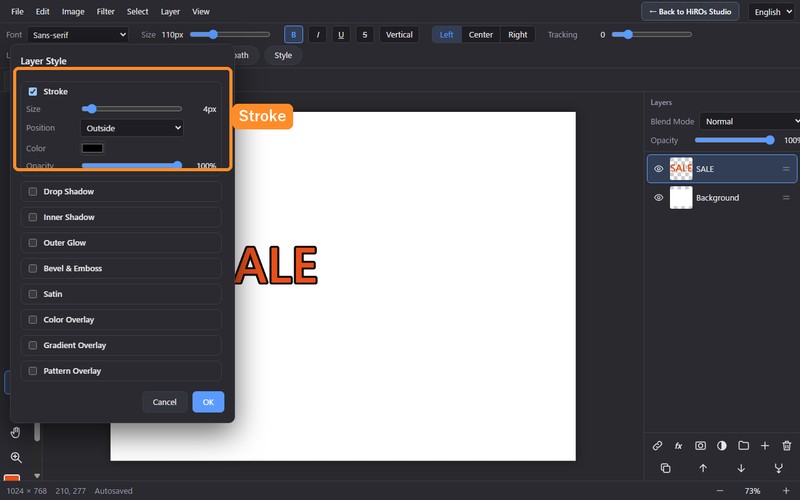
There are nine effects:
| Effect | Use it for |
|---|---|
| Stroke | An outline around the text. Makes text readable on photos. |
| Drop Shadow | A shadow behind the text so it looks lifted. Adjust angle, distance and blur. |
| Inner Shadow | A shadow inside the text, for an engraved look. |
| Outer Glow | A soft glow around the text. |
| Bevel & Emboss | Makes the text look raised or pressed in. |
| Satin | Smooth shading inside the text. |
| Color Overlay | Changes the text color all at once, later. |
| Gradient Overlay | Fills the text with a two-color gradient. |
| Pattern Overlay | Fills the text with a pattern. |
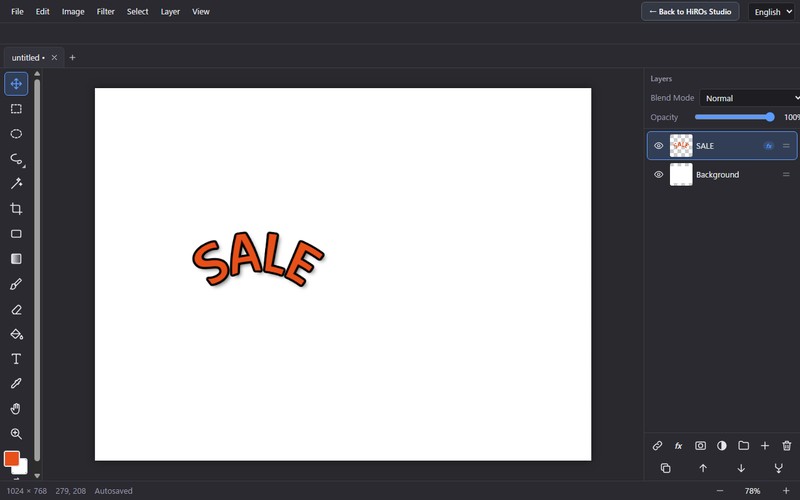
You can combine as many as you like. For example, Stroke + Drop Shadow keeps text clear on any background. To remove an effect, untick it in the Style dialog.
5. Troubleshooting
The effect isn't applied to the text
If you open Style while still typing, the effect may go to the background layer instead. Click the text layer in the Layers panel first, then open Style.
Warp doesn't open
Click the text again with the Text tool so it's editable, then click Warp.
I want to move the text
Choose the Move tool (V) and drag the text. The text is its own layer, so the background doesn't move.
I want to undo
Ctrl+Z undoes and Ctrl+Shift+Z redoes.
6. Finish and save
When you're done, use File → Export… and choose a format. PNG or JPG is best for social media and blogs. To continue later, export as PSD so the text stays as a layer. Always export and keep your important images.
For an overview of all features, see Web Photo Editor.