How to Use Layers and Masks: Edit Part of an Image Without Damaging the Original
The two most useful ideas in image editing are layers and layer masks. With them you can stack images, show only part of one, and change your mind later, all without destroying the original. This guide covers the basics in the web photo editor. Nothing to install, no account needed.
To show the editor in English, choose English in the language menu at the top right.
1. What is a layer?
A layer is like a sheet of transparent film stacked on others. Drawing on an upper sheet leaves the sheets below unchanged. So you can move or delete the photo and the text separately.
At the bottom is the Background layer. In the Layers panel on the right, layers higher in the list appear in front.
2. Basic layer operations
| To… | Do this |
|---|---|
| Create a new layer | The "+" button under the list, or Ctrl+Shift+N |
| Copy a selection to a new layer | Select an area, then Ctrl+J |
| Show or hide a layer | Click the eye icon on the left of the layer |
| Change the stacking order | Drag the layer in the list, or use Bring Forward / Send Backward |
| Duplicate or delete | Duplicate Layer / Delete Layer in the Layer menu |
| Combine with the layer below | Merge Down |
| Name a layer | Rename Layer (or double-click the layer) |
| Organize layers | Group Layer |
As the number of layers grows, giving them clear names saves time later.
Opacity and Blend Mode
Above the layer list are Opacity and Blend Mode.
- Opacity: lower it to make the layer fainter so the layers below show through.
- Blend Mode: changes how the layer mixes with the layers below. "Multiply" darkens (handy for shadows) and "Screen" lightens. Others include Overlay, Darken, Lighten, Hue, Saturation, Color and Luminosity.
3. What is a layer mask?
A layer mask is a stencil on a layer that decides where the layer is visible. The rules are:
- Painted white: the layer is visible.
- Painted black: the layer is hidden.
- Painted gray: partly visible.
If you erase part of a layer with the eraser, it's gone for good. With a mask, you just repaint white or black, so you can redo it as often as you like.
4. Make a mask to show only part of a layer
- Select the layer you want to blend in the list on the right.
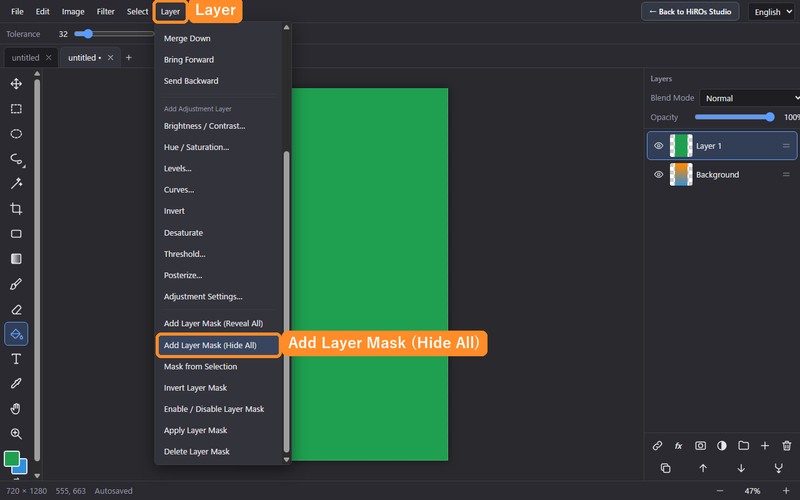
- Open the Layer menu and choose Add Layer Mask (Hide All) near the bottom.
- A black square (the mask thumbnail) appears next to the layer, and the whole layer is hidden.
- Click the black square to select it (now you can paint on the mask).
- Set the foreground color to white and paint with the brush where you want the layer to show. Only the painted areas appear.
- If you reveal too much, switch to black and paint to hide it again.
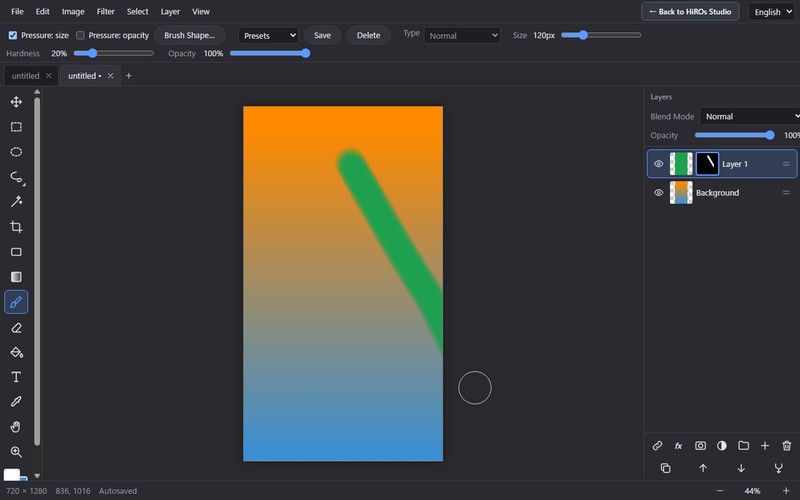
For soft edges, lower the brush Hardness. For crisp edges, raise it. You can also change the brush size with the [ and ] keys.
Make a mask from a selection
Select an area first with the marquee or lasso tools, then choose Mask from Selection to make a mask that shows only that area. This is great for clean shapes.
5. Handy mask commands
| To… | Do this |
|---|---|
| Invert the mask | Invert Layer Mask (shown and hidden areas swap) |
| Turn the mask off temporarily | Enable / Disable Layer Mask, or Shift+click the mask thumbnail |
| Bake the mask into the image | Apply Layer Mask (can't be changed afterwards) |
| Remove the mask | Delete Layer Mask |
Apply can't be undone later, so it's safest to use it only as a final step.
6. Combine with adjustment layers
The Layer menu also has adjustment layers (Brightness/Contrast, Hue/Saturation, Levels, Curves, Invert, Desaturate, Threshold, Posterize). They change colors without touching the original image.
Adjustment layers can have masks too, so you can make local adjustments such as "darken only the sky" or "brighten only the person". You can change or delete them at any time.
7. Troubleshooting
I'm painting white but nothing changes
You may be painting on the layer's picture instead of the mask. Click the mask thumbnail next to the layer first, then paint.
The foreground color isn't white or black
Choose it with the foreground color square at the bottom left. Press D for the default colors (black and white) and X to swap foreground and background.
I made a mistake
Ctrl+Z undoes and Ctrl+Shift+Z redoes.
8. Finish and save
When you're done, use File → Export… and choose a format. PNG or JPG is best for social media and blogs. To continue later, export as PSD so layers and masks are kept. Always keep the original file of important images.
For adding text, see How to Add Text to a Photo. All features are summarized in Web Photo Editor.