Video Editor (Trial): Cut, Join, Layer, Captions, Music and MP4/MP3 Export in Your Browser
HiROs Studio's Video Editor is a free video editing app with nothing to install and no account needed. Cut and join videos from your phone, layer images and videos on top, add captions and music, and save as MP4. Your videos are never uploaded.
This is a trial version. There may be bugs and missing features. Please send feedback through the contact form.
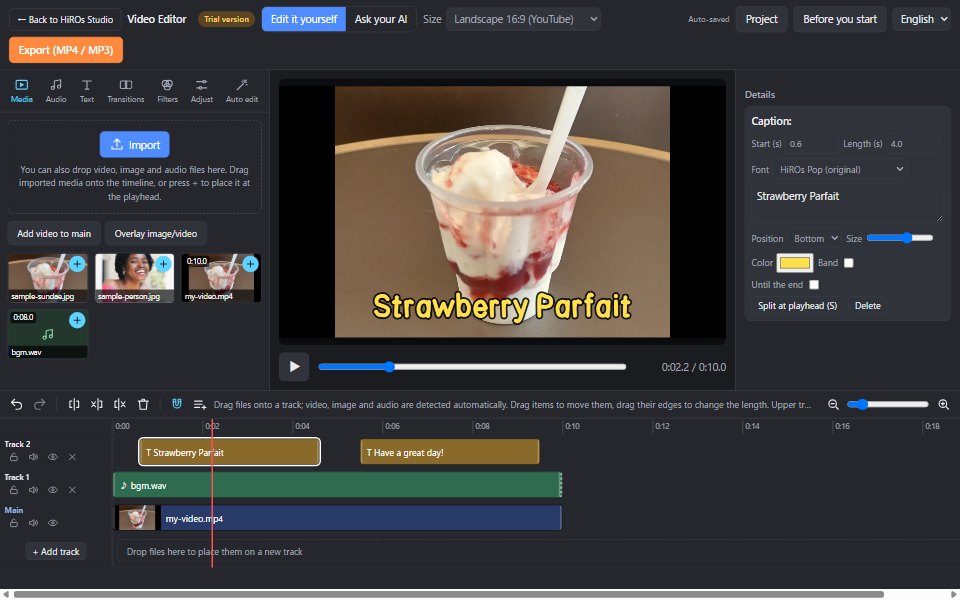
Screen layout
The layout is the same as in common video editing software.
- Top left (tabs): Media, Audio, Text, Transitions, Filters, Adjust and Auto edit. Files you add with "Import" appear here.
- Center: the preview. Drag layered images and videos to move them, and use the mouse wheel to resize them.
- Right (Details): settings for the selected video, image, audio or caption (length, volume, text, font and more).
- Bottom (timeline): tracks are lined up side by side. The tools above it are undo, redo, split, delete left, delete right, delete, snap, add track and zoom.
Features
| Feature | What it does |
|---|---|
| Cut and join | Put as many videos as you like on the main track; they play one after another. Drag an edge to change the length, or split at the playhead. Drag to reorder. |
| Tracks | Add as many tracks as you like. Any track can hold video, images, audio and captions. Upper tracks appear in front. Each track can be hidden, muted or locked. |
| Drag to place | Drag files onto a track and video, images and audio are detected automatically and placed there. Drag placed items to move them to another track. |
| Captions | Add one with a click from the presets (Simple, Banner, Big title, Small top, Yellow). Choose the position, size, color, background band and font. |
| Fonts | Gothic and Mincho, HiROs Pop (HiROs Studio's original font), and the fonts installed on your PC (Chrome and Edge on a computer). |
| Music and audio | Music loops until the end of the video. Set the volume and looping, and change the volume of the original video sound. |
| Transitions | Fade in and fade out. The sound fades smoothly along with the picture. You can also apply fades to all main videos at once. |
| Filters and adjust | 8 filters (Vivid, Warm, Cool, Retro, Soft, Drama, Sepia, Mono) and brightness, contrast and saturation adjustments. |
| Size | Landscape 16:9 (YouTube), vertical 9:16 (Shorts / Reels) or square 1:1. |
| Auto edit | Remove silences: cuts out pauses automatically. Split by scene: splits where the picture changes a lot. |
| Saving your work | Your work is saved in your browser automatically, so you can continue next time. From Project at the top right, you can also save it, media included, as one file (.hvproj). |
| Undo and redo | Ctrl+Z to undo, Ctrl+Y to redo. |
| Export | Video is saved as H.264/AAC MP4. Choose the resolution (720p, 1080p, 4K), quality (standard, high, maximum) and smoothness (30 or 60 fps). You can also save the audio only as MP3, M4A or WAV. |
How to use (basics)
- Click Import at the top left and choose videos, images and audio. Your first videos are placed on the main track automatically.
- Choose landscape, vertical or square under Size.
- Remove unwanted parts by dragging the edge of an item on the timeline, or split at the playhead (S key) and delete the piece. For talking videos, Remove silences in the Auto edit tab is handy.
- To layer an image or another video, drag it from the media list onto a track on the timeline.
- Click a preset in the Text tab to add a caption at the playhead. Edit the text and font in Details on the right.
- Add music with Add music/sound in the Audio tab.
- Click Export (MP4 / MP3) at the top right, choose the type and quality, and save.
"Edit it yourself" and "Ask your AI"
Switch between two ways of working at the top of the screen.
- Edit it yourself: edit with buttons and dragging. Auto edit works with a click too. You can use every feature without any AI.
- Ask your AI: ask your own AI that can operate a browser (Claude in Chrome, ChatGPT agent, etc.) to edit for you. Copy the example requests.
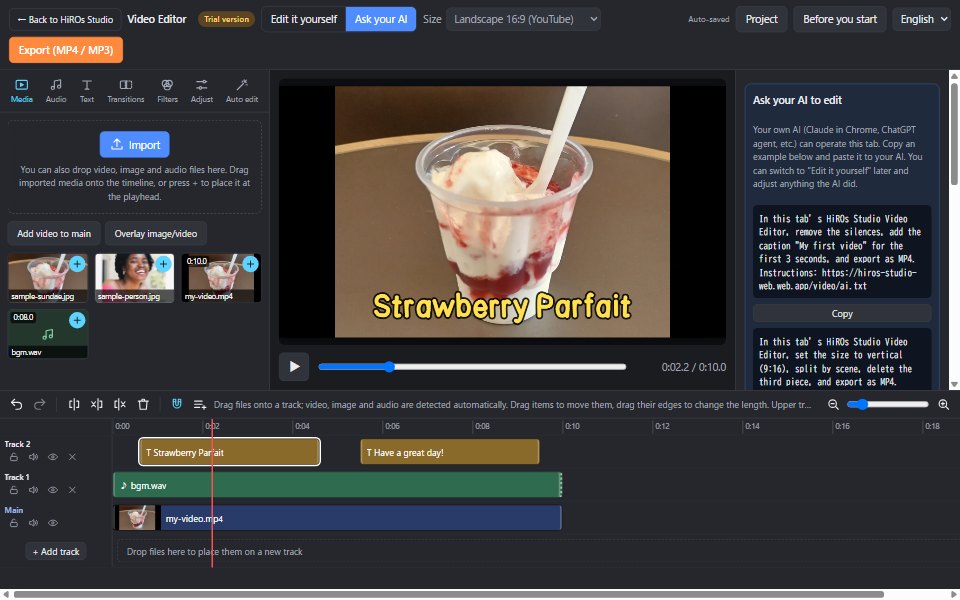
After your AI has worked, switch to "Edit it yourself" to adjust anything yourself. When you ask your AI, what is shown on the screen (including your video) is sent to your AI provider. Use your AI under its terms of use and at your own responsibility. Instructions for AI agents are at /video/ai.txt.
Before you start (important)
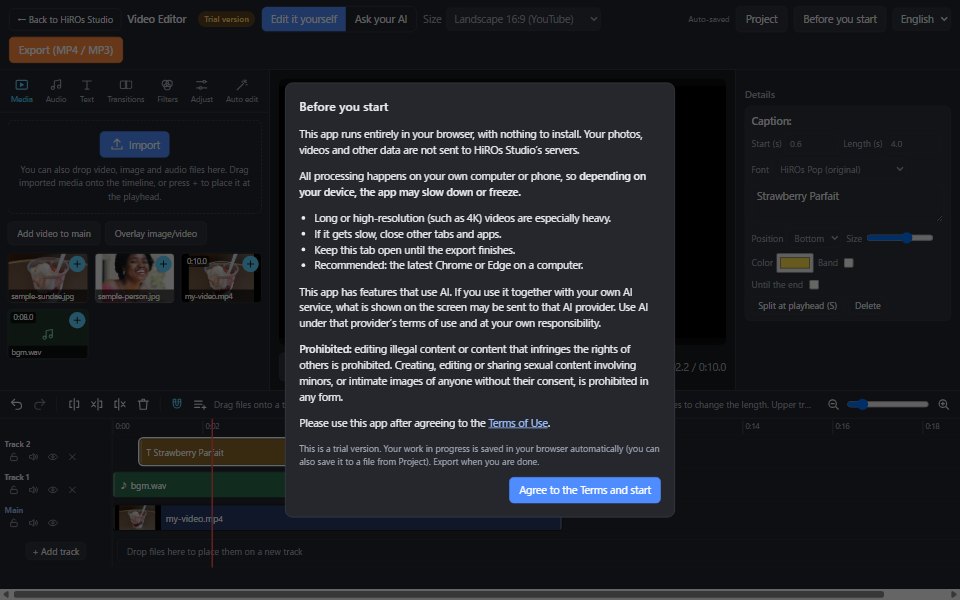
This app runs entirely in your browser, with nothing to install. Your videos and images are never uploaded.
Instead, all processing happens on your own computer or phone, so depending on your device, the app may slow down or freeze.
- Long or high-resolution (such as 4K) videos are especially heavy. Start with videos of a few minutes.
- If it gets slow, close other tabs and apps.
- Keep the tab open until the export finishes.
- Your work in progress is saved in your browser automatically. It is lost if you clear your browser data, so also save important work to a file from "Project".
- Recommended: the latest Chrome or Edge on a computer. Other browsers and phones may not be able to export.
Prohibited use
Editing illegal content or content that infringes the rights of others is prohibited. Creating, editing or sharing sexual content involving minors, or intimate images of anyone without their consent, is prohibited in any form.
By using this app, you agree to the Terms of Use.
FAQ
Does it cost anything?
No. No account is needed either.
Are my videos sent anywhere?
No. Loading, editing and exporting all happen inside your browser.
Which files can I use?
Video: MP4, MOV and WebM. Audio: MP3, WAV, M4A and more. Images: JPG, PNG and more. Videos from your phone work too.
Can I save unfinished work?
Yes. Your editing and media are saved in your browser automatically, and next time you are asked "Continue where you left off?". You can also save a file (.hvproj) with Project → Save to file, and open it in the Video Editor on another computer.
Can I use the fonts installed on my PC?
Yes. Select a caption, then choose "Load fonts from this PC…" in the font list in Details on the right (Chrome or Edge on a computer; the browser asks for permission the first time). The font list is remembered only in your browser and is not sent anywhere.
How long does exporting take?
It depends on your computer, but a one-minute 1080p video usually takes less than a minute. Long videos, 4K and 60 fps take longer.
Can I save the audio only?
Yes. In "Export (MP4 / MP3)", choose MP3, M4A or WAV as the type. The mixed sound (original sound, music and audio) is saved. MP3 conversion uses LAME (LGPL).
Related articles
- Make a Vertical Short Video: Add Captions and Music to Photos and Export in 9:16 (tutorial)
- Shorten a Talking Video by Removing Silences (tutorial)
- How to Extract Audio from a Video as MP3 (guide)
- Layer Images and Videos on a Video: Logos and Picture-in-Picture (guide)
For photos, see Web Photo Editor.