Layer Images and Videos on a Video: How to Add a Logo or a Picture-in-Picture (Using Tracks)
This guide shows how to put a logo in the corner of a video or layer a small video on top (picture-in-picture). In HiROs Studio's Video Editor, images and videos placed on tracks appear on top of the main video. Nothing to install and no account needed.
It assumes the latest Chrome or Edge on a computer.
How tracks work
- The "Main" track joins videos one after another.
- On "Track 1", "Track 2" and so on above it, you can place video, images, audio or captions at any time.
- Upper tracks appear in front. New tracks are added at the top.
1. Layer a logo (image)
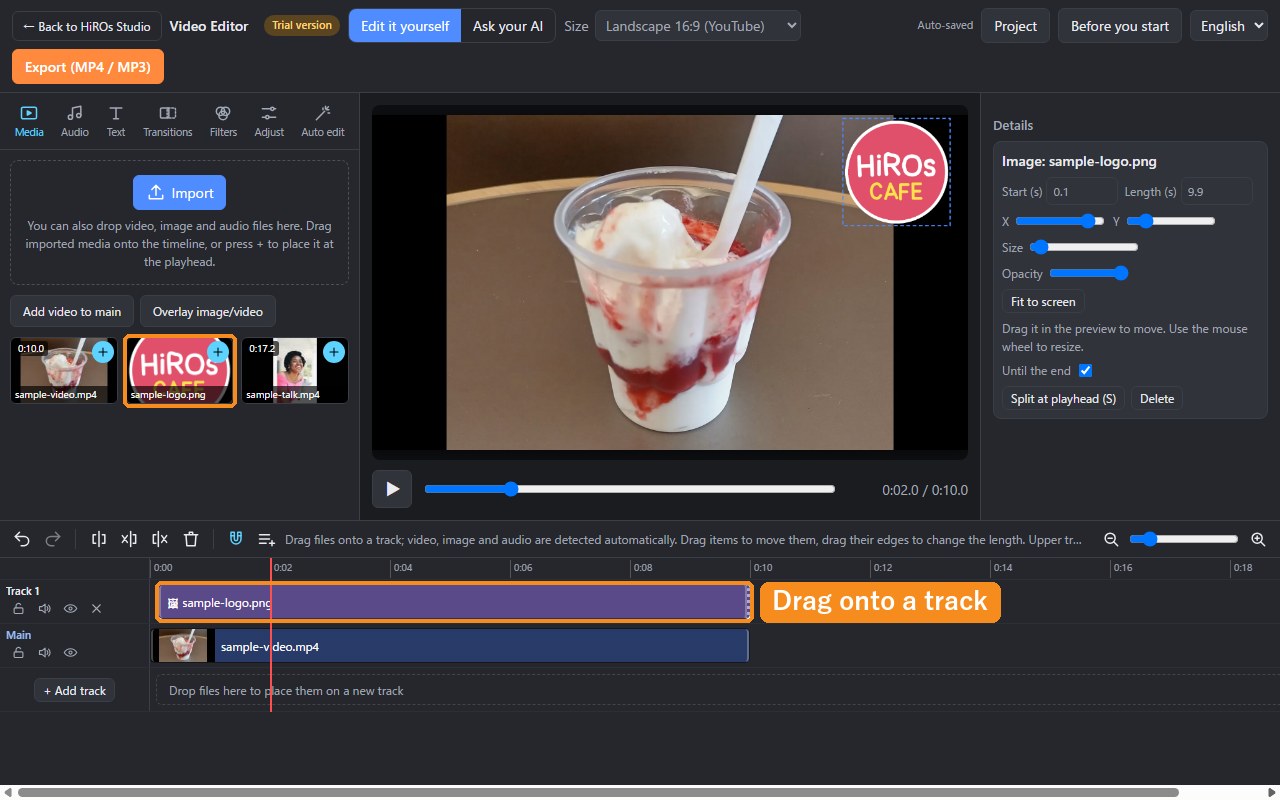
- Use Import to add the main video and the image you want to layer (such as a PNG). The first video you add is placed on the main track automatically.
- Drag the image from the media list to "Drop files here to place them on a new track" on the timeline. The image is placed on a new track.
- To show it all the time, check "Until the end" in Details on the right.
2. Set the position, size and opacity
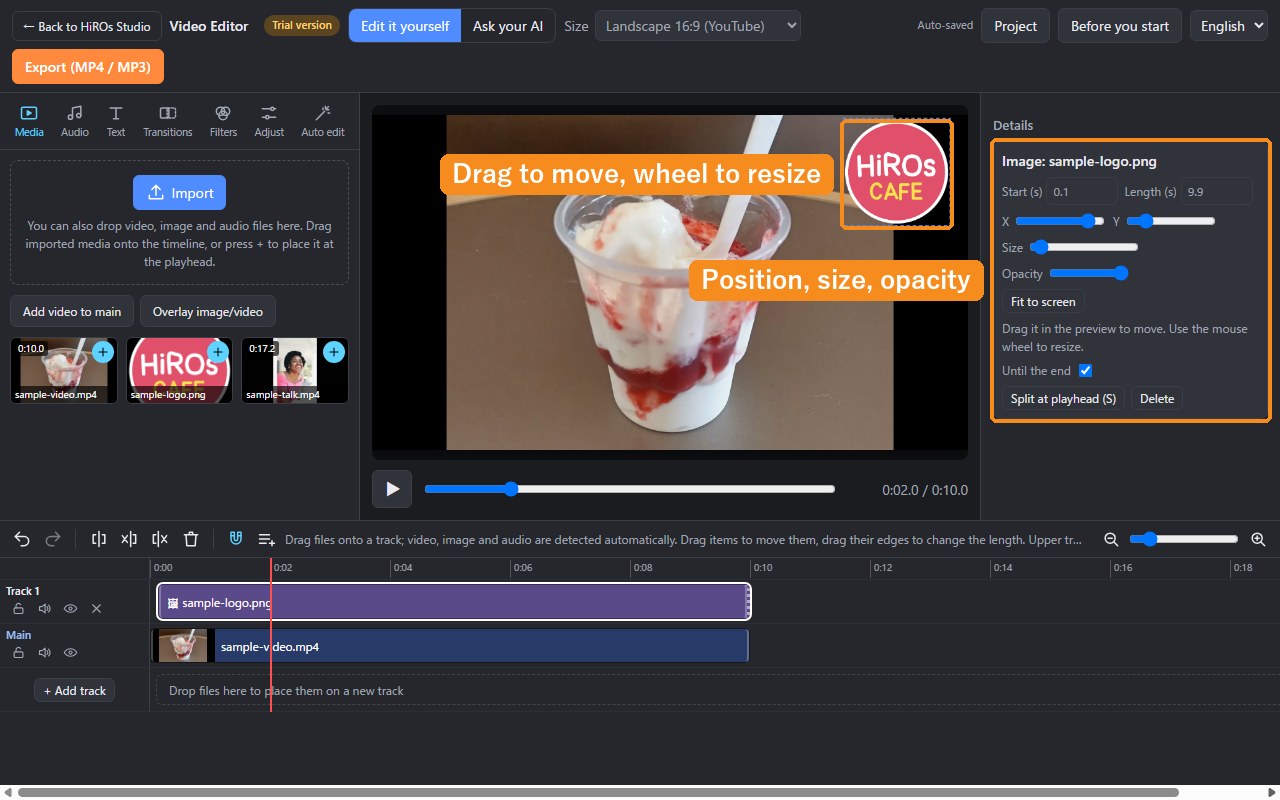
- In the preview: drag the image to move it, and turn the mouse wheel to resize it. The selected image has a dotted frame.
- With numbers: use the "X", "Y", "Size" and "Opacity" sliders in Details on the right. "Fit to screen" returns it to the full screen.
- To make the logo slightly see-through, lower "Opacity".
3. Layer a small video (picture-in-picture)
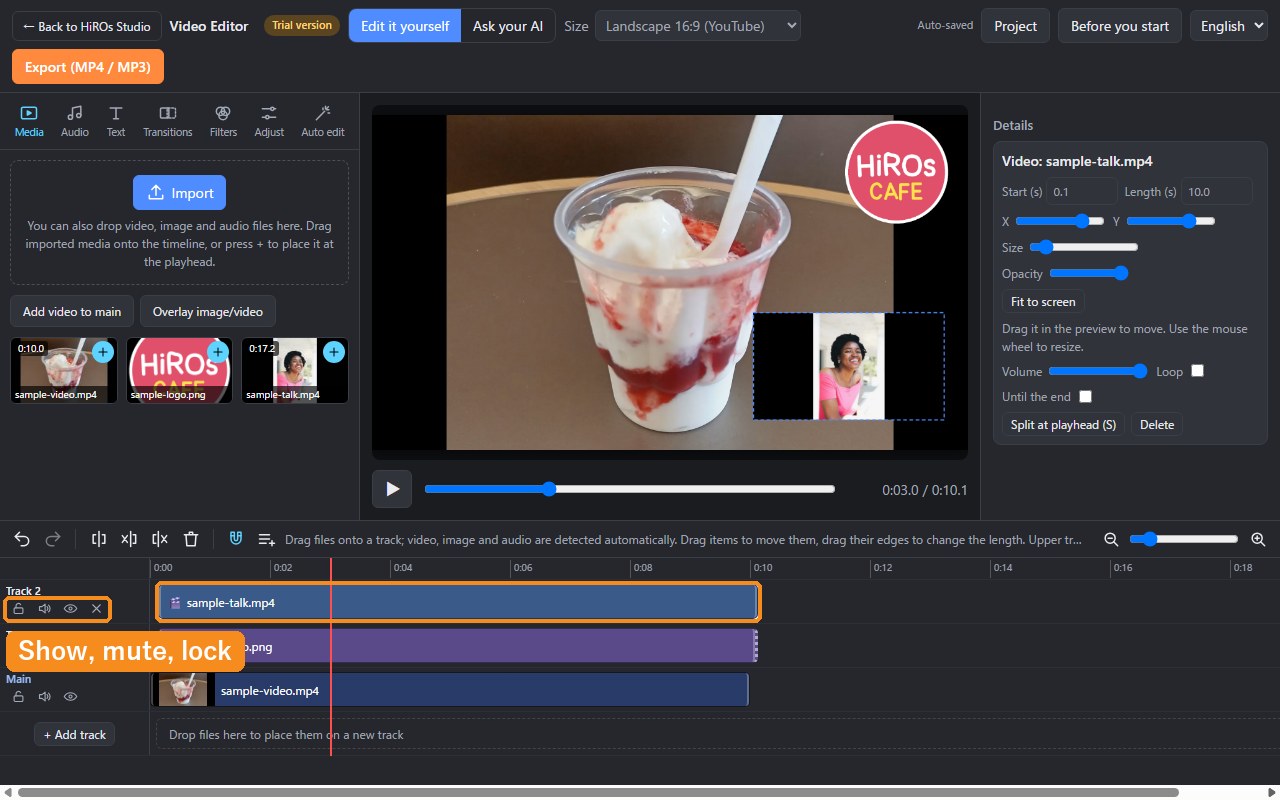
- Drag the video you want to layer from the media list onto a track.
- In the preview, make it smaller with the mouse wheel and drag it to a corner.
- Change the layered video's sound with "Volume" in Details. To silence it, click the Mute button of its track.
Track buttons
| Button | What it does |
|---|---|
| Lock (padlock) | Prevents the items on the track from being moved or deleted. |
| Mute (speaker) | Silences the track. The picture still shows. |
| Show (eye) | Hides the track. Neither picture nor sound is played. |
| × | Deletes the track, including its items. |
Troubleshooting
- A layered item doesn't show: items on lower tracks are hidden behind items on upper tracks. Drag the item onto an upper track. Also check that the track's "Show" is on.
- An item won't move: check that the track is not locked.
- It disappears partway: the item is too short. Drag its edge to extend it, or check "Until the end".
FAQ
Can I use images with a transparent background (PNG)?
Yes. The video below shows through the transparent parts.
Are layered images and videos included in the export?
Yes. The MP4 is exported exactly as it looks in the preview.
Is my video sent anywhere?
No. Everything is processed inside your browser.
Layer images and videos in the Video Editor →
To make a vertical short video, see Make a Vertical Short Video.