Make a Vertical Short Video: Add Captions and Music to Photos and Export in 9:16 (Free)
This tutorial makes a short vertical (9:16) video for YouTube Shorts or Instagram Reels. In HiROs Studio's Video Editor, you line up photos, add a caption and music, and export an MP4, step by step. Nothing to install and no account needed.
It assumes the latest Chrome or Edge on a computer. The result is an 8-second video.
Practice files
This tutorial uses the following three files, all practice files made by HiROs Studio.
- Parfait photo (sample-sundae.jpg)
- Person photo (sample-person.jpg)
- Music (sample-bgm.mp3, 16 seconds) … an original practice track made by HiROs Studio.


1. Set the size to vertical and add the files
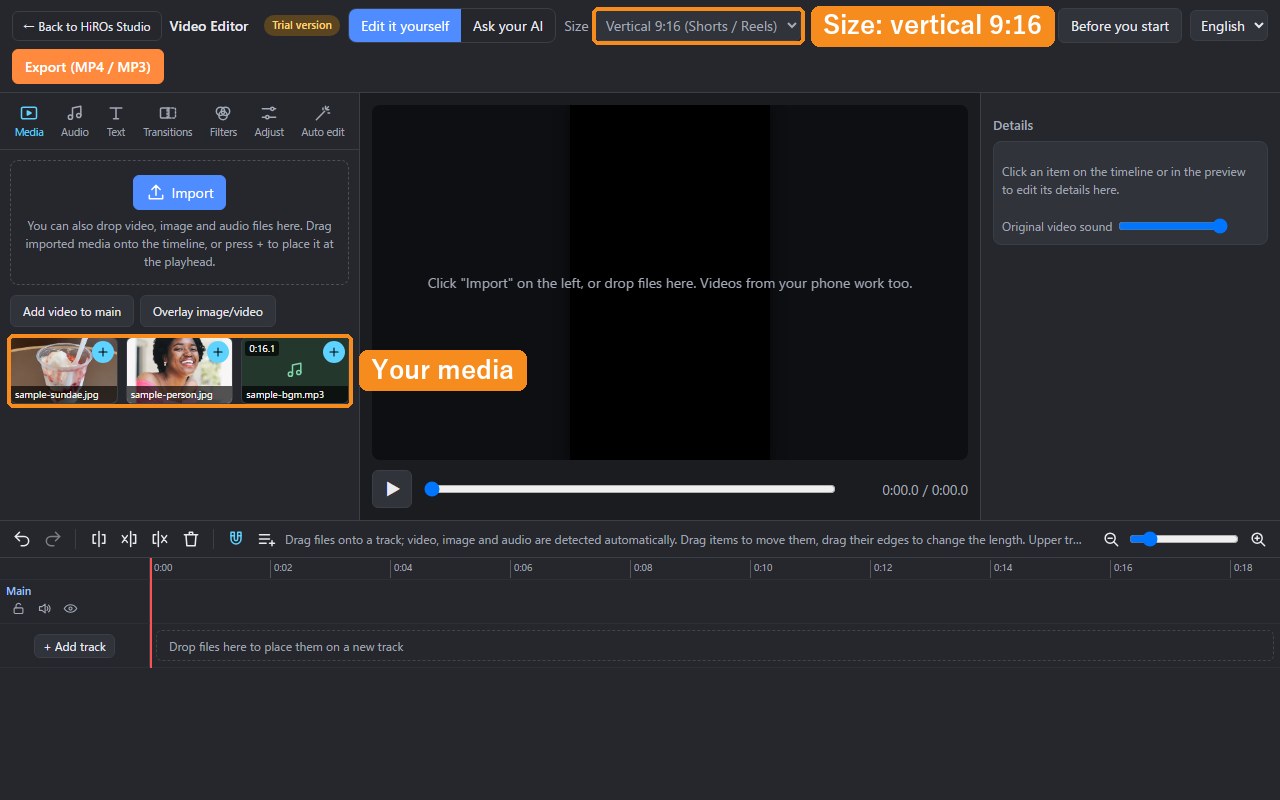
- Open the Video Editor and choose Vertical 9:16 (Shorts / Reels) under Size at the top.
- Click Import at the top left and choose the three downloaded files.
- The three files appear in the media list on the left.
2. Line up the photos
- Click 0:00 on the timeline ruler at the bottom to move the playhead to the far left.
- Click + on the parfait photo in the media list. The photo is placed at the playhead.
- Set "Length (s)" in Details on the right to 4.
- Click 0:04 on the ruler, click "+" on the person photo and set its length to 4 too.
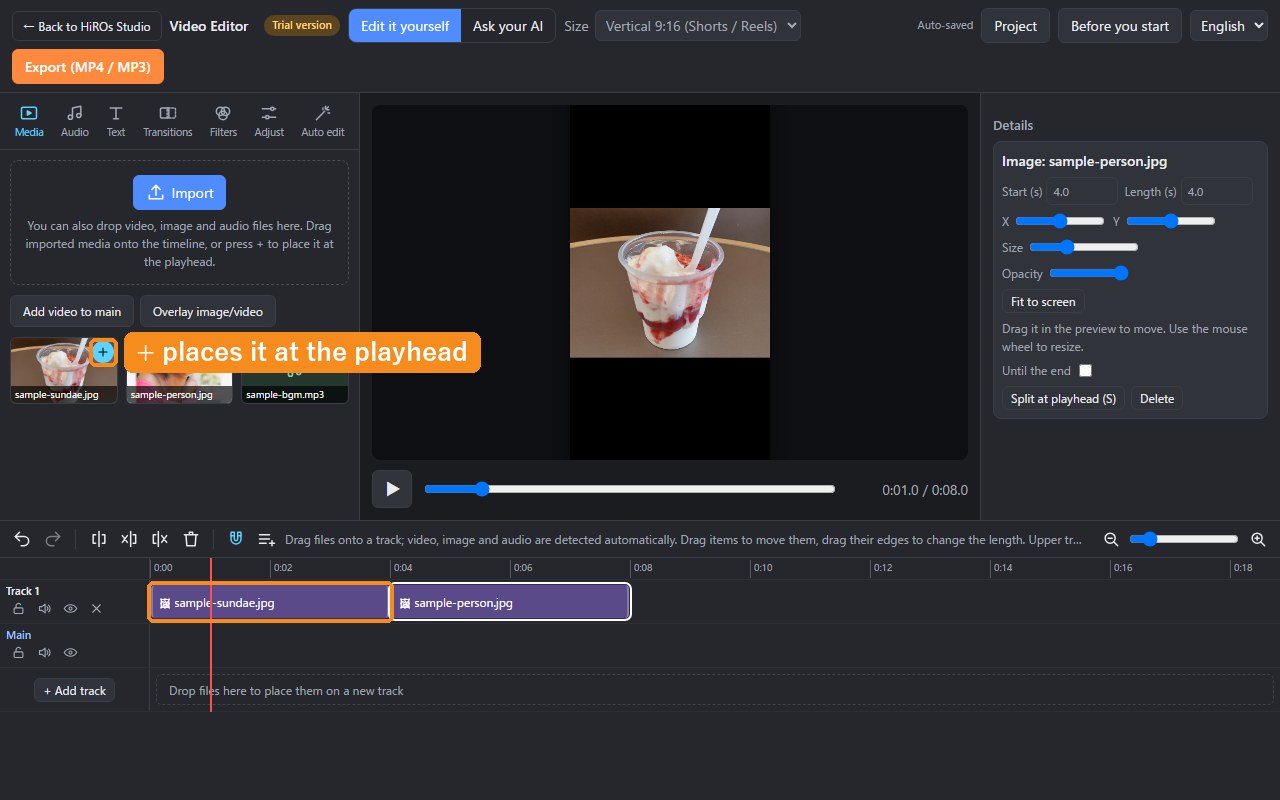
- Photos are placed at a size that fits the whole picture on the screen, so a landscape photo leaves space above and below. To make it bigger, turn the mouse wheel over the photo in the preview, or move "Size" in Details.
- Drag a photo in the preview to move it.
3. Add a caption
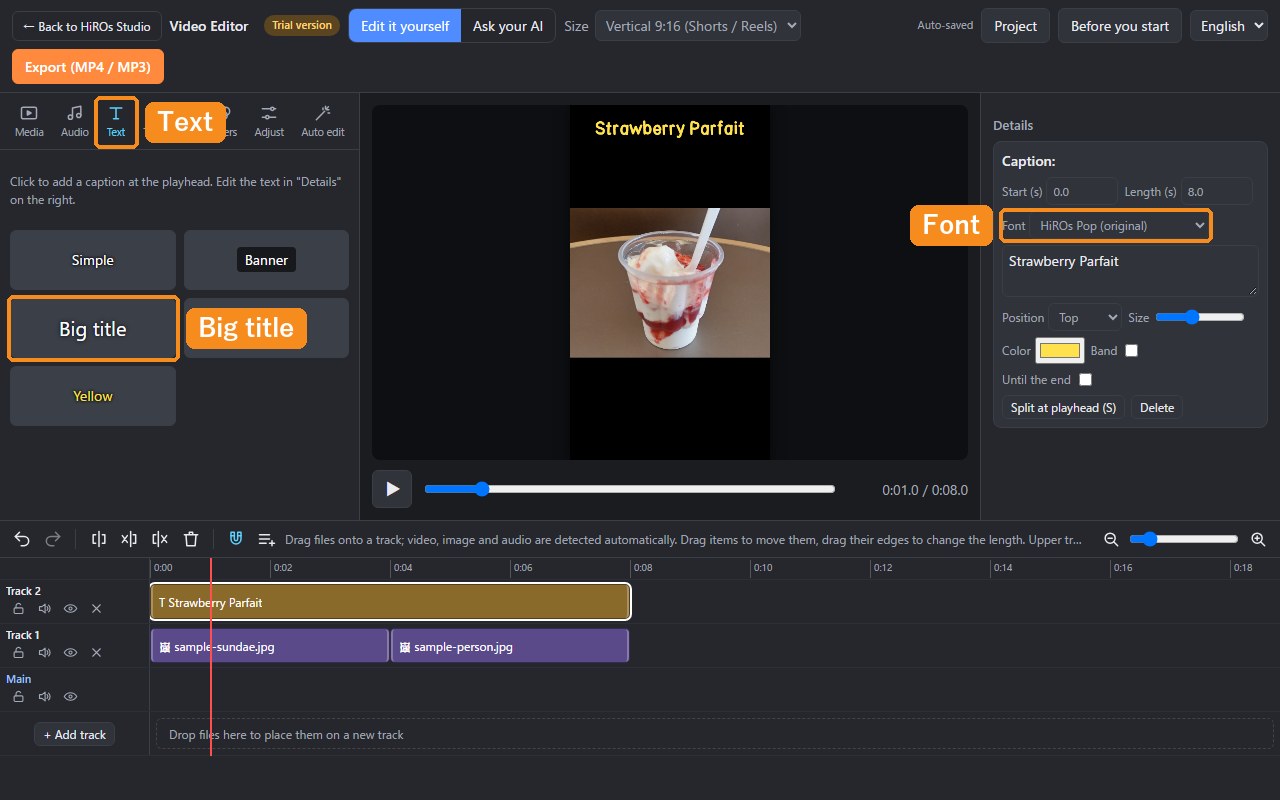
- Move the playhead to 0:00, open the Text tab at the top left and click Big title.
- In Details on the right, change the following.
- Text: Strawberry Parfait
- Font: HiROs Pop (original)
- Position: Top, Color: yellow (#ffe14d), Band: off
- Start: 0, Length: 8
4. Add music
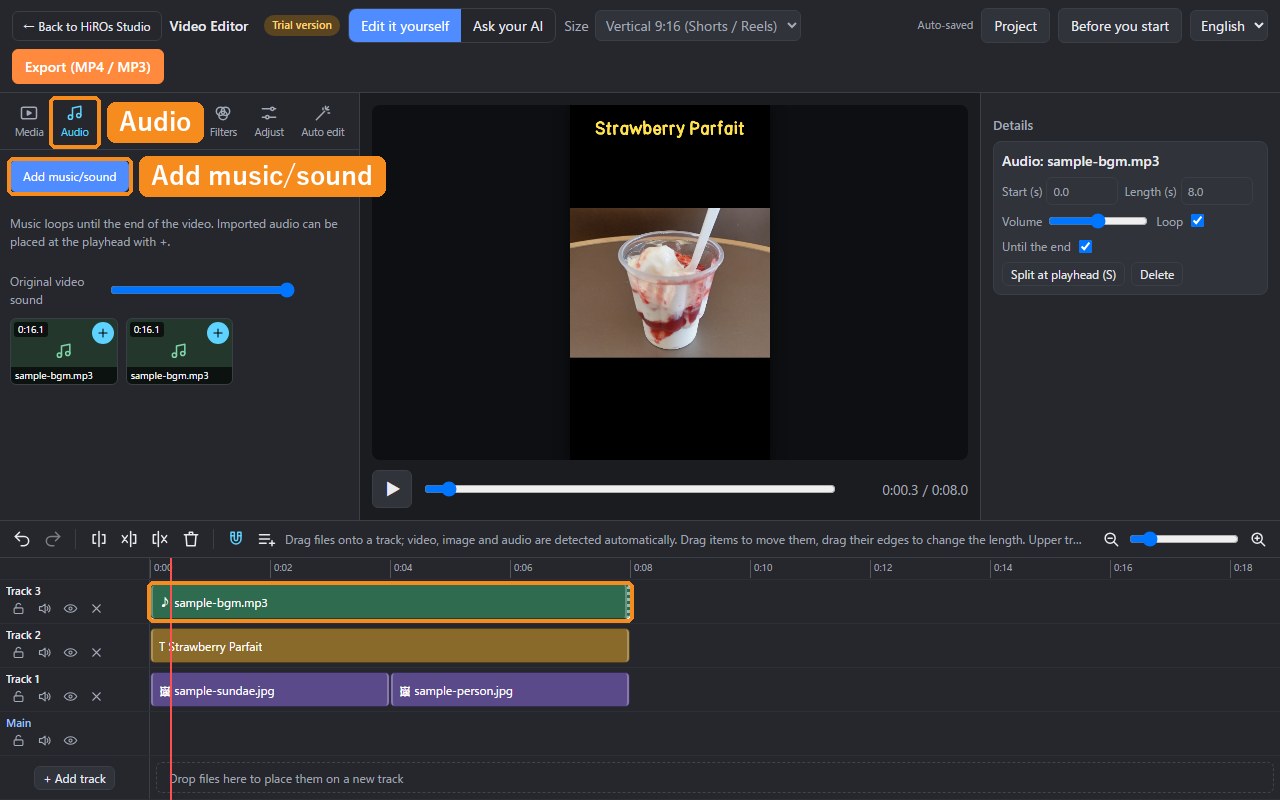
- Open the Audio tab at the top left, click Add music/sound and choose sample-bgm.mp3.
- Music is set to "Loop" and "Until the end" automatically. Change the volume with "Volume" in Details.
5. Smooth the changes with fades
- Click the parfait photo on the timeline to select it.
- In the Transitions tab at the top left, set fade in and fade out to 0.5 s.
- Do the same for the person photo.
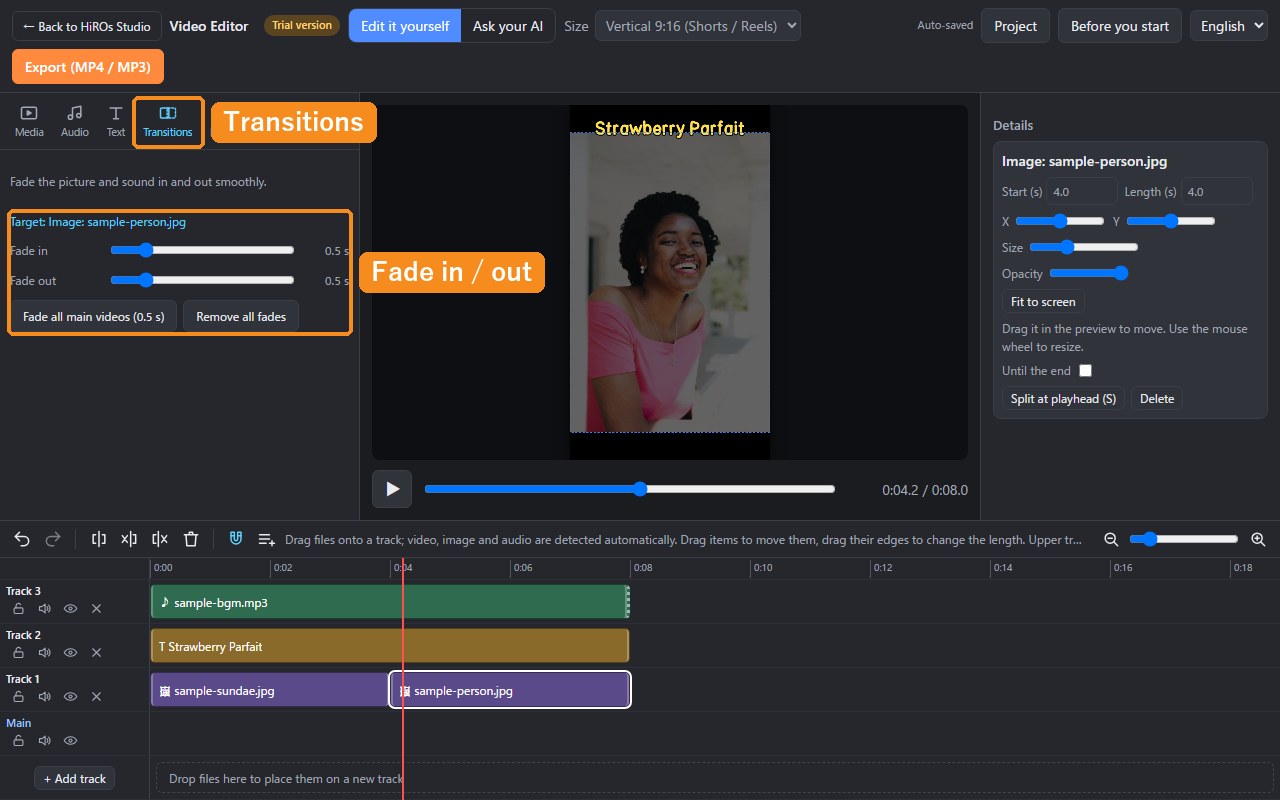
Press ▶ (or the Space key) to play and check.
6. Export as MP4
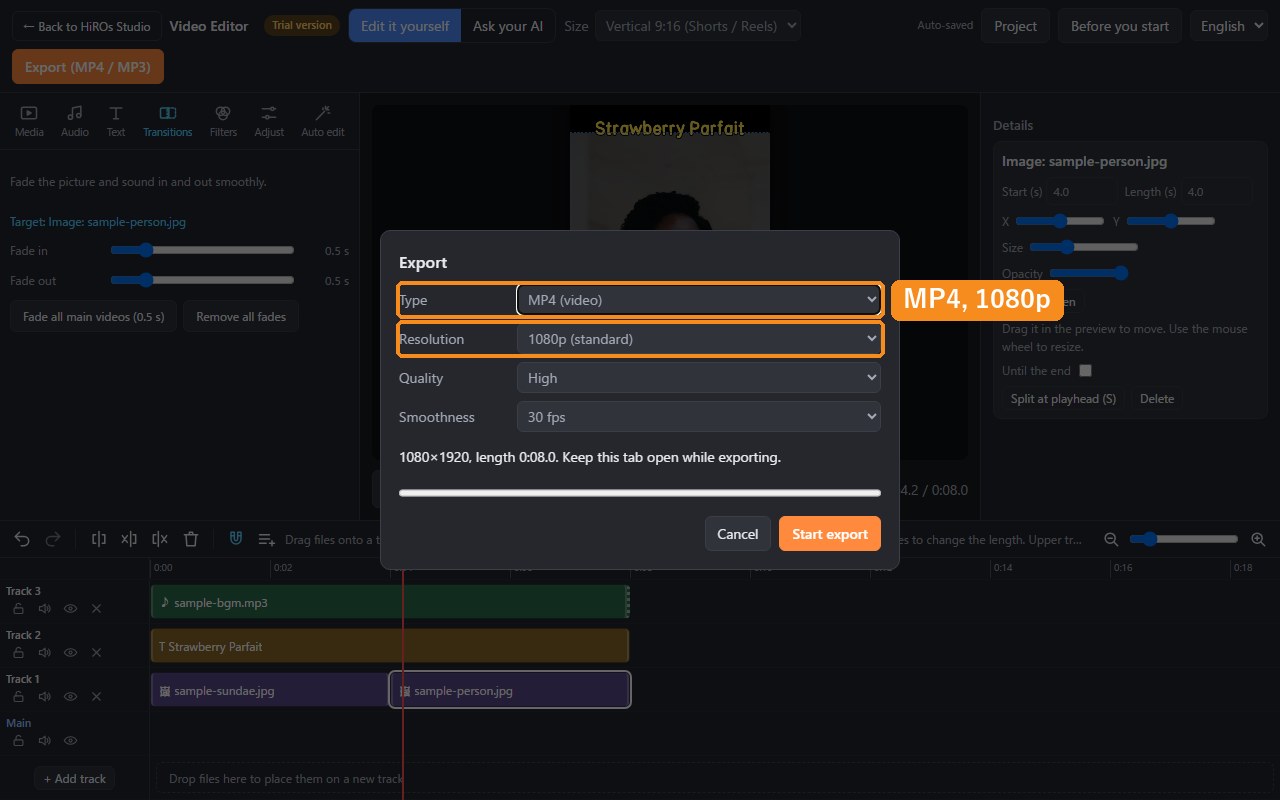
- Click Export (MP4 / MP3) at the top right.
- Choose "MP4 (video)" as the type, "1080p (standard)" as the resolution, "High" quality and "30 fps".
- Click "Start export". A 1080×1920 MP4 is saved.
Troubleshooting
- A photo went onto another track: if there is no free space, it is placed on a new track. Drag it on the timeline to move it.
- The caption is hidden behind a photo: upper tracks appear in front. Drag the caption onto a track above the photo.
- The music stops early: select the music and check "Loop" and "Until the end" in Details.
- Made a mistake: Ctrl+Z to undo, Ctrl+Y to redo.
FAQ
Does it cost anything?
No. No account is needed either.
Are my photos and videos sent anywhere?
No. Everything is processed inside your browser.
Can I use the practice music in my own videos?
Yes. It is an original track made by HiROs Studio, so feel free to use it.
Is my work in progress saved?
Yes. It is saved in your browser automatically, so you can continue next time. You can also save it to a file from "Project" at the top right.
Make a short video in the Video Editor →
To layer images and videos, see Layer Images and Videos on a Video.