How to Extract Audio from a Video as MP3: Free, in Your Browser, No Sign-up
This guide shows how to save only the audio of a video as MP3, from a video you shot on your phone or one you made. With HiROs Studio's Video Editor, you need nothing to install and no account; it all works in your browser. Your video is never uploaded.
It assumes the latest Chrome or Edge on a computer.
1. Add your video
- Open the Video Editor.
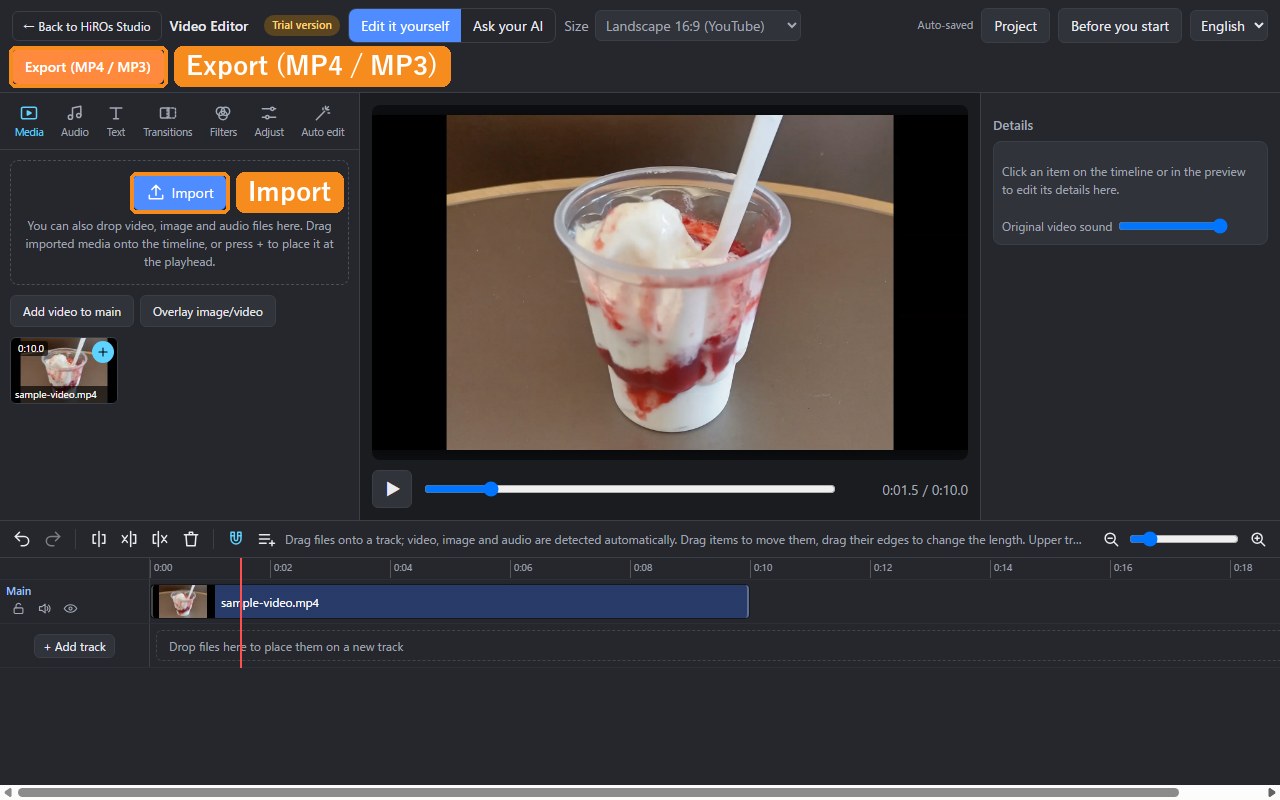
- Click Import at the top left and choose the video you want the audio from (MP4, MOV or WebM). You can also drag the file onto the screen.
- The video is placed on the "Main" track of the timeline at the bottom.
2. Choose MP3 and export
- Click Export (MP4 / MP3) at the top right.
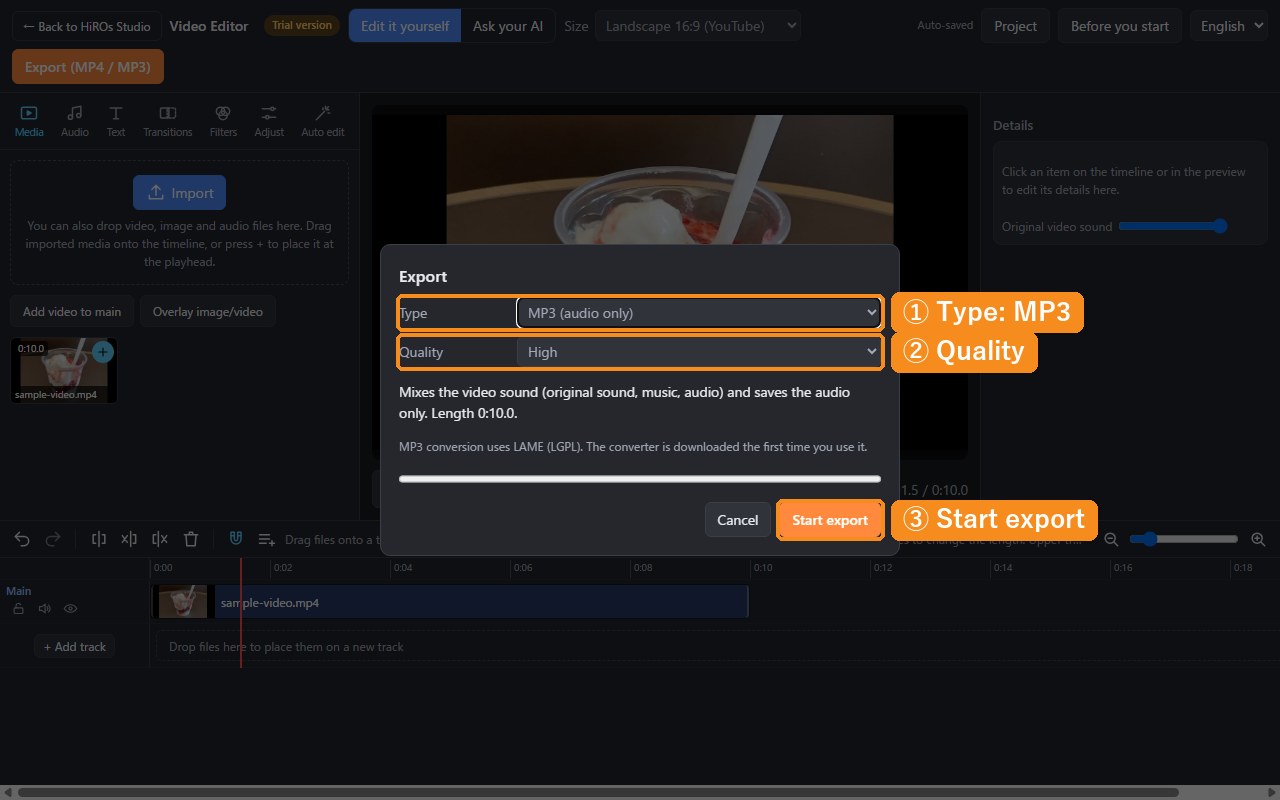
- Under "Type", choose MP3 (audio only).
- Choose the "Quality" (if unsure, "High").
- Click Start export.
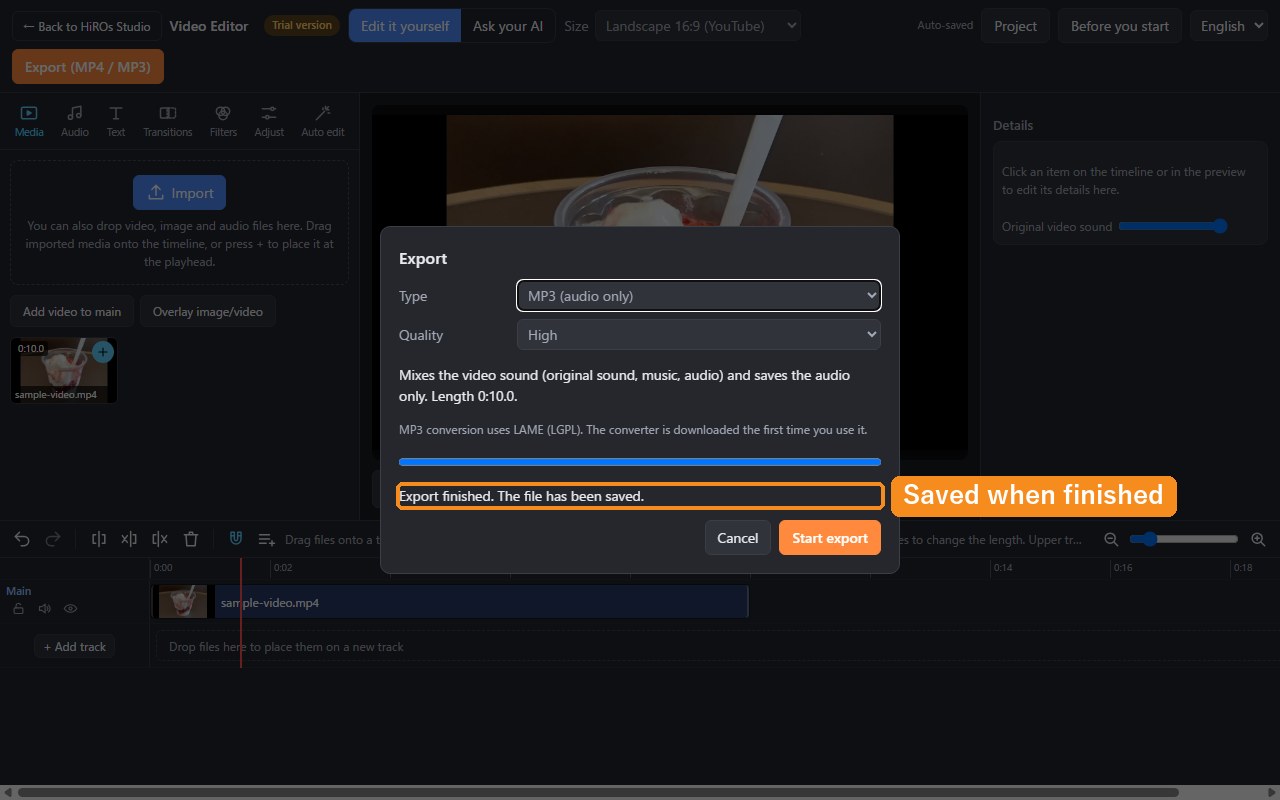
After a moment, "Export finished" appears and the MP3 file is saved (to your browser's download folder). The first time you make an MP3, the converter is downloaded, so it takes a little longer.
Choosing the type and quality
| Type | Best for |
|---|---|
| MP3 | The most widely supported format. Plays almost anywhere: phones, computers and music players. |
| M4A (AAC) | A little smaller than MP3 at the same sound quality. Common on iPhone. |
| WAV | Saves the sound without any loss. Files are very large. Good for further editing in audio software. |
| Quality | Bitrate | Use it for |
|---|---|---|
| Standard | 128 kbps | Speech, or when you want small files |
| High | 192 kbps | Good enough for music. Choose this if unsure |
| Maximum | 320 kbps | When sound quality matters most |
Tips
- Only part of the audio: drag the edge of the video on the timeline to shorten it, or split at the playhead (S key) and delete the parts you don't need, then export. Only what is on the timeline is exported.
- Several videos as one audio file: import several videos and they are joined on the main track. Export as MP3 to get one file.
- Add music: add music with "Add music/sound" in the Audio tab, and the mixed sound is saved. To remove the original video sound, set "Original video sound" in the Audio tab to 0.
- Convert an audio file such as WAV to MP3: import the audio file, place it on the timeline with "+", and export as MP3.
FAQ
Does it cost anything?
No. No account is needed either.
Is my video sent anywhere?
No. Loading, converting and saving all happen inside your browser.
Can I use long videos?
Yes, but it may take a while depending on your computer. Start with videos of a few minutes.
What is used for MP3 conversion?
MP3 conversion uses LAME (LGPL).
Can I extract audio from any video?
Please use videos you shot yourself or videos you have permission to use. Uses that infringe the rights of others are prohibited by the Terms of Use.
Extract MP3 in the Video Editor →
For a full introduction to the app, see Video Editor.