Shorten a Talking Video by Removing Silences: Cut All the Pauses at Once with Auto Edit (Free)
Talking videos have lots of silent pauses between words, and cutting them one by one is hard work. With Remove silences in HiROs Studio's Video Editor, the pauses are found automatically and cut out all at once. In this tutorial, you try it step by step with a practice video.
It assumes the latest Chrome or Edge on a computer.
Practice video
A 17-second video in which a humming sound (instead of a voice) and silence alternate. It is a practice file made by HiROs Studio.
Download the practice video (sample-talk.mp4)
Once you know the steps, try it with your own talking videos.
1. Add the video
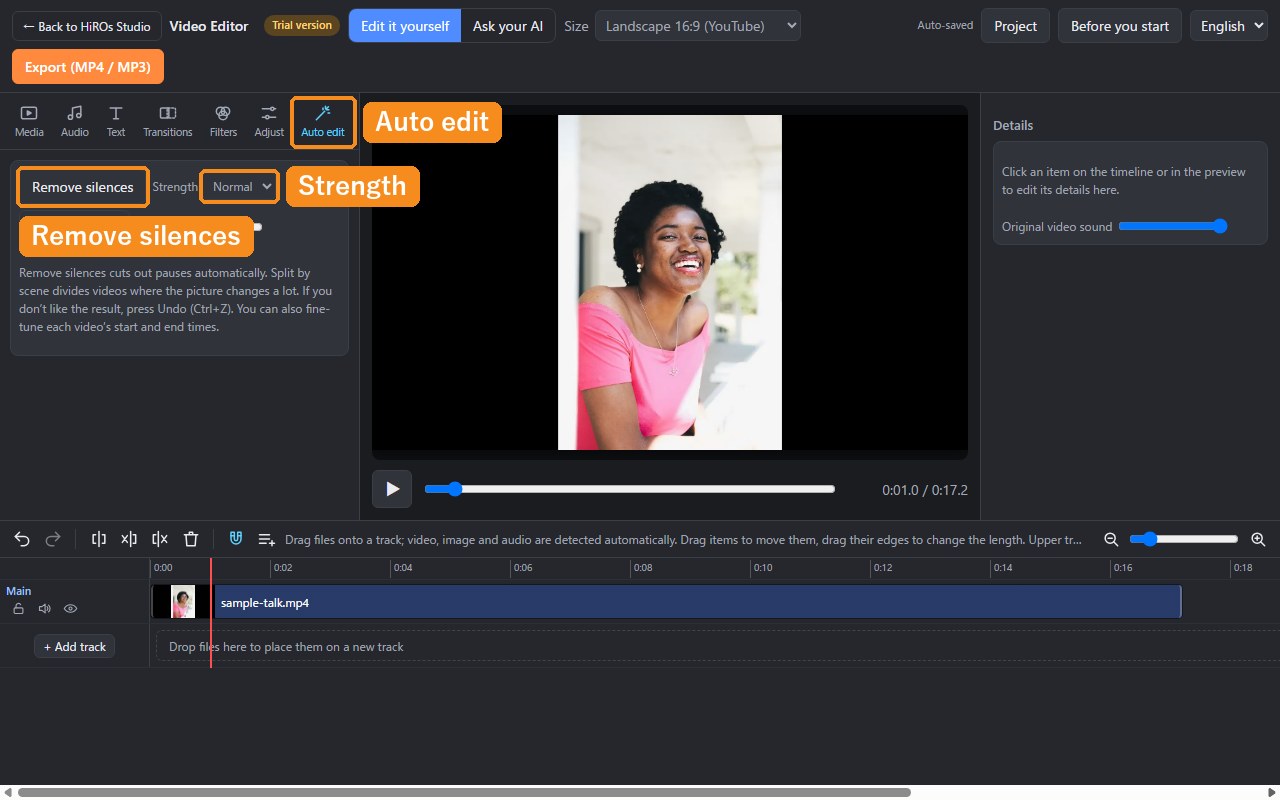
- Open the Video Editor and choose sample-talk.mp4 with Import at the top left.
- The video goes onto the "Main" track of the timeline. Its length is 0:17.2.
- Open the Auto edit tab at the top left.
2. Remove the silences
- Set "Strength" to Normal.
- Click Remove silences.
- After a moment, a message such as "Silences removed. 0:17.2 → 0:11.4 (4 pieces)." appears.
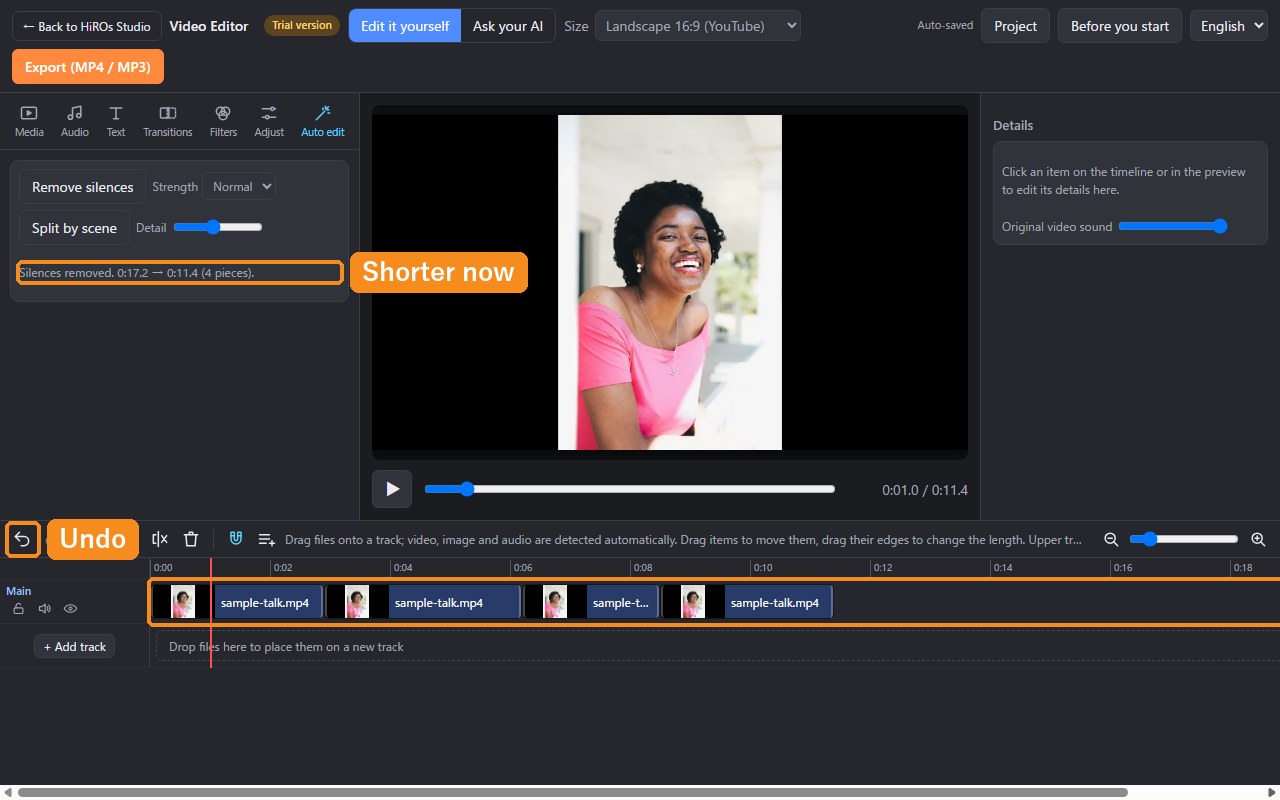
Press ▶ (or the Space key) to play and check. The gaps between sounds are shorter.
3. Finish and export
- Too much or too little was cut: press Undo (Ctrl+Z), change the "Strength" and click again. "Light" keeps quiet sounds; "Strong" also cuts quiet sounds as silence.
- Fine-tune: drag the edges of the pieces on the timeline to change what is kept.
- Export: save with "Export (MP4 / MP3)" at the top right.
How it works
- It measures the loudness of the video's sound and cuts silences that last 0.6 seconds or more. Shorter pauses are kept so speech still sounds natural.
- A little is kept before and after each sound so the start and end of words are not cut off.
- Sounds on other tracks, such as music, are not analyzed (only the main video's sound is). We recommend adding music after removing silences.
Troubleshooting
- Almost nothing is cut: loud background noise is not treated as silence. Set "Strength" to "Strong".
- The beginnings or ends of words are cut: set "Strength" to "Light".
- It takes a long time: long videos take longer to analyze. Start with videos of a few minutes.
FAQ
Does it cost anything?
No. No account is needed either.
Is my video sent anywhere?
No. The sound analysis also happens inside your browser.
Can it split by scene too?
Yes. Click "Split by scene" in the Auto edit tab to split the video automatically where the picture changes a lot.
Remove silences in the Video Editor →
For a full introduction to the app, see Video Editor.