Image Print (Trial): Free Construction Photo Albums, Photo Layouts, ID Photos, Index Prints, Cropping, Drawing and Batch Conversion
HiROs Studio's Image Print is a free app for printing images, with nothing to install and no account needed. Make a construction photo album with a cover page, print several photos from a folder on one A4 sheet, or fill photo paper with ID photos. Your images are never uploaded.
This is a trial version. There may be bugs or things it cannot do yet. Please send feedback or bug reports from the contact page.
What you can do
| Feature | Details |
|---|---|
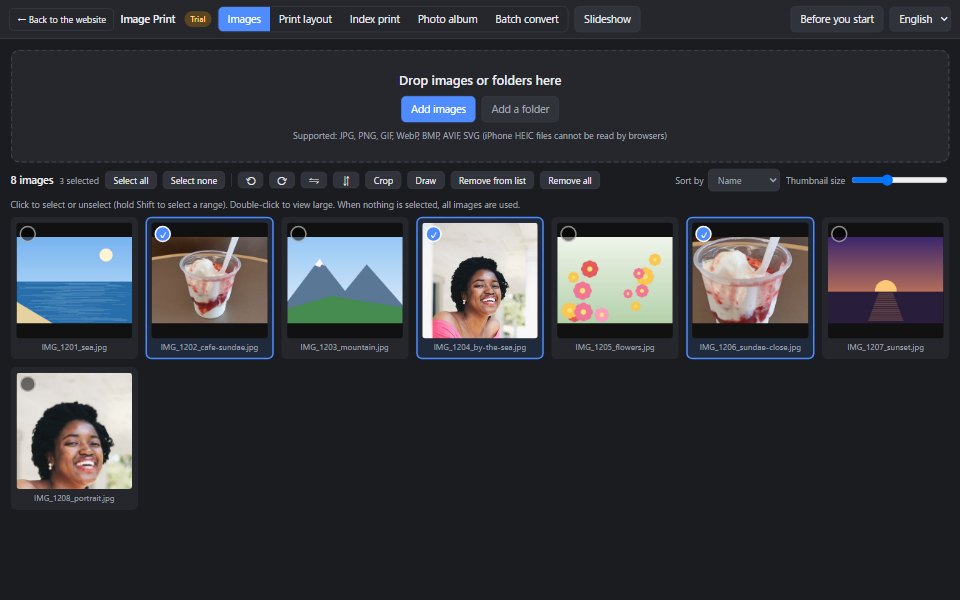
| Image list | Drop images or folders to see thumbnails. Sort by name, date taken or size, rotate, and double-click to view large. |
| Crop and flip | Choose a frame shape (4:3, 1:1, photo print, ID photo and more), then zoom and drag to set the area. You can also straighten tilted photos and flip them horizontally or vertically. |
| Draw | Draw on photos with a pen, arrows, lines, boxes, circles and text. Choose the color, width, text size and outline. |
| Print layout | Print 1 to 30 images on A4, A3, B5, photo print sizes or postcards. Add file names, dates or numbers under the images. |
| Print by size | Lay out images at 3.5×5 in, 5×7 in, business card size, ID photo sizes (24×30 mm to 40×50 mm) or your own size. You can fill a page with one image. |
| Index print | Print a contact sheet of small images, with file names and dates. |
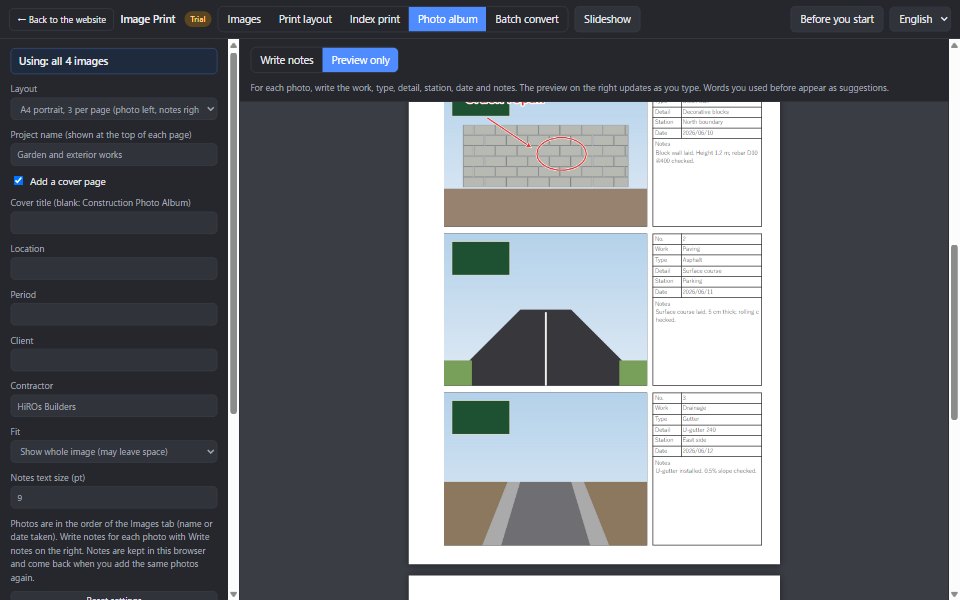
| Construction photo album | Make an album with a cover page and notes for each photo (work, type, detail, station, date and notes), in seven layouts. |
| PDF and image output | Choose “Save as PDF” in the print dialog to make a PDF, or save each page as a JPG or PNG image. |
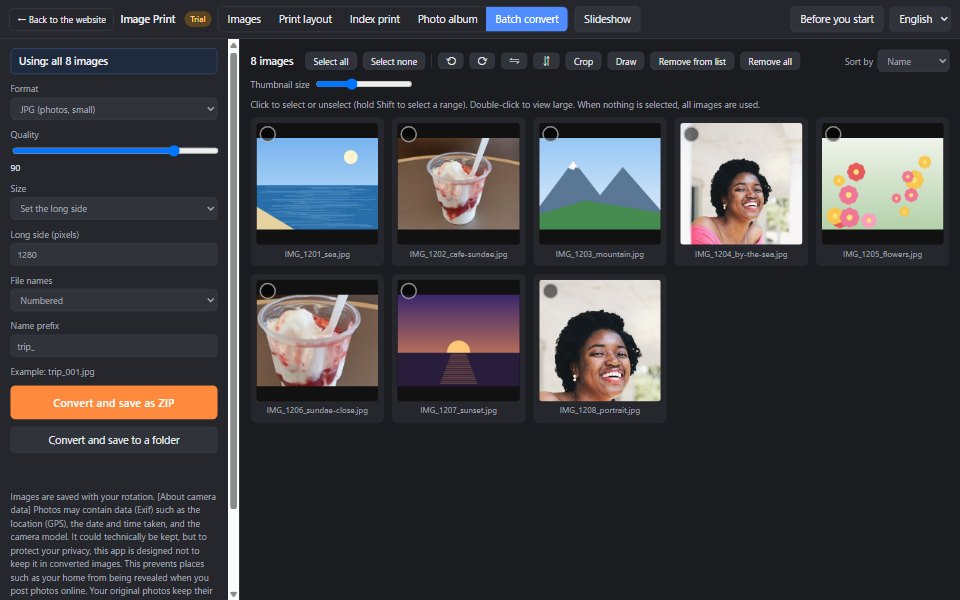
| Batch convert | Resize many photos at once, change the format (JPG, PNG, WebP), number the file names, and save as a ZIP or into a folder. |
| Slideshow | Show photos one by one in full screen. Choose the seconds per image, random order and the transition. |
Crop and flip
- Select one photo in the list and click “Crop” (you can also click it in the large view).
- Choose a shape: original, 4:3, 3:4, 3:2, 1:1, 16:9, 3.5×5 in, ID photo (3:4) or passport (35:45).
- Drag the photo to position it, and use the mouse wheel or Zoom to set the size. Use Tilt to straighten a tilted photo.
- Click “Done”. “Remove crop” takes you back to the original at any time.
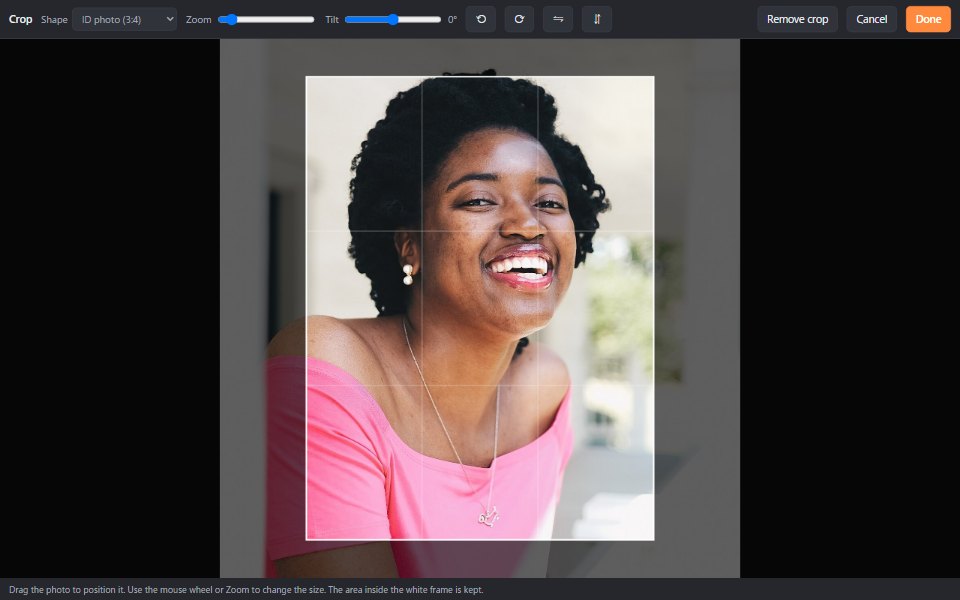
The flip buttons (⇋ horizontal, ⇵ vertical) are in the list, the large view and the crop screen. Cropping and flipping do not change your original files. They are applied when you print or save.
Draw on photos (arrows, text and pen)
- Select one photo in the list and click “Draw”.
- Choose a tool (pen, arrow, line, box, circle or text) and a color at the top, then drag on the photo.
- For text, click where you want it, type, and press Enter (Shift+Enter for a new line).
- Use “Undo” (Ctrl+Z) to fix mistakes. Click “Done” when finished.
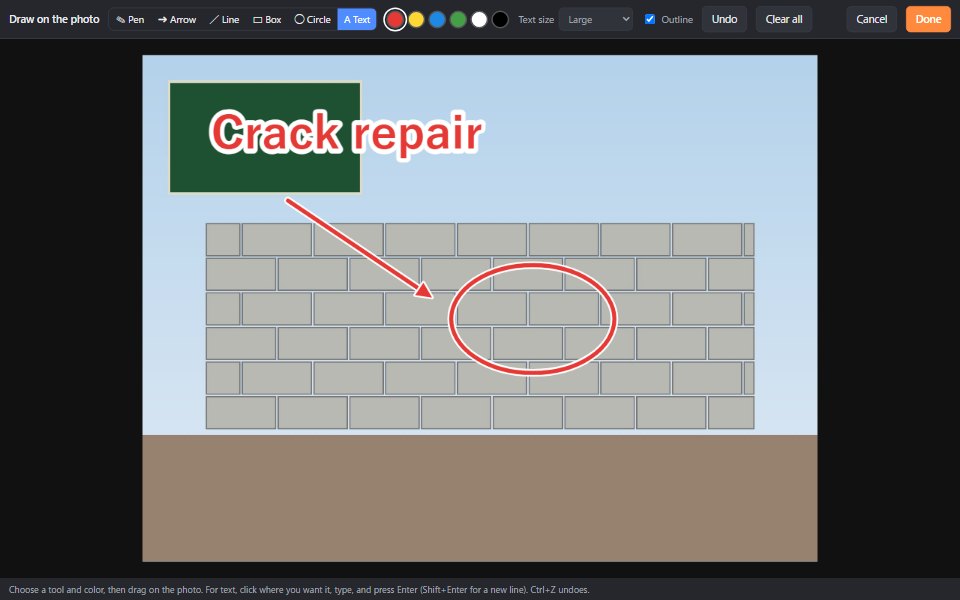
Drawings stay in the same place on the photo even if you crop or rotate it later. They are included in prints, photo albums, PDFs, saved images and batch conversion.
Note on construction photos: photos submitted to a client or a public agency may not be allowed to be edited (cropped, drawn on and so on). Use edited photos for internal documents and explanations, and follow your client's rules for submitted photos.
How to print several photos on a page
- In “Images”, click “Add a folder” or “Add images”, or drop photos onto the page.
- Click the photos to print (if none are selected, all are used).
- Click “Print layout” at the top and choose the paper, orientation and images per page on the left. A preview appears on the right.
- Click “Print”. In the print dialog, set Scale to “100% (Default)” and Margins to “None”.
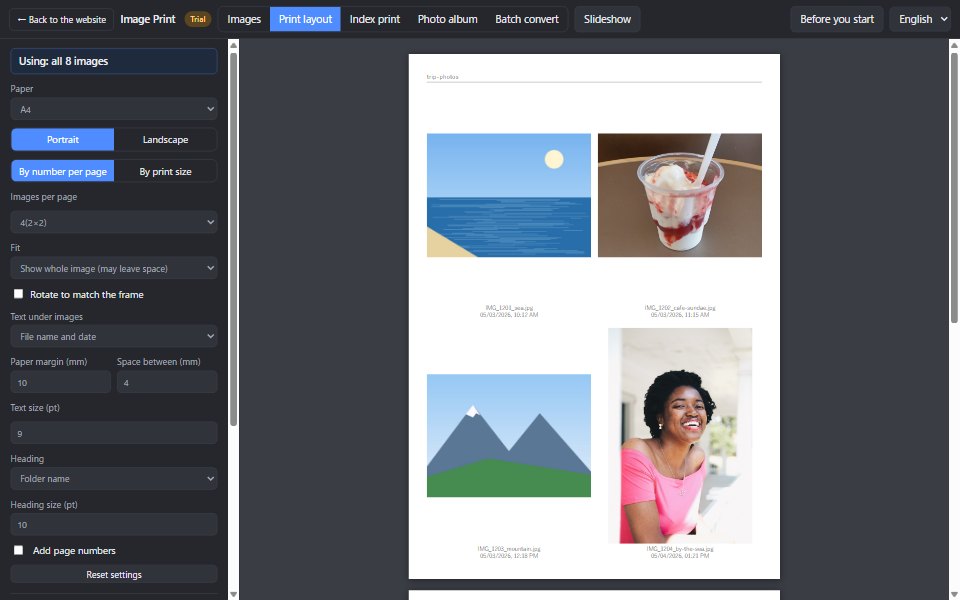
The heading can be “None”, “Folder name” or “Type my own”. Your choice and other settings, such as paper and text size, are remembered in your browser. “Reset settings” brings back the defaults.
ID photos on photo paper
- In “Images”, select one photo for the ID photo.
- In “Print layout”, choose “By print size”.
- Choose an ID photo size in “Print size” (for example 35×45 mm for passports) and check “Fill each page with one image”.
- Set the paper to 3.5×5 in and Fit to “Fill the frame”. You can add cutting lines too.
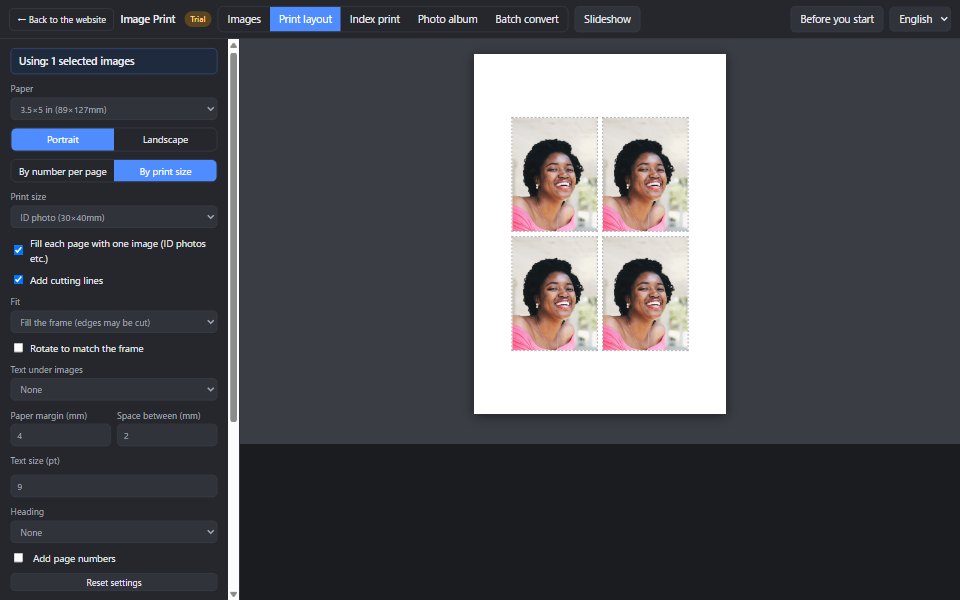
For ID photos, save the page as a JPG with “Save pages as images” and order 3.5×5 in photo prints. Photos printed on plain paper are not accepted for official documents, and some places do not accept printer-printed photos at all.
Index print
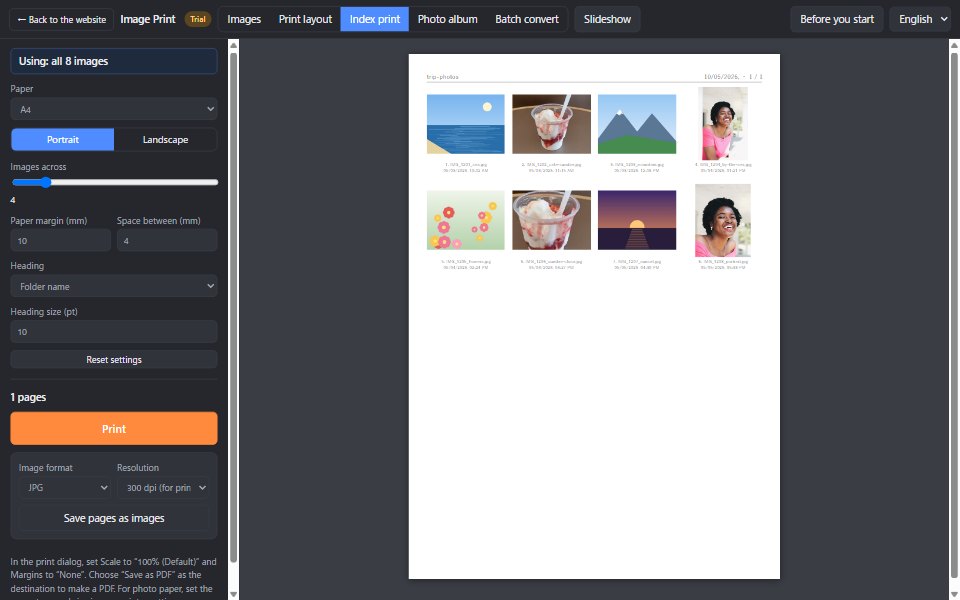
Click “Index print” to make a contact sheet. Choose how many images go across. You can see at a glance which photo is which file.
Make a construction photo album
- Add the site photos in “Images” and sort by date taken.
- Click “Photo album” and enter the layout and project name on the left. For a cover page, also enter the location, period, client and contractor.
- In “Write notes” on the right, enter the work, type, detail, station and notes for each photo. The date is filled in automatically. “Same as above” copies from the photo above. The preview updates as you type.
- Print, or save as a PDF or images.
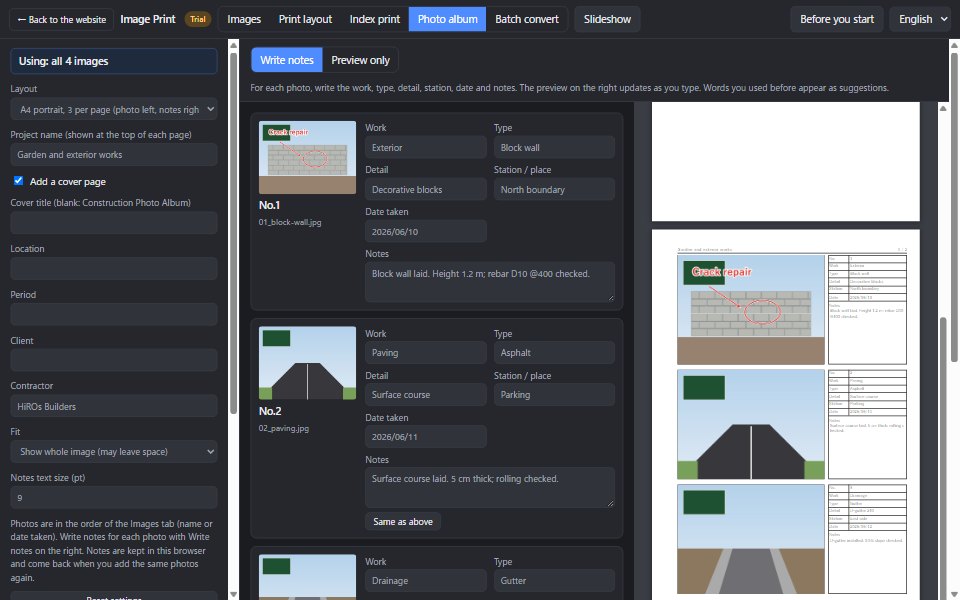
Choose from seven layouts:
- A4 portrait, 3 per page (photo left, notes right)
- A4 portrait, 2 per page (larger)
- A4 landscape, 2 per page (side by side)
- A4 portrait, 6 per page (smaller)
- A4 portrait, 4 per page (2 across, 2 down, comments under photos)
- A4 portrait, 6 per page (2 across, 3 down, comments under photos)
- A4 portrait, 8 per page (2 across, 4 down, comments under photos)
Notes are kept in this browser and come back when you add the same photos again. Clearing browser data removes them, so save finished albums as PDFs. Crops and drawings are cleared when you close the image list.
Batch convert
“Batch convert” converts many photos at once.
- Size: keep / set the long side (for example 1920 pixels) / scale by percent. Images are never enlarged.
- Format: same as original, JPG, PNG or WebP. You can choose the quality.
- File names: original names, or numbered such as “trip_001”.
About camera data: photos may contain data (Exif) such as the location (GPS), the date and time taken, and the camera model. It could technically be kept, but to protect your privacy, this app is designed not to keep it in converted images. This prevents places such as your home from being revealed when you post photos online. Your original photos keep their data.
Before you start (important)
This app runs entirely in your browser, with nothing to install. Your images are never uploaded.
Instead, all processing happens on your own computer or phone, so depending on your device, the app may slow down or freeze.
- Many photos (about 500 or more) or very large photos are especially heavy.
- iPhone HEIC photos cannot be read by browsers. Use photos saved as JPG.
- The image list is not saved. After closing the page, add your photos again (settings and album notes are remembered).
- Recommended: the latest Chrome or Edge on a computer.
Prohibited use
Using this app to print, convert or share illegal images, or images that infringe the rights of others, is prohibited. Printing, converting or sharing sexual images involving minors, or intimate images of anyone without their consent, is prohibited in any form.
You must agree to the Terms of Use to use this app.
FAQ
Does it cost anything?
No. No account is needed either.
Are my photos sent anywhere?
No. Loading, printing and converting all happen inside your browser.
Can text come out at a different size than I set?
No. Text is printed at the size you set, regardless of your browser's minimum font size setting.
The printed size is slightly off
In the print dialog, set Scale to “100% (Default)” and Margins to “None”. “Fit to page” prints slightly smaller.
Related articles
- Make a Construction Photo Album: Cover Page, Notes, Printing and PDF (tutorial)
- Make ID Photo Files: Lay Out 30×40 mm Photos on 3.5×5 in and Order Photo Prints (tutorial)
- Batch Resize and Convert Photos: Size, JPG/PNG/WebP and Numbered Names at Once (tutorial)
To edit photos, see the Web Photo Editor; to put files together, see Zip & Unzip.