Zip & Unzip (Trial): Open and Create ZIP, 7z, RAR and LZH Files in Your Browser
HiROs Studio's Zip & Unzip is a free app for opening and creating archives, with nothing to install and no account needed. Open ZIP or RAR files you received, or put photos and documents together into a ZIP. Your files are never uploaded.
This is a trial version. There may be bugs or things it cannot do yet. Please send feedback or bug reports from the contact page.
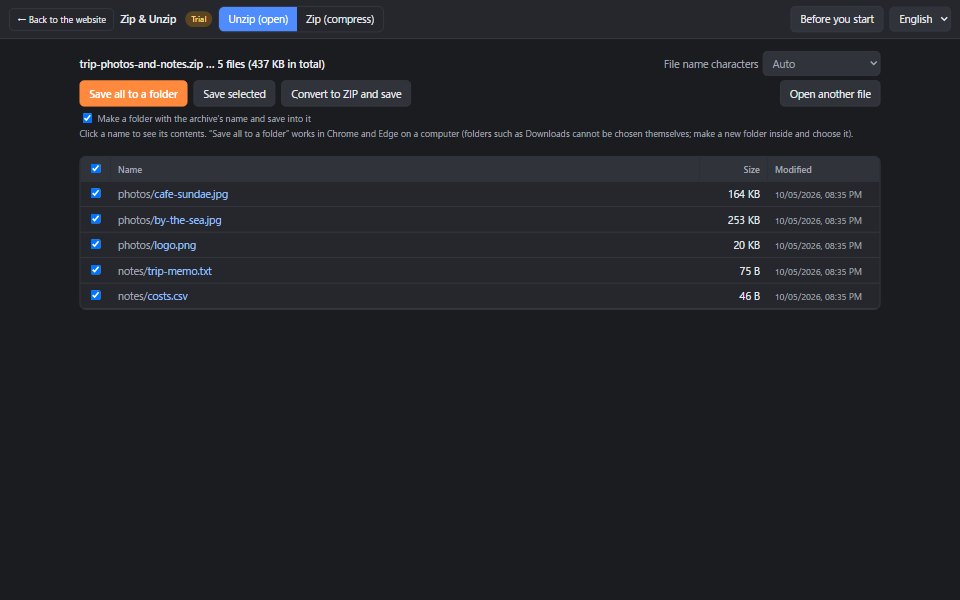
What you can do
| Feature | Details |
|---|---|
| Open (unzip) | Opens ZIP, 7z, RAR, LZH, TAR, TAR.GZ, GZ, CAB and more. Drop the file onto the page, or click “Choose a file”. |
| File names in other languages | File names are detected automatically, including ZIP files made on older Japanese Windows (Shift_JIS). If names look wrong, change “File name characters”. |
| Password-protected files | Opens password-protected ZIP files. Enter the password when asked. |
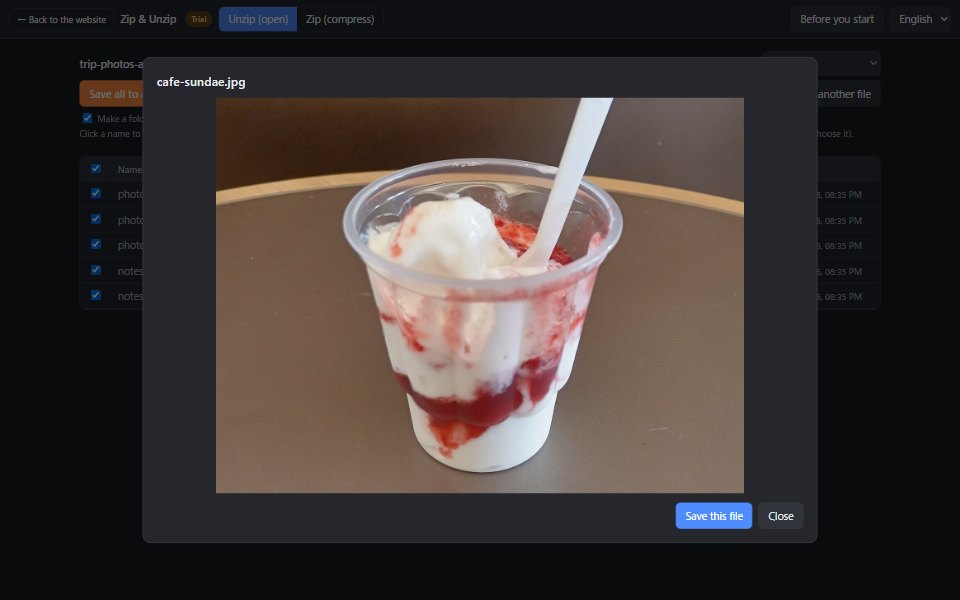
| Look inside | Click a file name to see images, text, PDFs, audio and video right away, without saving. |
| Save | “Save all to a folder” keeps the folder structure (Chrome and Edge on a computer). You can also save only the files you select. |
| Convert to ZIP | Converts RAR, 7z and other archives into ZIP files that open on any computer. |
| Create (compress) | Drop files or folders and put them together into a ZIP or TAR.GZ file. Choose from four compression levels. |
| Add a password | Protect a ZIP with a password, using “AES-256” (secure) or “Legacy” (opens with Windows’ built-in tool). |
How to open an archive you received
- Choose “Unzip (open)” at the top (it is selected at the start).
- Drop the archive onto the page, or click “Choose a file”. The files inside are listed.
- Click a file name to look inside.
- Click “Save all to a folder” and choose where to save. If your browser asks whether to allow editing files, choose “Allow”.
About the save folder: browsers do not allow folders such as Downloads or Desktop themselves. Make a new folder inside one of them, and choose it. “Make a folder with the archive’s name and save into it” is on at the start, so a folder with the archive’s name is created inside the folder you choose.
How to put files together into a ZIP
- Choose “Zip (compress)” at the top.
- Drop files or folders onto the page, or use “Add files” or “Add a folder”.
- On the right, choose the file name, format and compression level. To add a password, enter it and choose the encryption.
- Click “Compress and save”. The new file is downloaded.
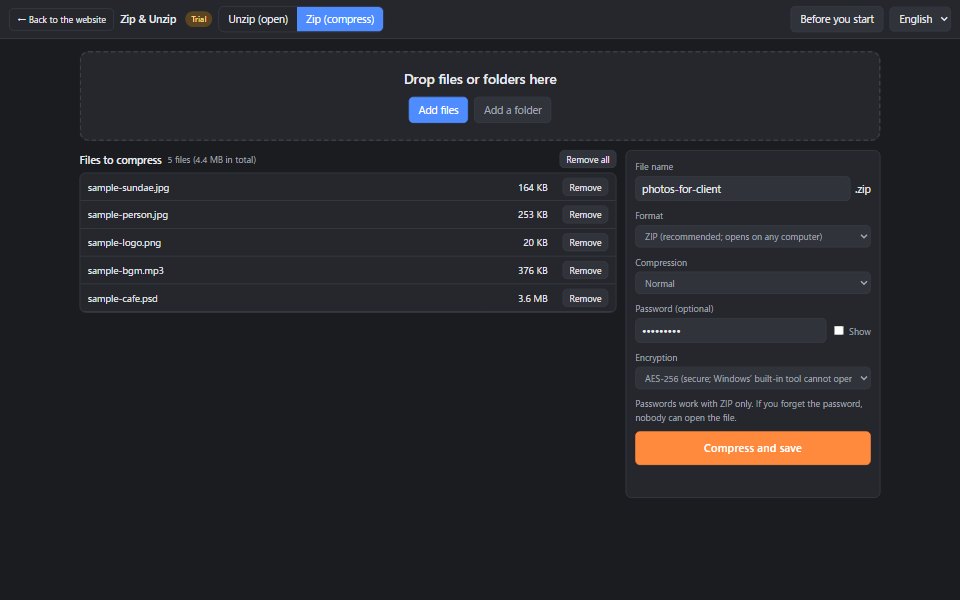
Password encryption
- AES-256: secure. However, Windows’ built-in tool (File Explorer) may not open it. Choose this when the other person can use an archive app such as 7-Zip, or this app.
- Legacy: opens with Windows’ built-in tool, but it is less secure.
Send the password separately from the file (for example by phone or in a different message). If you forget the password, nobody can open the file.
Before you start (important)
This app runs entirely in your browser, with nothing to install. Your files are never uploaded.
Instead, all processing happens on your own computer or phone, so depending on your device, the app may slow down or freeze.
- Large files (about 2 GB or more in total) may stop partway.
- Keep the tab open until saving finishes.
- Archives you receive may contain programs (such as .exe files). Do not open archives from people you do not know.
- Recommended: the latest Chrome or Edge on a computer. Other browsers and phones cannot use “Save all to a folder” (saving files one by one and converting to ZIP still work).
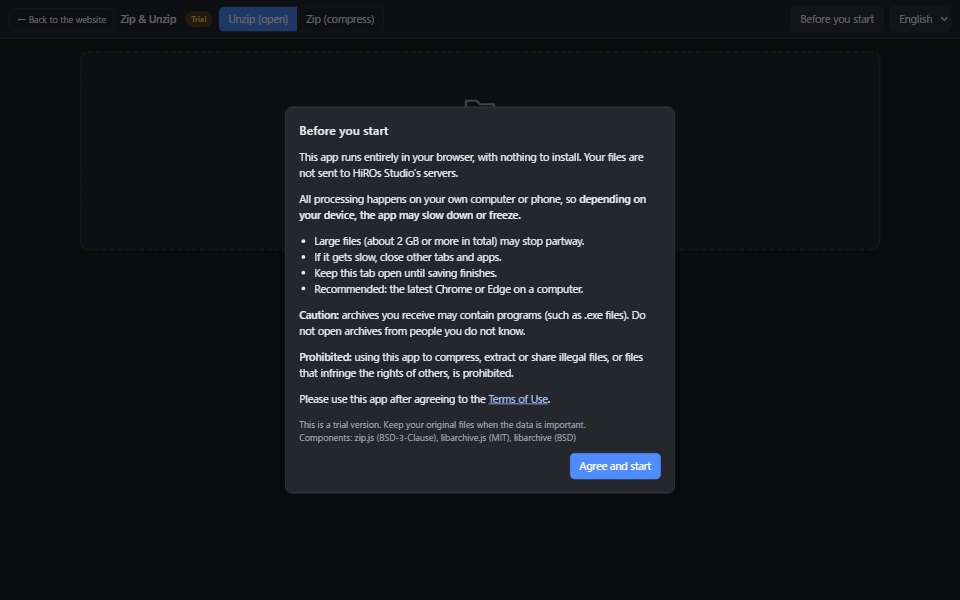
Prohibited use
Using this app to compress, extract or share illegal files, or files that infringe the rights of others, is prohibited.
You must agree to the Terms of Use to use this app.
FAQ
Does it cost anything?
No. No account is needed either.
Are my files sent anywhere?
No. Opening, creating and saving all happen inside your browser.
Can I save as 7z or RAR?
No. 7z and RAR can only be opened. To create an archive, choose ZIP or TAR.GZ. ZIP files open with the built-in tools of Windows, Mac and phones.
The file names look garbled
Change “File name characters” above the list to “Japanese (Shift_JIS)”, “UTF-8” or another option.
Can I open split archives (.001, .part1.rar and so on)?
Not at the moment.
What components does it use?
zip.js (BSD-3-Clause), libarchive.js (MIT) and libarchive (BSD).
For photos, see the Web Photo Editor; for videos, see the Video Editor.