Batch Resize and Convert Photos: Size, JPG/PNG/WebP and Numbered Names at Once (Free)
This tutorial shows how to resize many photos, change their format and number their names, all at once. It is handy before sending photos by email or chat, or when preparing them for a website. You will use “Batch convert” in HiROs Studio's Image Print app. Nothing to install and no account needed.
The steps assume the latest Chrome or Edge on a computer. In the practice, eight photos totaling 3.2 MB become 1.2 MB.
Practice files
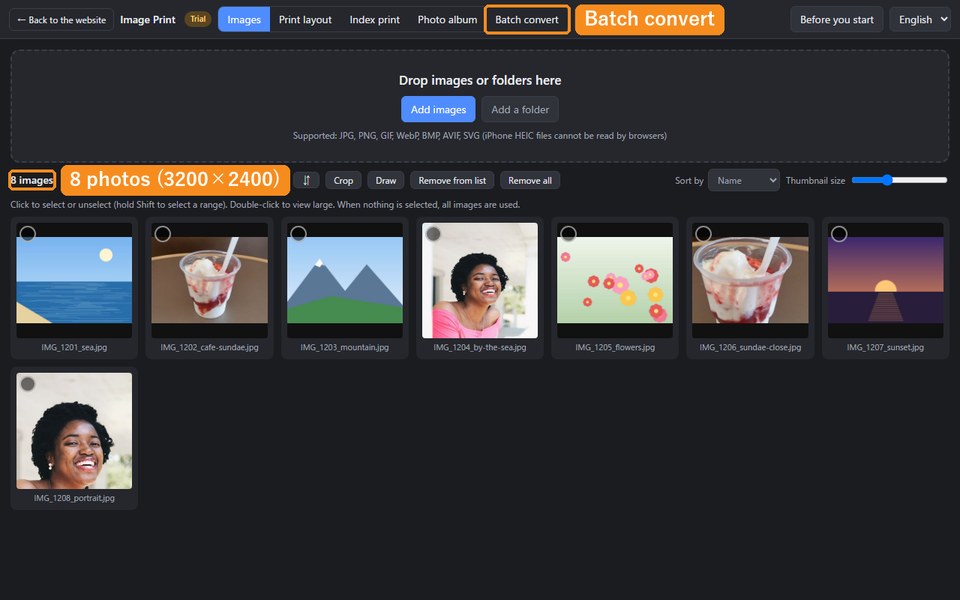
This tutorial uses the practice photos below: eight large photos (3200×2400 pixels) prepared by HiROs Studio.
After downloading, extract the ZIP. It contains the “trip-photos-practice” folder. You can also open it with Zip & Unzip.
1. Add the photos
- Open Image Print, click “Add a folder” in Images, and choose the “trip-photos-practice” folder.
- Eight photos appear. To convert only some, click to select them (if none are selected, all are used).
- Click “Batch convert” at the top.
2. Choose how to convert
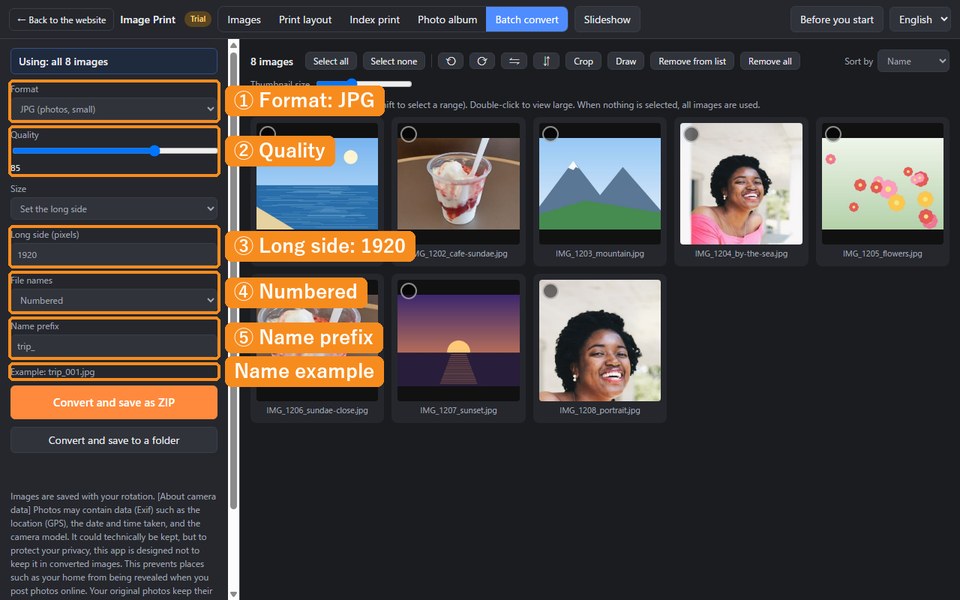
- Set “Format” to “JPG (photos, small)”.
- Set “Quality” to about 85. Lower numbers make smaller files but rougher photos.
- Set “Size” to “Set the long side” and enter 1920 for the long side. Landscape photos become 1920 pixels wide, and portrait photos 1920 pixels tall.
- Set “File names” to “Numbered” and enter “trip_” as the name prefix. “Example: trip_001.jpg” appears.
3. Convert and save
- Click “Convert and save as ZIP”. “converted-images.zip” is downloaded.
- In Chrome or Edge on a computer, “Convert and save to a folder” saves directly into a folder you choose (folders such as Downloads cannot be chosen themselves, so make a new folder inside and choose it).
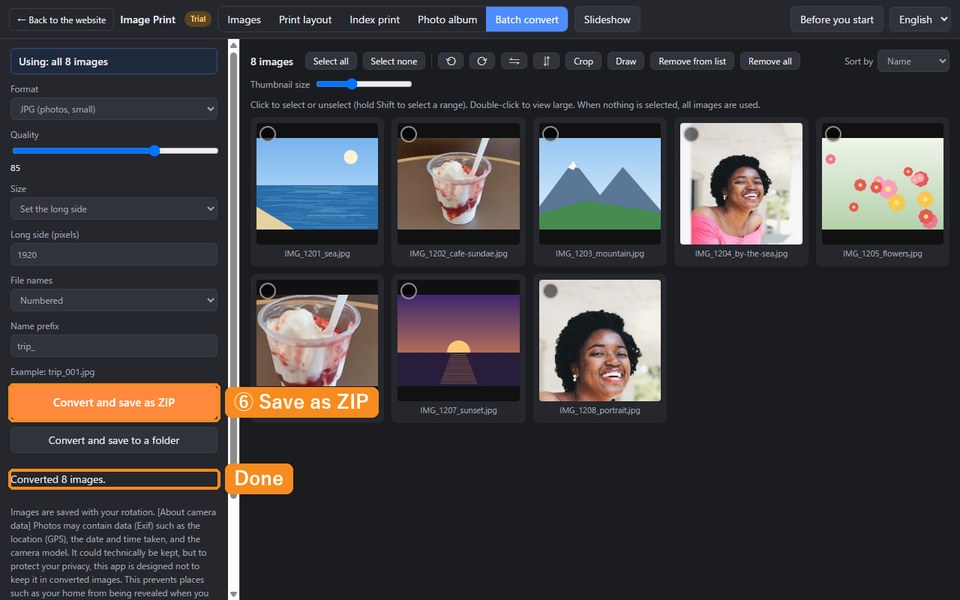
The practice photos go from 3200×2400 pixels and 3.2 MB in total to 1920×1440 pixels and 1.2 MB in total.
Recommended settings
| Purpose | Format | Size |
|---|---|---|
| Send by email or chat | JPG, quality 80–85 | Long side 1280–1920 |
| Put on a website or blog | JPG or WebP | Long side 1200–1600 |
| Keep graphics or text sharp | PNG | Keep |
| Save space on phone photos | JPG, quality 85 | Scale by percent, 50% |
Good to know
- No enlarging: if you enter a number larger than the original, the original size is kept (to avoid blur).
- Rotation, crops and drawings: photos you rotated, cropped or drew on in Images are saved that way.
- About camera data: photos may contain data (Exif) such as the location (GPS), the date and time taken, and the camera model. It could technically be kept, but to protect your privacy, this app is designed not to keep it in converted images. This prevents places such as your home from being revealed when you post photos online. Your original photos keep their data.
- Transparent areas: when a transparent PNG becomes a JPG, transparent areas become white.
Troubleshooting
- iPhone photos cannot be added: browsers cannot read HEIC files. Use photos saved as JPG.
- Cannot save to a folder: folders such as Downloads or Desktop cannot be chosen themselves. Make a new folder inside and choose it, or use “Convert and save as ZIP”.
- It takes a long time: with many photos (about 500 or more), convert them in several batches.
FAQ
Does it cost anything?
No. No account is needed either.
Are my photos sent anywhere?
No. Everything is processed inside your browser.
Do my original photos change?
No. Converted photos are saved as separate files.
Batch convert photos in Image Print →
For the app's other features, see the Image Print introduction.