Make a Construction Photo Album: Cover Page, Notes, Printing and PDF (Free)
This tutorial shows how to turn site photos into a photo album with a cover page and a notes table for each photo. Using HiROs Studio's Image Print app, you will sort the photos by date, write the work, type, detail, station and notes for each one, and print it or save it as a PDF. Nothing to install and no account needed.
The steps assume the latest Chrome or Edge on a computer. You will make a cover page and two A4 portrait pages (six photos).
Practice files
This tutorial uses the practice photos below: six drawings of an exterior works site made by HiROs Studio, with dates taken.
After downloading, extract the ZIP. It contains the “site-photos-practice” folder. You can also open it with Zip & Unzip.
1. Add the photos and sort them by date
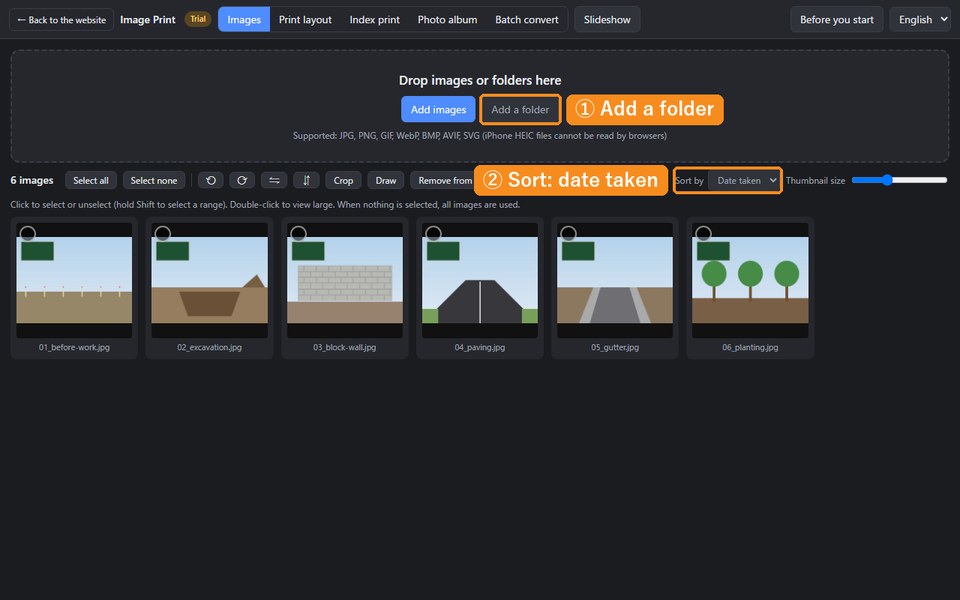
- Open Image Print, click “Add a folder” in Images, and choose the “site-photos-practice” folder (you can also drop the folder onto the page).
- Set “Sort by” at the top right to “Date taken”. The photos are lined up from before the work started.
2. Choose the layout, project name and cover page
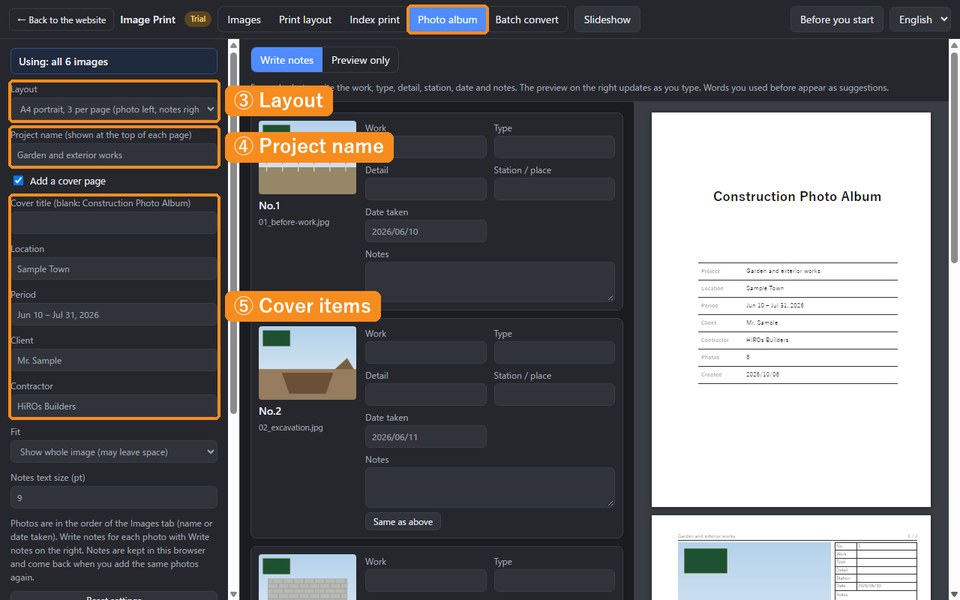
- Click “Photo album” at the top.
- In “Layout” on the left, choose “A4 portrait, 3 per page (photo left, notes right)”.
- Enter the project name. It appears at the top of each page.
- Make sure “Add a cover page” is checked, and enter the location, period, client and contractor. Empty items do not appear on the cover.
3. Write notes for each photo
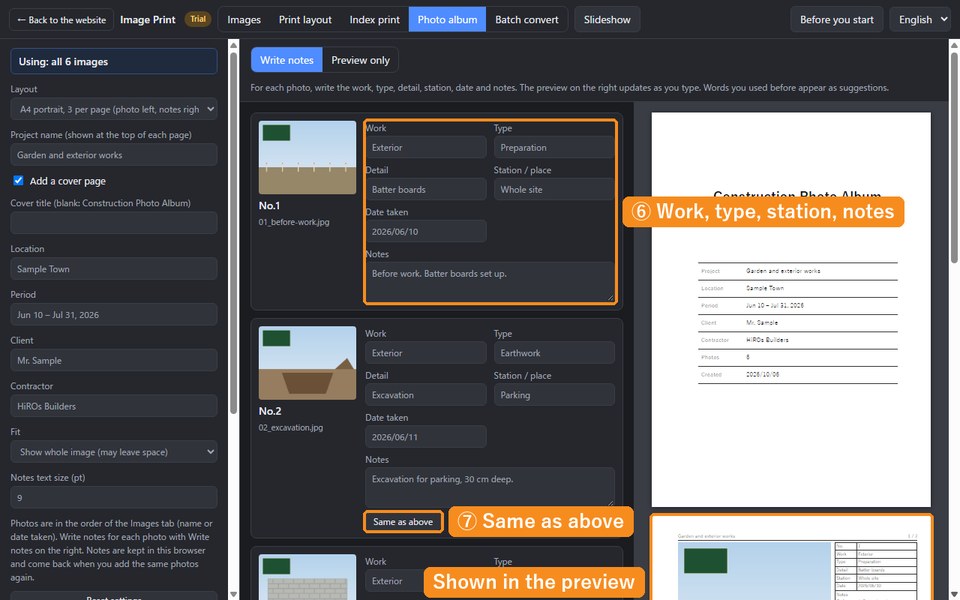
- In “Write notes” on the right, fill in No.1: work “Exterior”, type “Preparation”, detail “Batter boards”, station “Whole site” and notes “Before work. Batter boards set up.” The date is already filled in.
- Click “Same as above” on No.2 to copy the work, type, detail and station from No.1. Change only what differs (type “Earthwork”, detail “Excavation”, station “Parking”) and write the notes.
- Fill in the other photos in the same way. Words you have used appear as suggestions.
Notes are kept in this browser. They come back when you add the same photos again, even after closing the page.
4. (Optional) Draw arrows and text on a photo
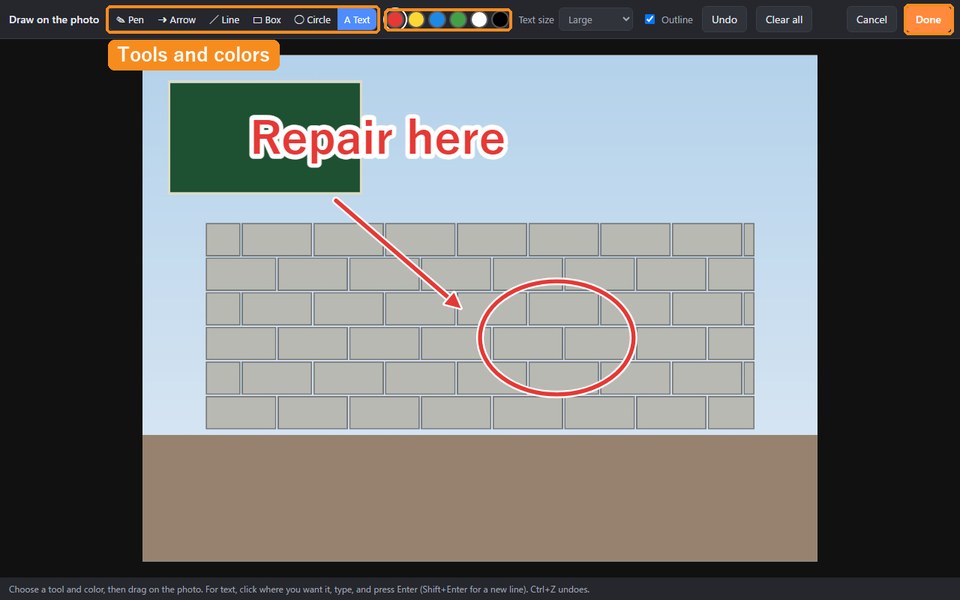
- Go back to Images, select one photo (No.3, the block wall), and click “Draw”.
- Choose the arrow tool and red, then drag on the photo. You can also circle things or add text such as “Repair here”.
- Click “Done”. The drawing is included in the album.
Note: photos submitted to a client or a public agency may not be allowed to be edited (drawn on, cropped and so on). Use drawings for internal documents and explanations to customers.
5. Check the preview, then print or save as PDF
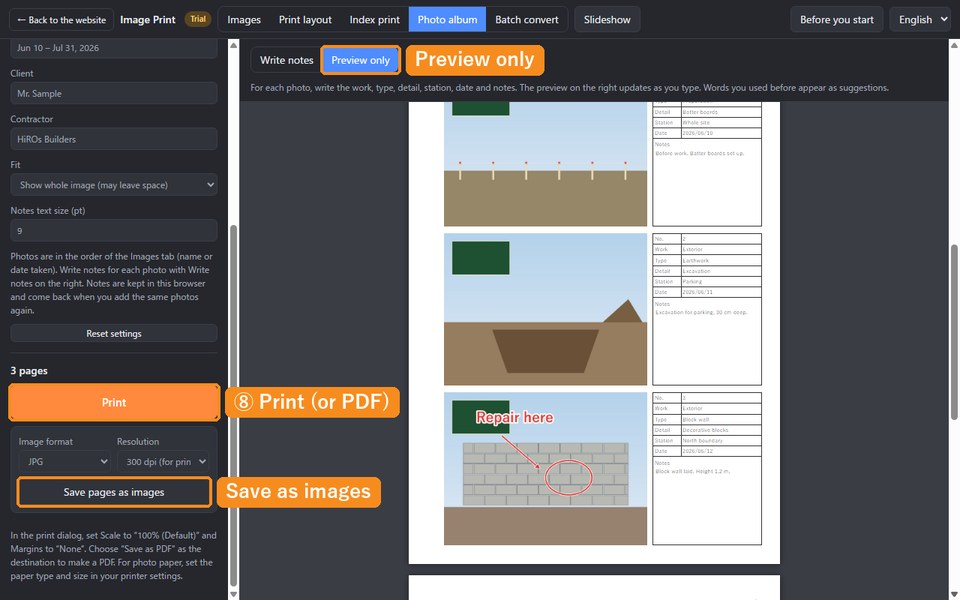
- Go back to Photo album and click “Preview only” to check the whole pages.
- Click “Print” on the left. In the print dialog, set Scale to “100% (Default)” and Margins to “None”.
- To make a PDF, choose “Save as PDF” as the destination in the print dialog.
- To save the pages as images (JPG or PNG), click “Save pages as images”. Two or more pages are saved together as a ZIP.
Try other layouts
Changing the layout gives you a different album with the same notes.
- A4 portrait, 2 per page (larger): for bigger photos.
- A4 landscape, 2 per page (side by side): for before-and-after pairs.
- A4 portrait, 4, 6 or 8 per page (comments under photos): for many photos. The comment box shows the number, work, station, date and notes.
Troubleshooting
- The order is wrong: set the sort order in Images to “Date taken”. Photos without a date taken use the file date.
- You want only some photos: click photos in Images to select them. Only the selected photos are used.
- Prints are smaller or shifted: set Scale to “100% (Default)” and Margins to “None” in the print dialog.
- iPhone photos cannot be added: browsers cannot read HEIC files. Use photos saved as JPG.
FAQ
Does it cost anything?
No. No account is needed either.
Are my photos sent anywhere?
No. Everything is processed inside your browser.
Can I use my notes on another computer?
Notes are kept only in that computer's browser. Save finished albums as PDFs.
Can I use the practice photos for anything?
Yes. They are drawings made by HiROs Studio, so feel free to use them for practice or explanations.
Make a photo album in Image Print →
For the app's other features, see the Image Print introduction.