HiROs 3D Studio (Beta)
A free 3D modeler that runs in your browser with no installation or registration. It can be used for exterior construction quantity takeoff, estimates, furniture, small objects and figurines. Models can be exported as STL files for 3D printing.
The app interface is currently available in Japanese only.
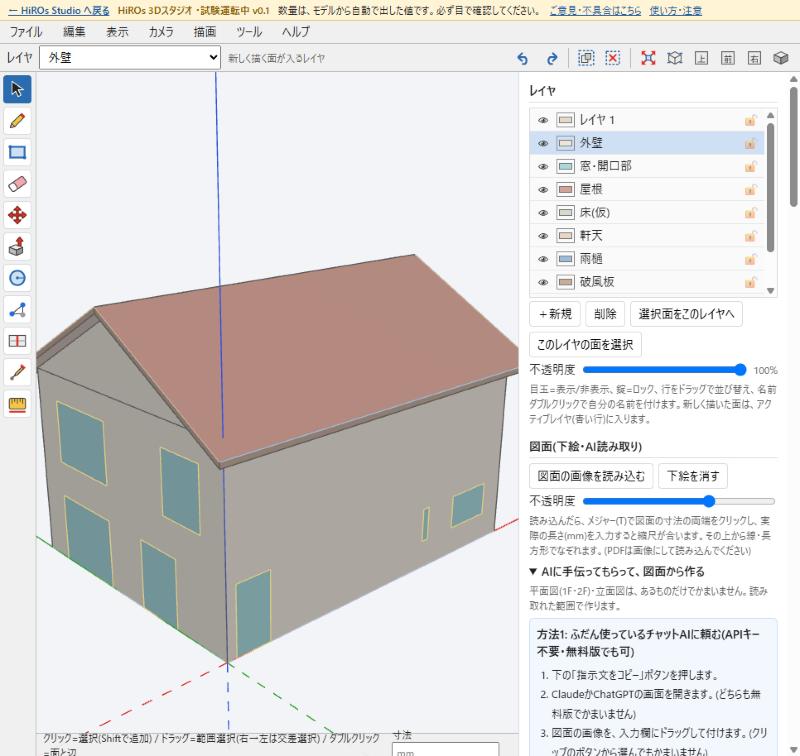
What you can do
Draw and create solids
Draw lines, rectangles and circles, then use Push/Pull to create 3D forms. Dimensions can be entered in millimeters. Snapping helps align points, edges, midpoints and axes.
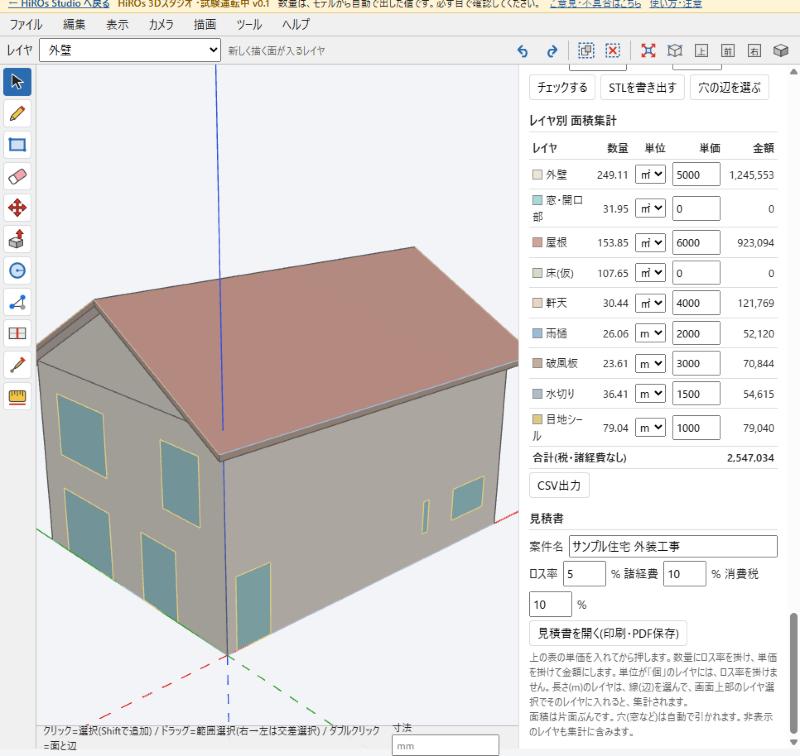
Quantity takeoff and estimates
Organize faces into layers and calculate area, length and item counts by layer. Enter unit prices, waste rates, overhead and tax to prepare an estimate for printing or PDF output.
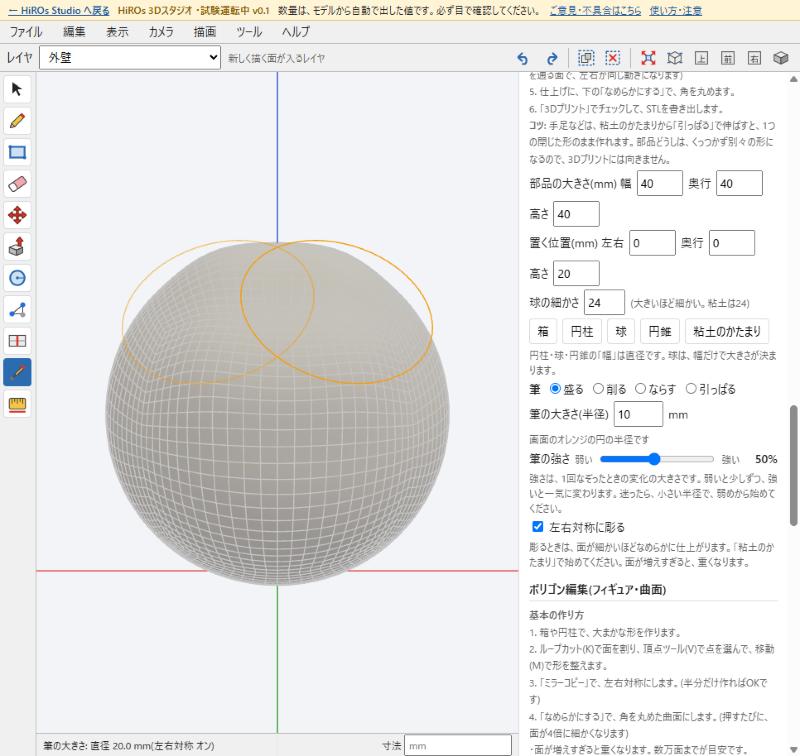
Small objects and sculpting
Start with boxes, cylinders, spheres, cones or a clay-like mesh. Sculpt by adding, removing, smoothing or pulling the surface, with optional symmetry.
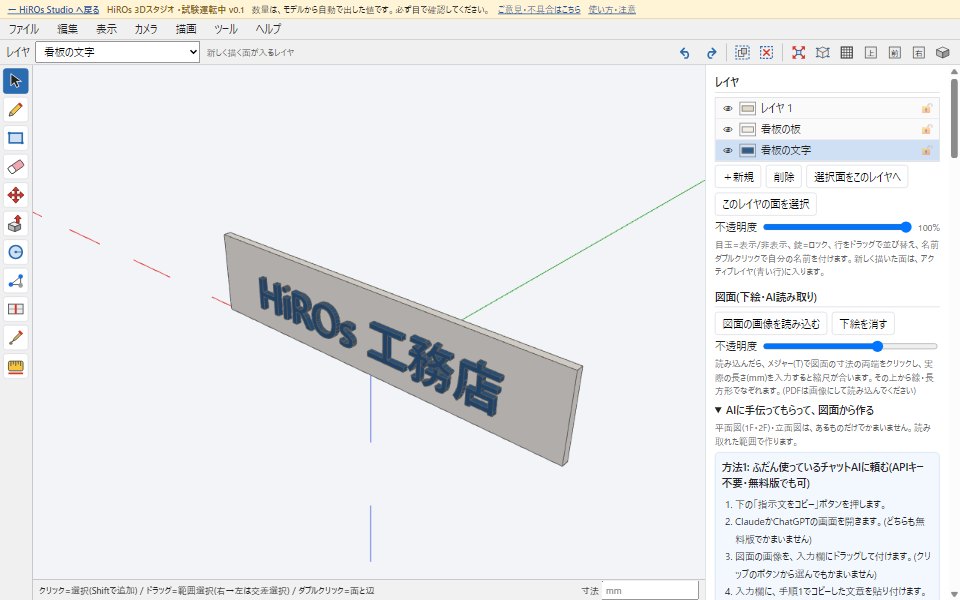
3D text (signs and nameplates)
Type text and it becomes solid letters with thickness. Stand them up for a sign, or lay them flat for a nameplate. Fonts: Gothic and Mincho, HiROs Pop (our original font), and fonts installed on your PC (Chrome and Edge). See the tutorial Make a Nameplate with 3D Text.
3D printing and data exchange
Check whether a model is closed, estimate volume and material weight, and export STL. OBJ, GLB and DXF export are also supported, together with OBJ and DXF import.
Basic workflow
- Draw a rectangle or another face on the ground plane.
- Use Push/Pull to give it height.
- Create and name layers for walls, roofs or other categories.
- Assign faces or edges to layers.
- Review area, length and count totals.
- Save the project as JSON and export the required format.
Calculated quantities depend on the model. Always verify dimensions and totals before using them for an estimate.
Related articles: Exterior Work Estimates: Taking Off Areas and Lengths from a 3D Model
Shape It Like Clay: Make a Chibi Ginger Cat
Make a Nameplate with 3D Text: Give Letters Thickness and Save an STL
Privacy and storage
Project data is automatically saved only inside your browser. Clearing browser data can remove it, so important work should also be saved as a JSON file. Models and imported drawings are not sent to the HiROs Studio server. If you voluntarily use the AI drawing-reading feature, the drawing image is sent to the AI service you choose.
Google Analytics is used in the app workspace, but model and drawing data is not included. Advertising is not displayed in the app workspace.
“SketchUp,” “Blender” and “AutoCAD” are trademarks or names belonging to their respective companies. This app is not affiliated with those companies.