Exterior Work Estimates: The Basics of Taking Off Areas and Lengths from a 3D Model
Estimating exterior work such as walls, roofs and soffits starts with taking off areas (m²) and lengths (m). Calculating from drawings with a calculator takes time and invites counting mistakes. This guide uses HiROs 3D Studio, a 3D modeler that runs in your browser, to explain the basic idea and steps of totaling quantities automatically from a model, with a real example. Nothing to install, no account needed.
Note: the 3D Studio screen is currently in Japanese only. In this guide, button names are written as "English meaning (Japanese label)".
1. The idea: count quantities per "layer"
An estimate sets quantities and unit prices for each part of the building: walls, roof, soffit, and so on. In HiROs 3D Studio, you separate these parts into layers (レイヤ). Put faces on a layer, and areas and lengths are totaled per layer automatically.
- Faces become each layer's area (m²): walls, roof, soffit, etc.
- Lines (edges) become each layer's length (m): gutters, barge boards, drip edges, sealant joints, etc.
- You can also total by the number of faces (pcs).
Layer names are up to you, so you can split the work the way your trade does.
2. Example: quantities for a two-story house
For this guide we made a simple two-story house model:
- Footprint: 9.0 m × 6.0 m (same shape on both floors)
- Story height: 2.7 m for the first floor and 2.7 m for the second
- Roof: gable. Ridge height 1.8 m, ridge parallel to the long side
- Eave overhang and rake overhang: both 600 mm
- Windows: 11 at 1.65 m × 1.1 m. Door: 1 at 0.9 m × 2.0 m
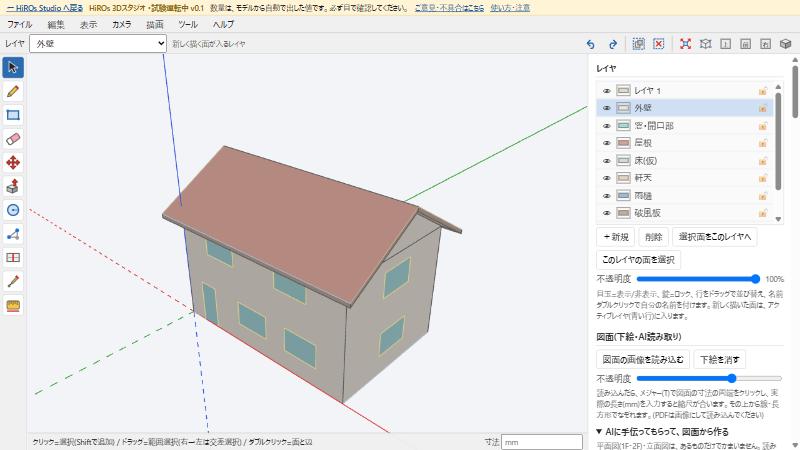
The right side of the screen shows the "area totals by layer" table. For this model:
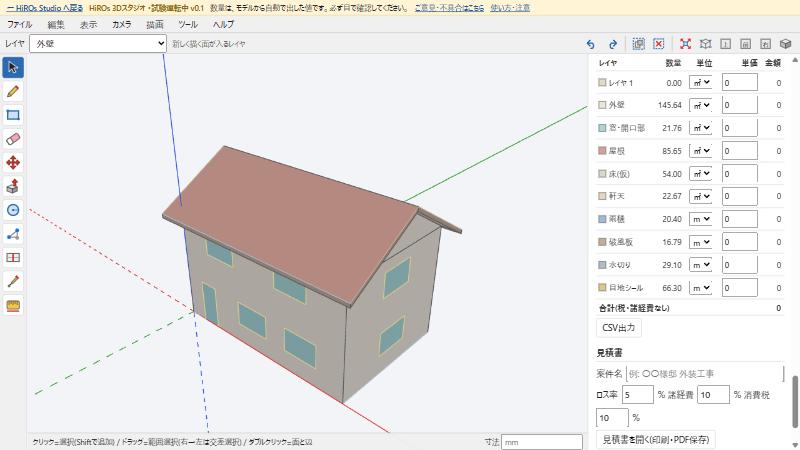
| Layer | Quantity | Unit | What is counted |
|---|---|---|---|
| Walls (外壁) | 145.64 | m² | Wall area, with window and door openings subtracted |
| Windows / openings (窓・開口部) | 21.76 | m² | Total area of windows and the door |
| Roof (屋根) | 85.65 | m² | Sloped roof area, including eave and rake overhangs |
| Soffit (軒天) | 22.67 | m² | Underside area of the eaves and rakes |
| Gutters (雨樋) | 20.40 | m | Eave length (two sides) |
| Barge boards (破風板) | 16.79 | m | Sloped rake length (four places) |
| Drip edges (水切り) | 29.10 | m | Building perimeter minus the door width |
| Sealant joints (目地シール) | 66.30 | m | Perimeter of the windows and door |
The "temporary floor (床(仮))" layer only keeps the model's shape and is not used in the estimate.
3. Check the numbers with a calculator
Always check the automatic quantities yourself. Let's check this model.
- Windows / openings: window 1.65 × 1.1 = 1.815 m² × 11 = 19.965 m², door 0.9 × 2.0 = 1.8 m². Total 21.765 m² → 21.76 ✓
- Roof: horizontal run from ridge to eave = 3.0 + 0.6 = 3.6 m. The eave edge sits 0.36 m below the top of the wall, so the slope length is √(3.6² + (1.8 + 0.36)²) ≈ 4.198 m. Length = 9.0 + 0.6 × 2 = 10.2 m. 4.198 × 10.2 × 2 faces ≈ 85.65 m² ✓
- Gutters: eave length 10.2 m × 2 sides = 20.40 m ✓
- Barge boards: rake slope ≈ 4.198 m × 4 places ≈ 16.79 m ✓
- Drip edges: perimeter (9.0 + 6.0) × 2 = 30.0 m minus the 0.9 m door = 29.10 m ✓
- Sealant joints: one window (1.65 + 1.1) × 2 = 5.5 m × 11 = 60.5 m, door 0.9 × 2 + 2.0 × 2 = 5.8 m. Total 66.30 m ✓
- Walls: eave-side walls stop at the soffit, so they are 5.22 m high. Eave sides (9.0 × 5.22) × 2 = 93.96 m², gable sides (6.0 × 5.22) × 2 = 62.64 m², plus the gable triangles (6.0 × 1.8 ÷ 2) × 2 = 10.8 m². Total 167.4 m² minus windows and door 21.765 m² ≈ 145.64 m² ✓
So you can check everything with a calculator. Before estimating, also compare with the drawings to confirm window positions, counts and sizes.
4. Steps to take off quantities yourself
- Create layers: in the Layers panel (レイヤ) on the right, click "+ New (+ 新規)" and double-click to name it (e.g. walls, roof, soffit).
- Draw shapes: draw faces with Rectangle (長方形, R) or Line (線, L). Type a number (mm) and press Enter for exact dimensions.
- Make it 3D: use Push/Pull (プッシュ/プル, P) to push or pull faces and build heights.
- Assign layers: select faces and choose a layer in the layer selector at the top. New drawings go to the currently selected layer.
- Open windows and doors: draw a window shape on a wall and it becomes a hole, automatically subtracted from the wall area.
- Check quantities: see each layer's quantity in the area totals table on the right. Choose area, length or count under "Unit (単位)".
- Enter unit prices: type them in the "Unit price (単価)" column to get amounts and the total.
You can also build a rough model from a drawing image (optional). See HiROs 3D Studio for details. AI reading can make mistakes, so always compare the model with the drawings.
5. Turn it into an estimate and save
Under the table, in the estimate section (見積書), enter:
- Project name (e.g. "Smith residence exterior work")
- Waste rate: the percentage added for offcuts and waste
- Overhead (%) and tax (%)
Click "Open estimate (print / save as PDF)" (見積書を開く) to open the estimate, then print it or save it as a PDF. To use only the quantity table in a spreadsheet, use "CSV export" (CSV出力).
6. Cautions for real estimates
- Quantities are values calculated automatically from the model. If the model differs from the real building, so will the quantities. Always check them yourself.
- Build the model to the drawing dimensions as closely as possible. A rough model only gives rough quantities.
- Material overlaps, trims and corner pieces are not counted unless they are in the model. Allow for them separately.
- Your data is saved only in your browser. Save important models to a file with "File → Save (JSON)" (ファイル → 保存(JSON)).
HiROs 3D Studio is in a trial phase. Please send feedback and bug reports through the feedback form.