Make a Nameplate with 3D Text: Give Letters Thickness and Save an STL for 3D Printing (Free)
With the 3D text feature of HiROs 3D Studio, the text you type becomes a solid with thickness. In this tutorial you open a practice file (a nameplate board), place your name on it, and save it as an STL for 3D printing, step by step. At the end, you will also see how to stand the letters up to make a sign.
It assumes a computer browser and a mouse. All the values are in tables, so you get the same result just by entering the numbers.
Note: the 3D Studio screen is currently in Japanese only. Button names are written as "English meaning (Japanese label)".
Practice files
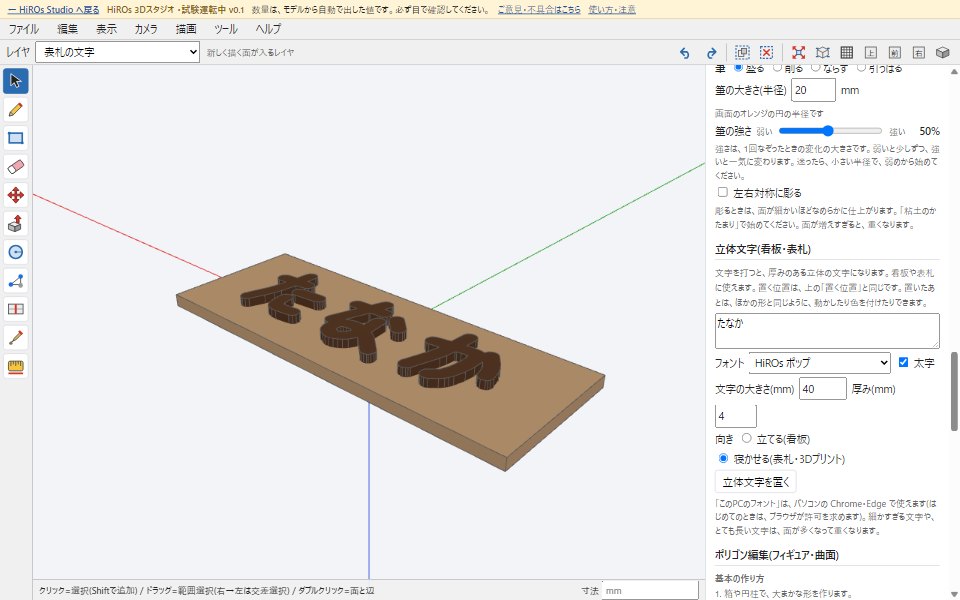
This tutorial uses a practice file. It contains only the nameplate board (160 wide × 60 deep × 5 mm thick).
Download the practice file (3d-text-practice.json)
There is also a finished sample. If something doesn't work, open it and compare.
Download the finished sample (3d-text-sample.json)
1. Open the practice file
- Open HiROs 3D Studio.
- From the menu, choose File (ファイル) → Open (開く (JSON / OBJ / DXF / SketchUp書き出し)…) and select the downloaded 3d-text-practice.json.
- A wood-colored board appears.
Opening a file replaces the model on the screen. If you want to keep your current model, save it first with File (ファイル) → Save (保存(JSON)).
2. Enter the text and the sizes
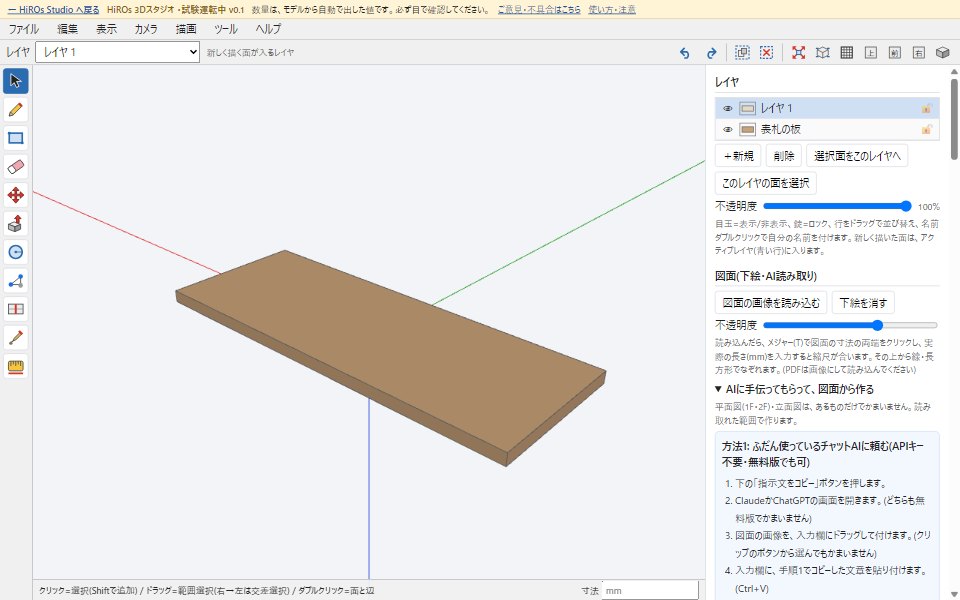
Scroll down the right panel and enter the values below in the Parts and sculpting (工作物・フィギュア) and 3D text (立体文字(看板・表札)) sections.
| Section | Item | Value |
|---|---|---|
| 3D text | Text | たなか (you can use your own name) |
| 3D text | Font (フォント) | HiROs ポップ (HiROs Pop) |
| 3D text | Bold (太字) | Checked |
| 3D text | Text size (文字の大きさ, mm) | 40 |
| 3D text | Thickness (厚み, mm) | 4 |
| 3D text | Direction (向き) | Lay flat (寝かせる) |
| Parts | Position (置く位置, mm) | Left-right (左右) 0, depth (奥行) 0, height (高さ) 4.5 |
| Parts | Make a group (グループにする) / Make a layer (レイヤも作る) | Both checked |
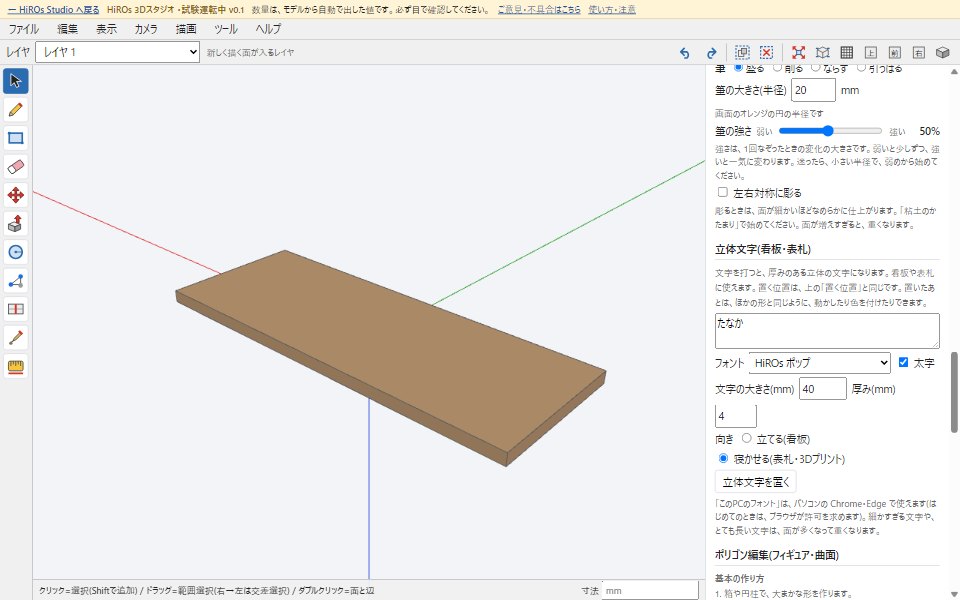
- Text size is the size of one character (the font size). Three Japanese characters make about 120 mm in width. Use a smaller size for longer names.
- The height of the position is the height of the bottom of the letters. Setting it 0.5 mm below the top of the board (5 mm) sinks the letters slightly into the board, so they stick firmly to the board when printed.
- Laid flat, the text reads correctly from above. Left-right 0 and depth 0 are the center of the board.
3. Place it and color it
- Click Place 3D text (立体文字を置く). After a moment, the letters appear on the board.
- The letters become the group and the layer "立体文字 1". Double-click the name in the layer panel at the top right to rename it.
- Click the color square of the layer to choose a color (dark brown #5b3a24 in the sample).
You can move the letters with the Move tool (M), like any other shape. To try again, press Ctrl+Z to go back, change the numbers, and place it again.
4. Check for 3D printing and export the STL
- Scroll the right panel to 3D printing (3Dプリント(小物・家具)).
- Click Check (チェックする). If it says "穴のない閉じた立体です" (a closed solid with no holes), it is ready to print.
- Click Export STL (STLを書き出す) to save an STL file. Open it in your 3D printer software (slicer).
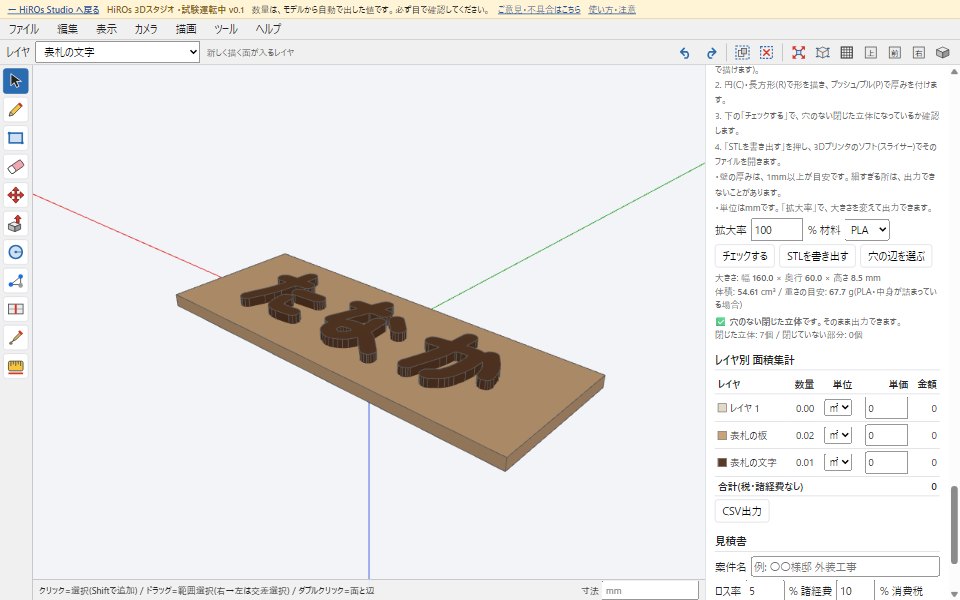
- Several "closed solids" are listed because the board and each letter are separate solids. Since the letters sink slightly into the board, most slicers merge the overlapping parts when printing.
- The unit is mm. To print at a different size, change the scale (拡大率).
5. Going further: stand the letters up to make a sign
Set the direction to Stand (立てる(看板)) and the letters stand facing the front. Let's place letters in front of a sign board. To start over, empty the model with File (ファイル) → New (新規).
| What | Values |
|---|---|
| Sign board (Box (箱) button) | Size: width 1500, depth 30, height 320 Position: left-right 0, depth 0, height 160 |
| Letters (Place 3D text) | Text: HiROs 工務店, font: Gothic (ゴシック), size 180, thickness 20, direction: Stand Position: left-right 0, depth -25, height 70 |
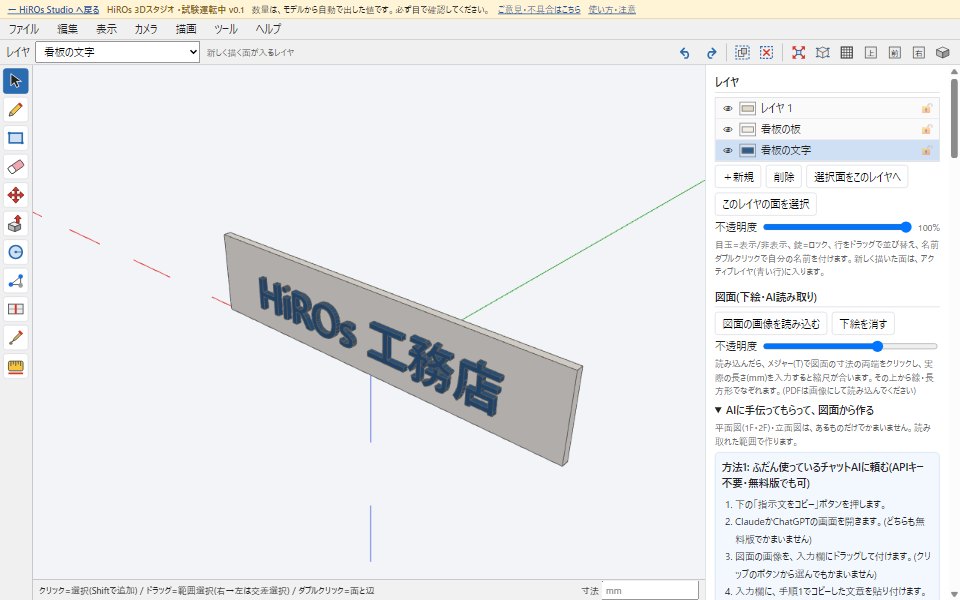
- When standing, the depth of the position is the middle of the letters' thickness. Minus is toward you. The front of the board is 15 mm toward you and half the thickness of the letters is 10 mm, so -25 puts the back of the letters right on the front of the board.
- When standing, the height of the position is the height of the bottom of the letters.
About fonts
- Gothic / Mincho (ゴシック・明朝): the standard fonts on your computer.
- HiROs Pop (HiROs ポップ): HiROs Studio's original font, round, bold and bouncy. It is downloaded when you choose it, so you need an internet connection.
- Fonts on this PC: choose "このPCのフォントを読み込む…" (load fonts from this PC) to list the fonts installed on your computer. It works in Chrome and Edge on a computer; the browser asks for permission the first time. In other browsers, choose "フォント名を入力…" (enter font name) and type the name.
Each font has its own license terms. If you use one for a shop sign or a product, check that font's license. HiROs Pop is free to use for signs and products too (SIL Open Font License).
Troubleshooting
- The letters float above the board, or sink too deep: check the height of the position. When laying flat, use a value slightly smaller than the height of the top of the board.
- It gets slow: small detailed text or long sentences make many faces. Place the text in several parts, or make the letters bigger.
- The chosen font is not used: characters that the font doesn't have are made in Gothic. For fonts on your PC, a wrong font name also falls back to Gothic.
- "フォントを読み込めませんでした" (could not load the font): HiROs Pop needs an internet connection.
FAQ
Is the text one solid?
Each unconnected part is a separate solid. They are grouped, so you can move them together.
Does it cost anything?
No. It is free, and no sign-up is needed. You are free to use the models and STL files you make.
Can I use it on a smartphone?
The right panel is hard to use on a small screen. We recommend a computer.
Make 3D text in HiROs 3D Studio →
To learn how to build shapes with parts and sculpting, see Shape It Like Clay. For a full introduction to the app, see HiROs 3D Studio.