Shape It Like Clay: Make a Chibi Ginger Cat with Parts and Sculpting
HiROs 3D Studio has a sculpting feature that shapes models the way you'd shape clay with your fingers: add, carve, smooth and pull. This guide shows the workflow of building a shape from parts and finishing it with sculpting, step by step, using a chibi ginger cat as the example.
It assumes a computer browser and a mouse. All part sizes and positions are in a table, so you get the same shape just by entering the numbers.
Note: the 3D Studio screen is currently in Japanese only. Button names are written as "English meaning (Japanese label)", and the layer names in the screenshots are in Japanese.
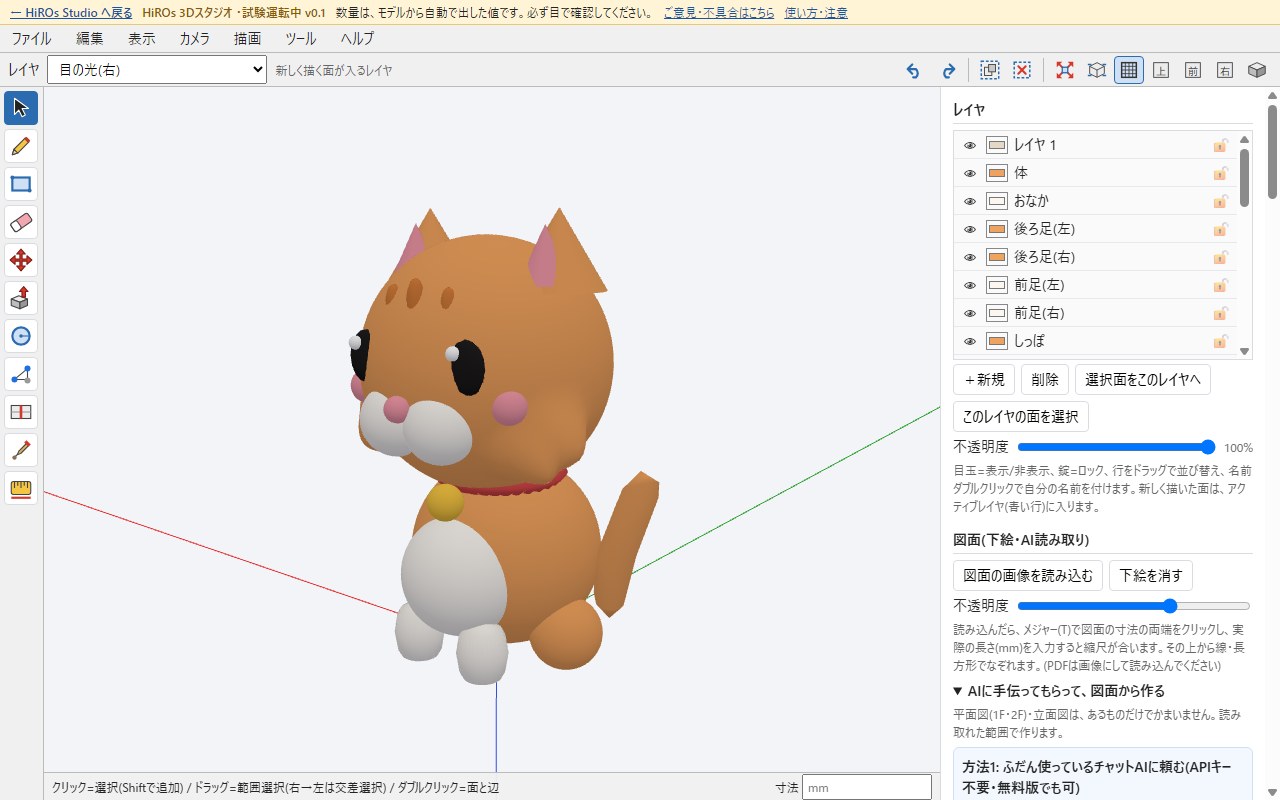
1. The overall workflow
- Place parts: place spheres, cylinders, cones and boxes one by one. Each part automatically becomes a group and a layer.
- Finish with sculpting: enter a part and use "pull" to shape cheek fur and the tail.
- Make it easy to see: hide parts you don't need with the layer eye icon, and toggle the mesh lines with a single shortcut.
2. Place the parts
Open the app and scroll the right panel to "Objects and figures (parts and sculpting)" (工作物・フィギュア(部品とスカルプト)).
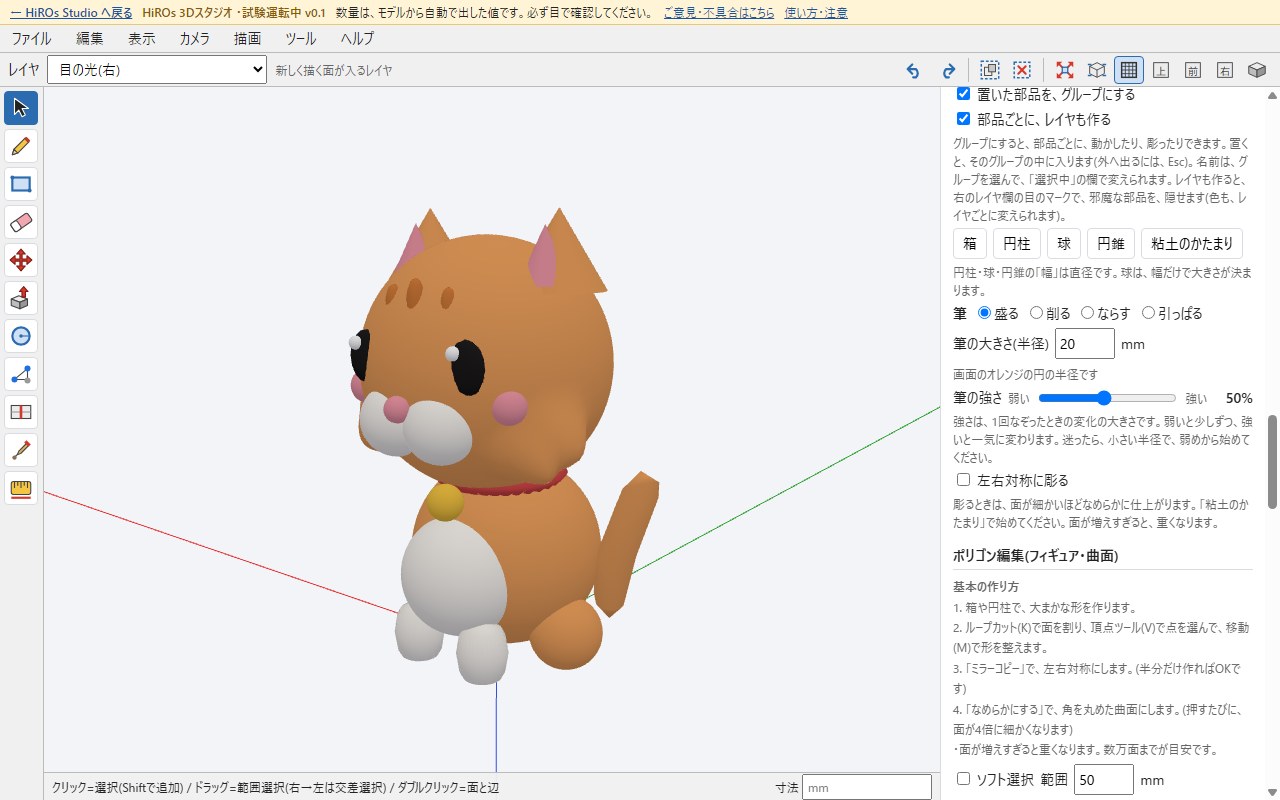
- Enter the width, depth and height under "Part size (mm)" (部品の大きさ) and left-right, depth and height under "Position (mm)" (置く位置), using the table.
- Click the button shown in the "Button" column.
- The placed part becomes a group and a layer, and you are inside it. Double-click the name in the layer list at the top right to rename it, and set the layer color from the table.
- For parts with a subdivision count of 1 or more, click "Smooth (subdivide)" (なめらかにする(細分化)) under "Polygon editing" (ポリゴン編集) that many times, then press Esc to clear the selection.
- For "Depth" in the position, plus is back and minus is front. The cat faces the front (minus side).
- "Clay lump" (粘土のかたまり) and "Sphere" (球) are spheres sized by the width only; depth and height are ignored.
- For long or flat shapes, place a box and subdivide twice. The corners round off into an oval-like shape.
| Name | Button | Size (W×D×H) | Position (L-R, depth, height) | Subdivide | Color |
|---|---|---|---|---|---|
| Body | Clay lump | 24 | 0, 2, 13 | 0 | Ginger #f0a35e |
| Belly | Clay lump | 15 | 0, -6.5, 12 | 0 | White #fbf7f0 |
| Hind legs (L/R) | Clay lump | 9 | ±10, 1, 4.5 | 0 | Ginger #f0a35e |
| Front legs (L/R) | Cylinder | 6.2×6.2×8 | ±5, -9, 4 | 1 | White #fbf7f0 |
| Tail | Cylinder | 4.6×4.6×15 | 12.5, 7, 12.5 | 1 | Ginger #f0a35e |
| Collar | Cylinder | 17×17×4 | 0, 0.5, 23.4 | 1 | Red #d94a4a |
| Bell | Clay lump | 4.4 | 0, -9.6, 21.6 | 0 | Yellow #f5c542 |
| Head | Clay lump | 30 | 0, -2, 37 | 0 | Ginger #f0a35e |
| Ears (L/R) | Cone | 11×11×9 | ±9.5, -1, 50.5 | 0 | Ginger #f0a35e |
| Inner ears (L/R) | Cone | 6×6×6.5 | ±9.5, -3.6, 50 | 0 | Pink #f29aa8 |
| Stripe (center) | Box | 2.2×2.4×6 | 0, -14, 45 | 2 | Dark ginger #d9803a |
| Stripes (L/R) | Box | 2×2.4×5 | ±4, -13.2, 44.6 | 2 | Dark ginger #d9803a |
| Blush (L/R) | Clay lump | 4.2 | ±10.5, -11.2, 34.5 | 0 | Pink #f29aa8 |
| Muzzle (L/R) | Clay lump | 8.5 | ±3.3, -13.8, 31.8 | 0 | White #fbf7f0 |
| Nose | Clay lump | 3 | 0, -17.2, 33.8 | 0 | Pink #f29aa8 |
| Eyes (L/R) | Box | 5.6×2.8×7 | ±7.2, -14.4, 38.6 | 2 | Black #1d1b1b |
| Eye highlight (L) | Clay lump | 1.6 | -7.9, -15.5, 40.2 | 0 | White #ffffff |
| Eye highlight (R) | Clay lump | 1.6 | 6.5, -15.5, 40.2 | 0 | White #ffffff |
(For "±" parts, place two: one with the minus value and one with the plus value. Placing both eye highlights at the upper left of each eye makes the light look like it comes from the same direction.)
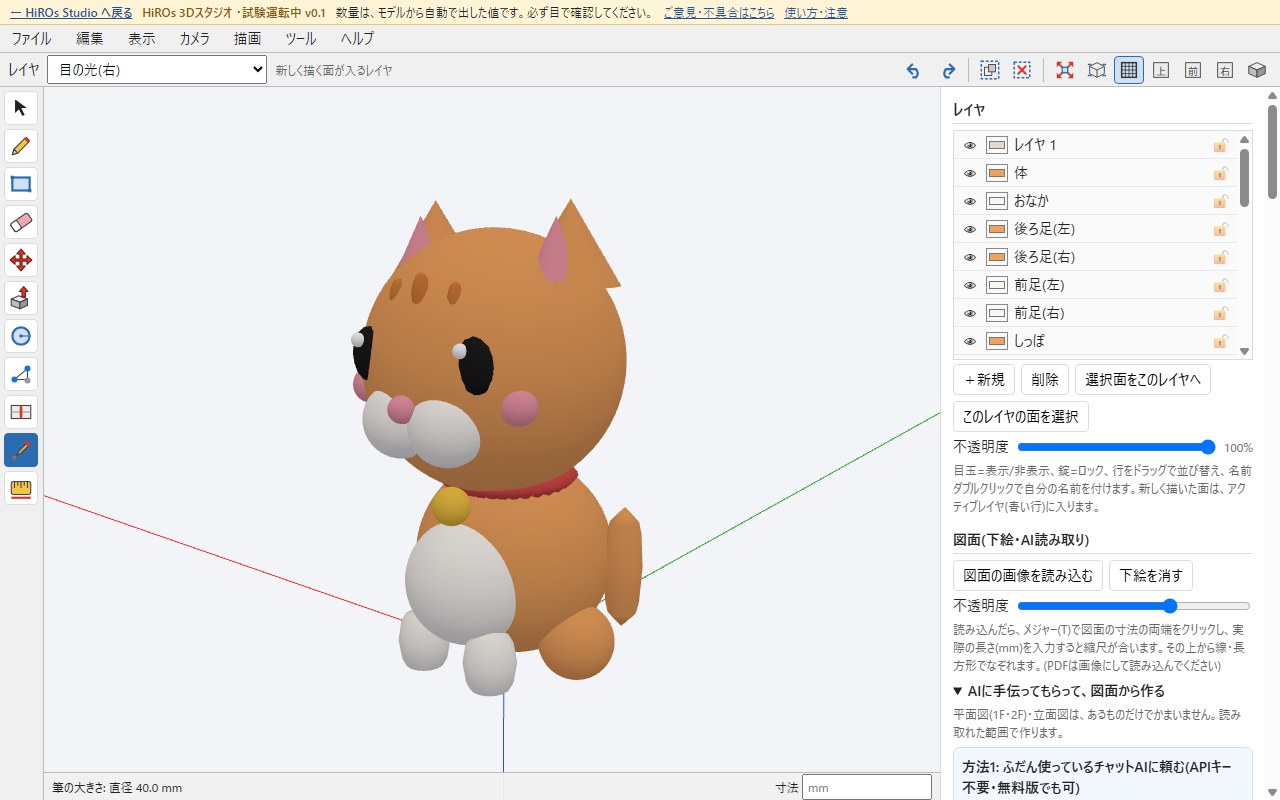
3. Finish with sculpting
Now for sculpting: add expression by hand to the shape made of parts.
Enter a part
- With the arrow (Select tool) in the toolbar, double-click the part you want to shape. You are now "inside" that part's group.
- Switch to the brush with the brush icon in the toolbar or the B key.
- In the brush settings on the right, choose the action (add, carve, smooth, pull), the size (radius) and the strength.
- When you're done, press Esc to leave the group.
Inside a group, only that part moves. Pulling the head doesn't move the eyes or muzzle. This is the biggest benefit of placing parts separately.
| Action | What it does |
|---|---|
| Add (盛る) | Bulges the surface outward. |
| Carve (削る) | Pushes the surface inward. |
| Smooth (ならす) | Smooths out bumps. |
| Pull (引っぱる) | Pulls the shape in the direction you drag. |
The orange circle on the screen shows the brush size (radius). Pulling is easier with the camera facing front (the "前" button in the toolbar).
Try it (1): pull out cheek fur
- Face the camera to the front and double-click "Head" to enter it.
- Set the brush to Pull, radius 6 mm, strength 50%.
- From the lower right edge of the head (next to the muzzle), drag a short distance outward and slightly down.
- Just below that, pull again the same way with radius 5 mm. The two steps look like a tuft of fur.
- Do the same on the left side.
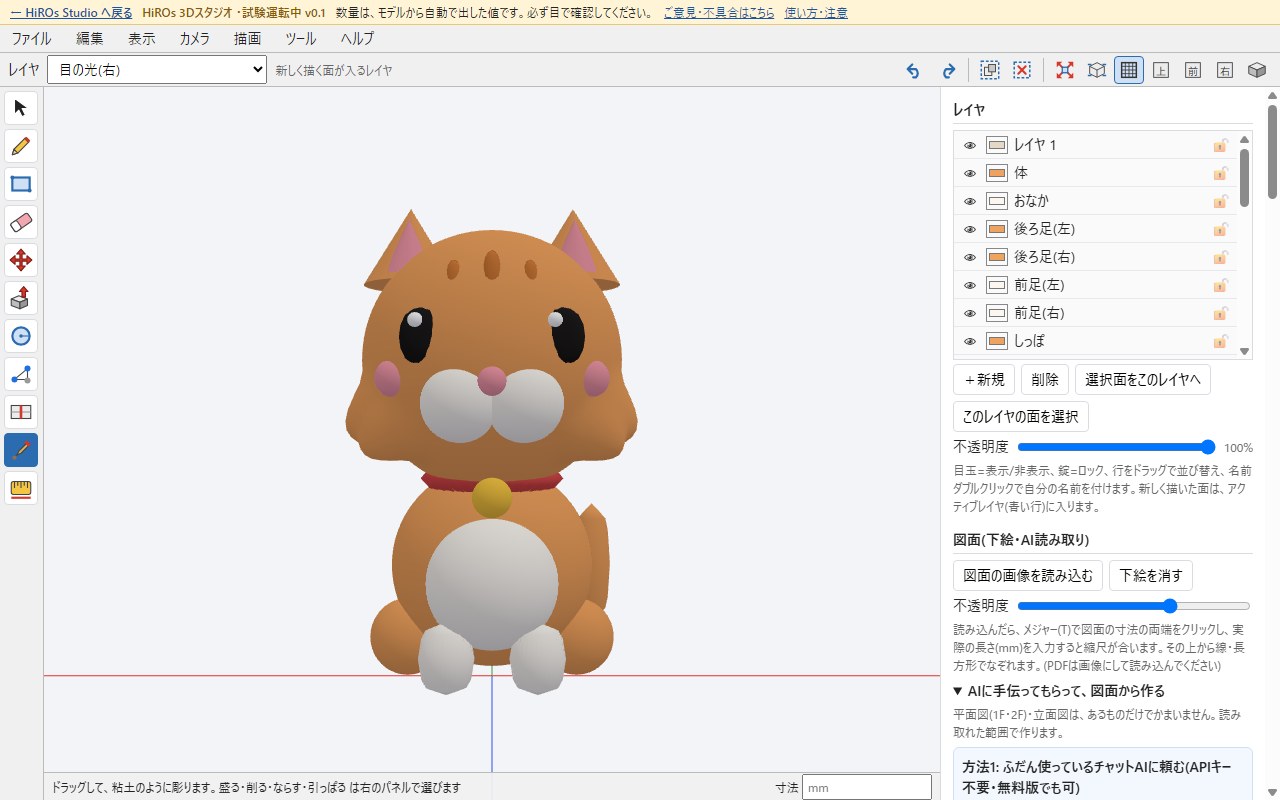
The amount pulled depends on how far you drag. Long drags make it too pointy, so keep them short. Press Ctrl+Z if you overdo it.
Try it (2): raise the tail
- Press Esc to leave the head, then double-click "Tail" to enter it.
- Set the brush to Pull, radius 8 mm, strength 50%.
- Drag from the tip of the tail outward and up. Only the tip moves, and the tail rises.
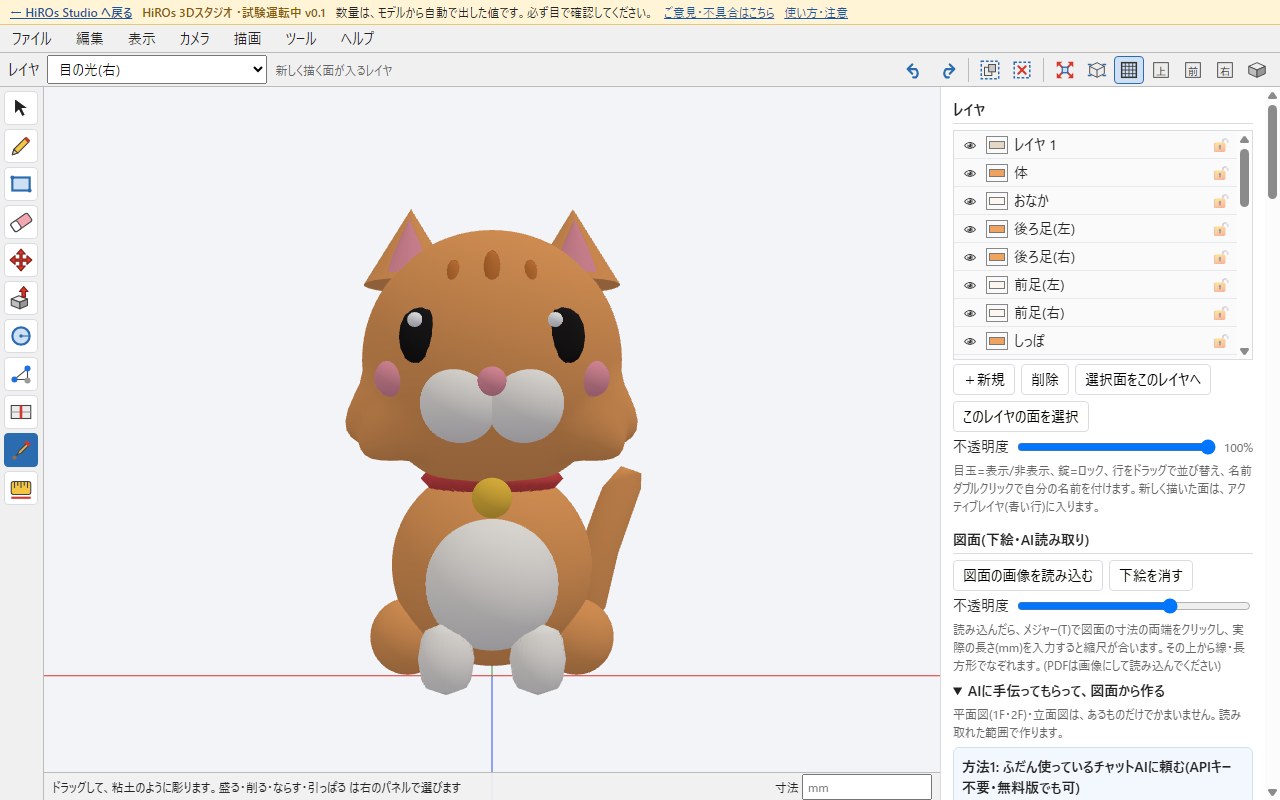
- To shape both sides at once, tick "Sculpt symmetrically" (左右対称に彫る) in the brush settings.
- The finer the faces, the smoother the result. Too many faces slow things down; tens of thousands is a good upper limit.
4. Make it easy to see: hide layers, hide the mesh
Hide parts that get in the way
Click the eye icon in the layer list at the top right to hide a part. Click again to show it. For example, hiding the collar and bell lets you check the neck shape.

Show or hide the mesh
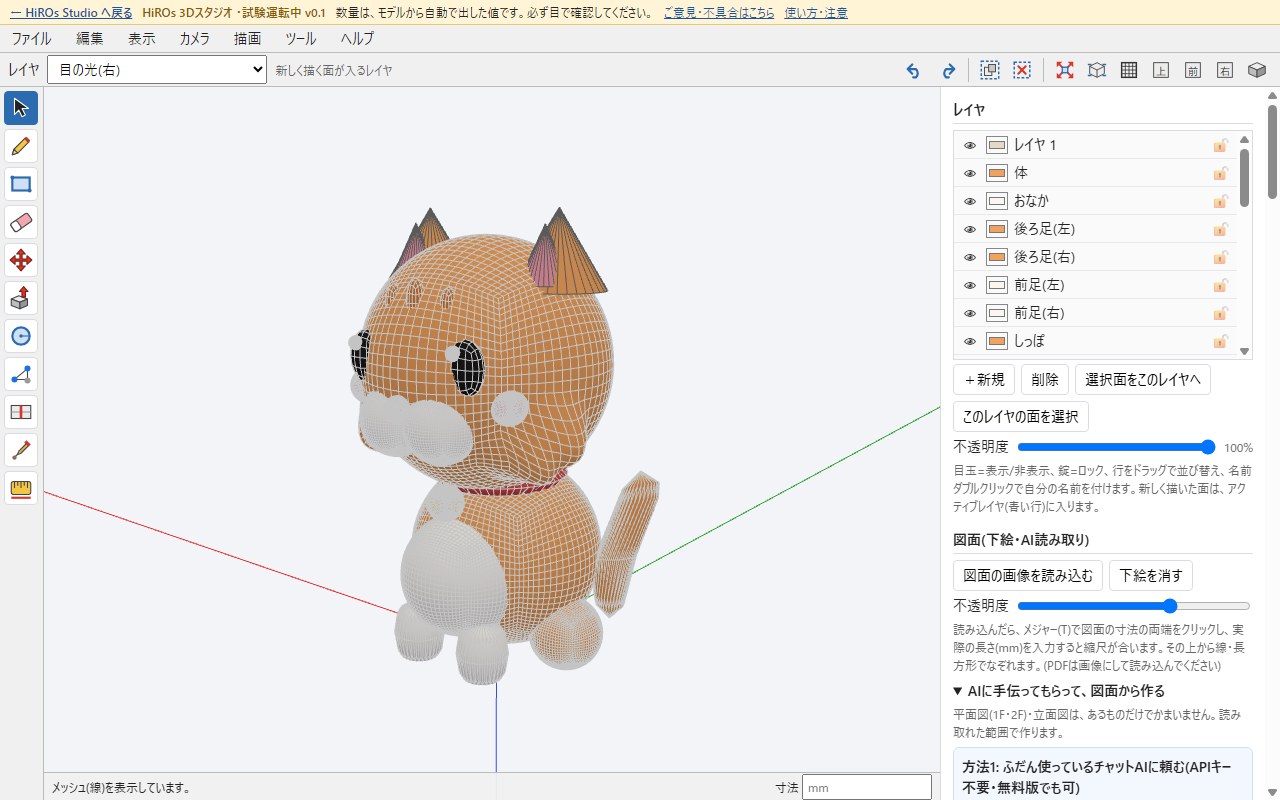
The screen shows the lines between faces (the mesh). They're useful while shaping but get in the way when you look at the result. Press Ctrl+Shift+M, or use "View → Show/hide mesh (lines)" (表示 → メッシュ(線)の表示/非表示), to toggle them.
5. Saving, and notes for 3D printing
- Save: "File → Save (JSON)" (ファイル → 保存(JSON)) saves a file you can continue from. Your data is kept only in your browser, so always save important work to a file.
- 3D printing: "3D print check" (3Dプリントのチェック) in the right panel finds open areas and other problems. Parts don't fuse together; they stay separate shapes. For 3D printing, print each part separately and glue them together. Very small parts such as eye highlights and the nose may not print.
- Colors are not stored in STL. To keep colors, export OBJ or GLB.
6. Tips
- Place big parts first: body → head → face parts makes positioning easier.
- Let face parts stick out just a little from the head: bury them too deep and they vanish; float them and they look stuck on. If you can't see one, move its depth slightly toward minus.
- Pull gently and briefly: big pulls tend to make pointy shapes.
- Name your parts: you'll find them quickly in the layer list as they grow in number.
7. Before you start
- HiROs 3D Studio is in a trial phase. There may be bugs and missing features.
- The 3D print check is a guide only. Also check with your slicer before printing.
- On smartphones and tablets, the middle and right mouse buttons aren't available, so some operations may be difficult.
For an overview of the app, see HiROs 3D Studio. For estimating buildings, see Exterior Work Estimates: Taking Off Areas and Lengths from a 3D Model.