Map Stitch (Trial): Join Japan's official maps into one large, detailed image
Map Stitch by HiROs Studio is a free map app that needs no installation and no sign-up. It joins the maps of the Geospatial Information Authority of Japan (GSI) into one large image of a wide area, detailed enough to see the shapes of buildings, which you can save or print. You can also search by address and add pins, lines and text. Maps cover Japan only.
This app is in trial. There may be bugs or missing features. Please send feedback or bug reports through the contact page.
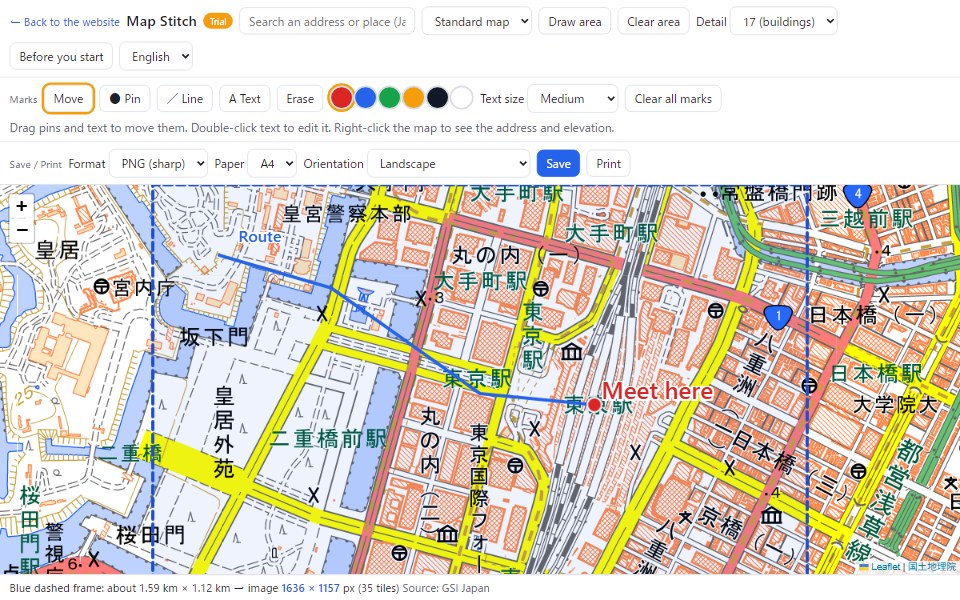
Features
| Feature | Details |
|---|---|
| A wide area in one image | Saves the visible area, or an area you draw by dragging, as one image detailed enough to see building shapes. |
| Map types | Standard map, pale map or aerial photo. |
| Address search | Search by address, block number or place name and jump there. When you search down to a block number, an orange marker shows the spot. |
| Red dotted outline | When you search a town, chome or city, its area is outlined with a red dotted line. The outline is included in saved and printed maps. |
| Parks, places and intersections | "Search parks, places and intersections by name" at the bottom of the suggestions also finds parks, stations and named intersections (OpenStreetMap). Parks are outlined in red. |
| Drawing | Add pins, lines and text in six colors. Drag pins and text to move them; double-click text to edit it. |
| Place information | Right-click the map to see the address (town/district), elevation and latitude/longitude, and copy them. |
| Save | PNG (sharp), JPG (small) or PDF. |
| Print on A4 or A3, portrait or landscape. | |
| Source and scale | Saved and printed maps include the source (GSI), the date and a scale bar at the bottom. |
How to save a wide area as one image
- Move the map to the place you want. You can also search by address in the box at the top left.
- To save the visible area, just go ahead. To save part of it, press Draw area and drag on the map.
- Choose the Detail level (see "Choosing the detail level" below).
- Choose PNG, JPG or PDF under Format and press Save. Progress appears at the bottom while the map loads.
To fit a sheet of paper, choose the Paper and Orientation. With Portrait or Landscape, a frame of the same shape as the paper (blue dashed line) appears inside the area, and the inside of the frame is saved. To include more, zoom the map out a little before saving; the Detail level does not change when you zoom.
Choosing the detail level
The detail level decides how finely (how large) the same place is drawn in the saved image. Each step up doubles the width and height of the map.
| Detail | One pixel is about | Image of the same area | Good for |
|---|---|---|---|
| 16 | 2 m | 1× | A whole town, wide areas around a station |
| 17 | 1 m | 2× wider and taller | Building shapes; a neighborhood map |
| 18 | 50 cm | 4× wider and taller | A few houses or blocks, large and sharp |
Why the difference is hard to see: the map on screen is redrawn automatically as you zoom, so it looks about the same. The difference appears when you zoom into the saved image or print it. An image saved at 16 looks blurry when enlarged, while 18 stays sharp.
Rule of thumb:
- A neighborhood map (a few hundred meters) on A4 → 17
- A few blocks around a house, printed large → 18
- A whole town on one sheet → 16
At 18 the image is larger, so the area you can save at once is smaller. If it is too large, a red message appears at the bottom.
How to search by address
- Type an address in the box at the top left (for example: 東京都千代田区丸の内1-9).
- Press one of the suggestions. The map zooms in and shows an orange marker with the address.
- The marker disappears when you click the map or close the bubble. It is not included in saved images.
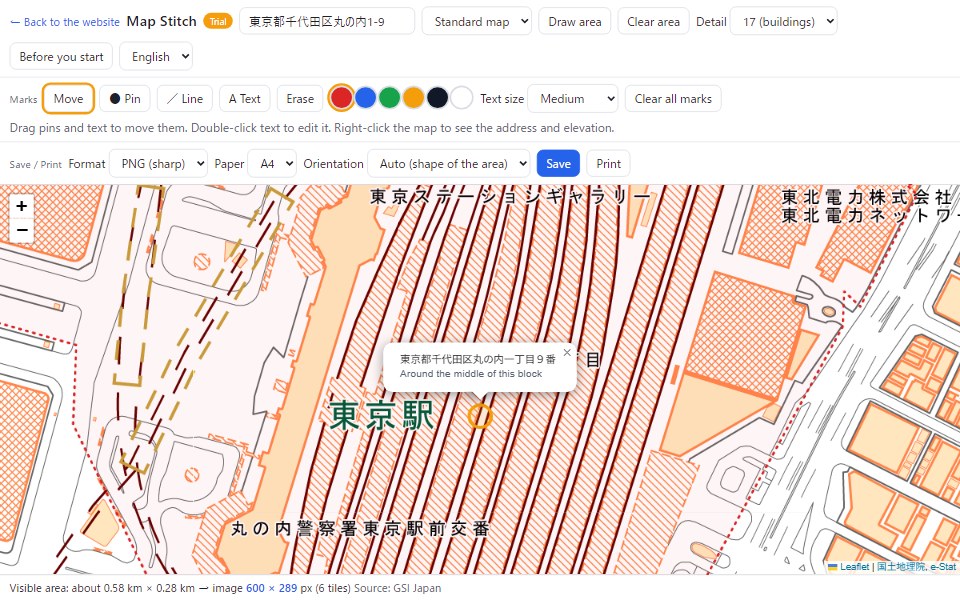
Search can match down to the block number (ban); the marker appears around the middle of the block. It cannot find a single building number (go). Addresses are searched in Japanese.
Red dotted outline of towns and cities
When you search a town, chome or city, its area is outlined with a red dotted line and the map zooms to show all of it. When you search down to a block number, the town is outlined and the map zooms in on the spot. The outline is included in saved and printed maps.
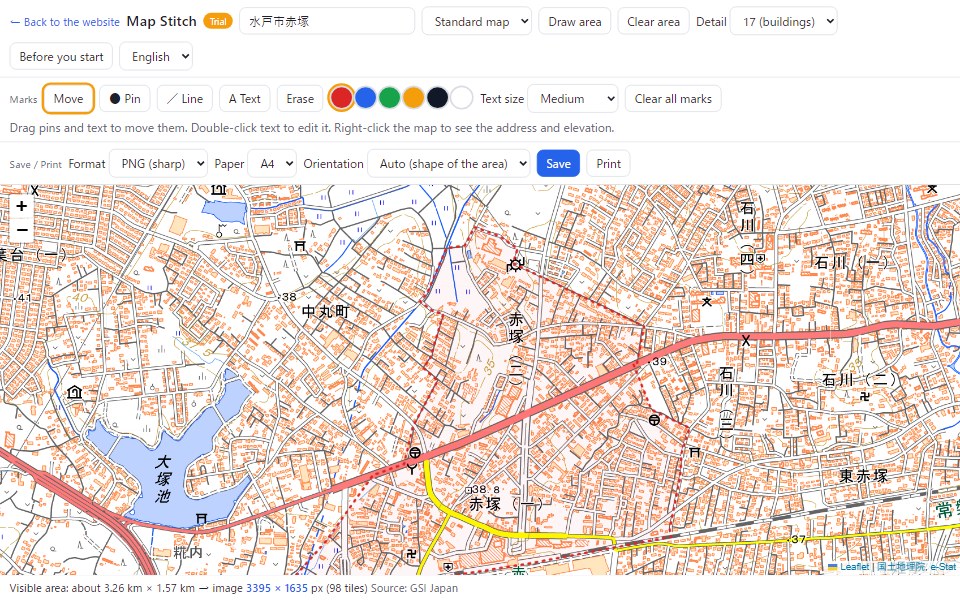
The outline is based on town and chome boundary data from e-Stat (Japan's official statistics portal). It may differ slightly from the actual boundary.
Search parks, places and intersections by name
For parks that GSI search cannot find, or named intersections with traffic signals (for example, 数寄屋橋), press "Search parks, places and intersections by name" at the bottom of the suggestions. It searches OpenStreetMap and labels results as Park, Signal, Intersection, Station and so on. Parks are outlined in red.
OpenStreetMap is a map built by people around the world. Places that have not been added cannot be found.
How to add pins, lines and text
- Choose ● Pin and click the map to place a pin.
- Choose / Line and click to add points. Double-click or press Enter to finish.
- Choose A Text and click to enter text. Choose Small, Medium, Large or Extra large.
- Choose from six colors. Choose Erase and click a mark to remove it.
- Choose Move to pan the map again. Drag pins and text to move them; double-click text to edit it.
Your marks are stored in your browser and remain when you open the app again.
Right-click for the address and elevation
Right-click the map to see the address, elevation and latitude/longitude of that spot. You can also copy the address or coordinates, or place a pin there.
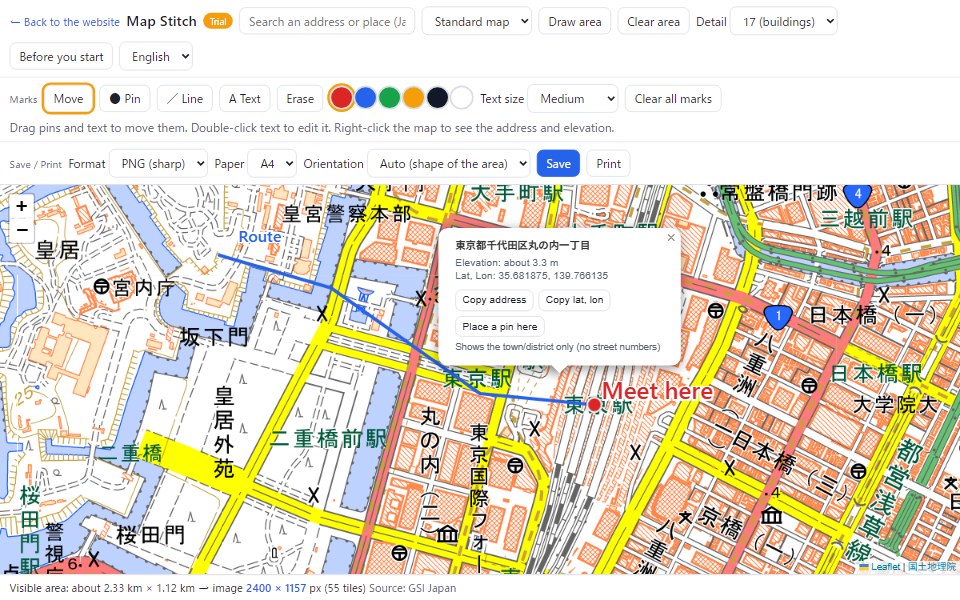
The address shown by right-clicking goes down to the town/district only, without block numbers.
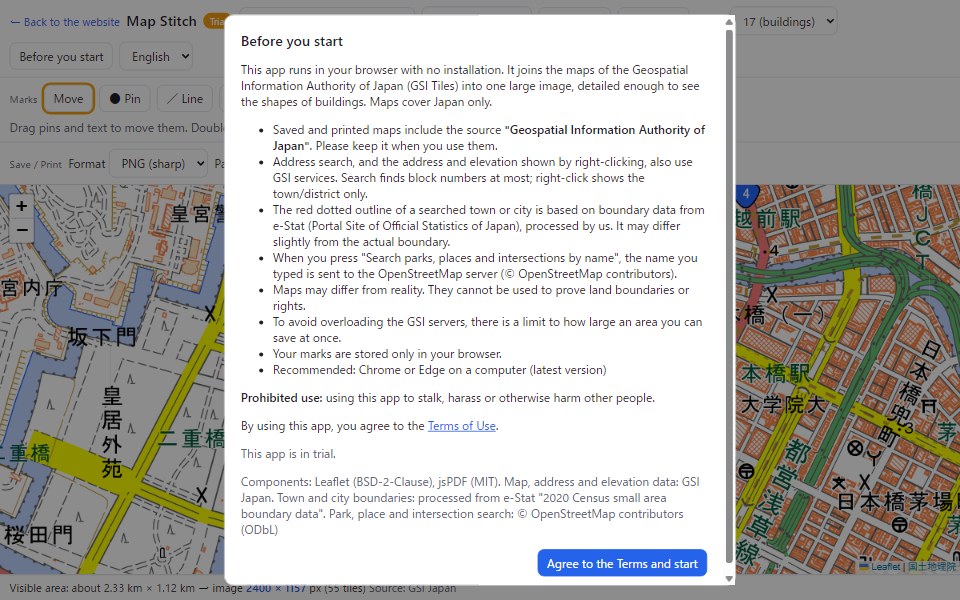
Before you start (important)
This app runs in your browser with no installation. The map, address and elevation data come from GSI services.
- Saved and printed maps include the source "Geospatial Information Authority of Japan". Please keep it when you use them.
- Maps may differ from reality. They cannot be used to prove land boundaries or rights.
- To avoid overloading the GSI servers, there is a limit to how large an area you can save at once.
- Maps cover Japan only.
- Recommended: Chrome or Edge on a computer (latest version)
Prohibited use
Using this app to stalk, harass or otherwise harm other people is prohibited.
You must agree to the Terms of Use to use this app.
FAQ
Is it free?
Yes. No sign-up is needed.
Can I use Google Maps?
No. This app uses GSI maps, which may be used freely as long as the source is credited.
Does it show street numbers?
Address search can match down to the block number. Right-click shows the town/district only.
A park or intersection name is not found
Press "Search parks, places and intersections by name" at the bottom of the suggestions. If it is still not found, the place has not been added to OpenStreetMap yet. Try its address or a nearby station.
Can I use saved maps in documents or flyers?
GSI maps can be used with the source credited (the source is added automatically at the bottom of saved images). Rules may differ if you modify the map, for example. Be sure to check the GSI Tiles terms of use before using them.
What components does it use?
Leaflet (BSD-2-Clause) and jsPDF (MIT). The map, address and elevation data are provided by GSI. Town and city boundaries are processed from e-Stat's "2020 Census small area (town/chome) boundary data". Searching parks, places and intersections by name uses OpenStreetMap (© OpenStreetMap contributors, ODbL).
See also Image Print for printing photos and the Web Photo Editor for editing photos.